User’s Manual of WGSW-28040 / 28040P
23
■ ResetButton
At the left of front panel, the reset button is designed for reboot the Managed Switch without turn off and on the power. The
following is the summary table of Reset button functions:
Reset Button Pressed and Released Function
< 5 sec: System reboot Reboot the Managed Switch
> 5 sec: Factory Default
Reset the Managed Switch to Factory Default configuration.
The Managed Switch will then reboot and load the default
settings as below:
。 Default Username: admin
。 Default Password: admin
。 Default IP address: 192.168.0.100
。 Subnet mask: 255.255.255.0
。 Default Gateway: 192.168.0.254
2.1.2 LED Indications
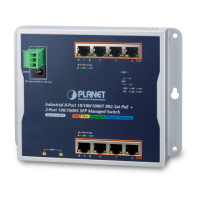
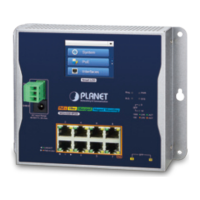
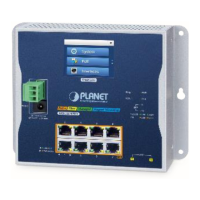
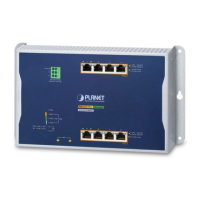
The front panel LEDs indicates instant status of port links, data activity and system power; helps monitor and troubleshoot when
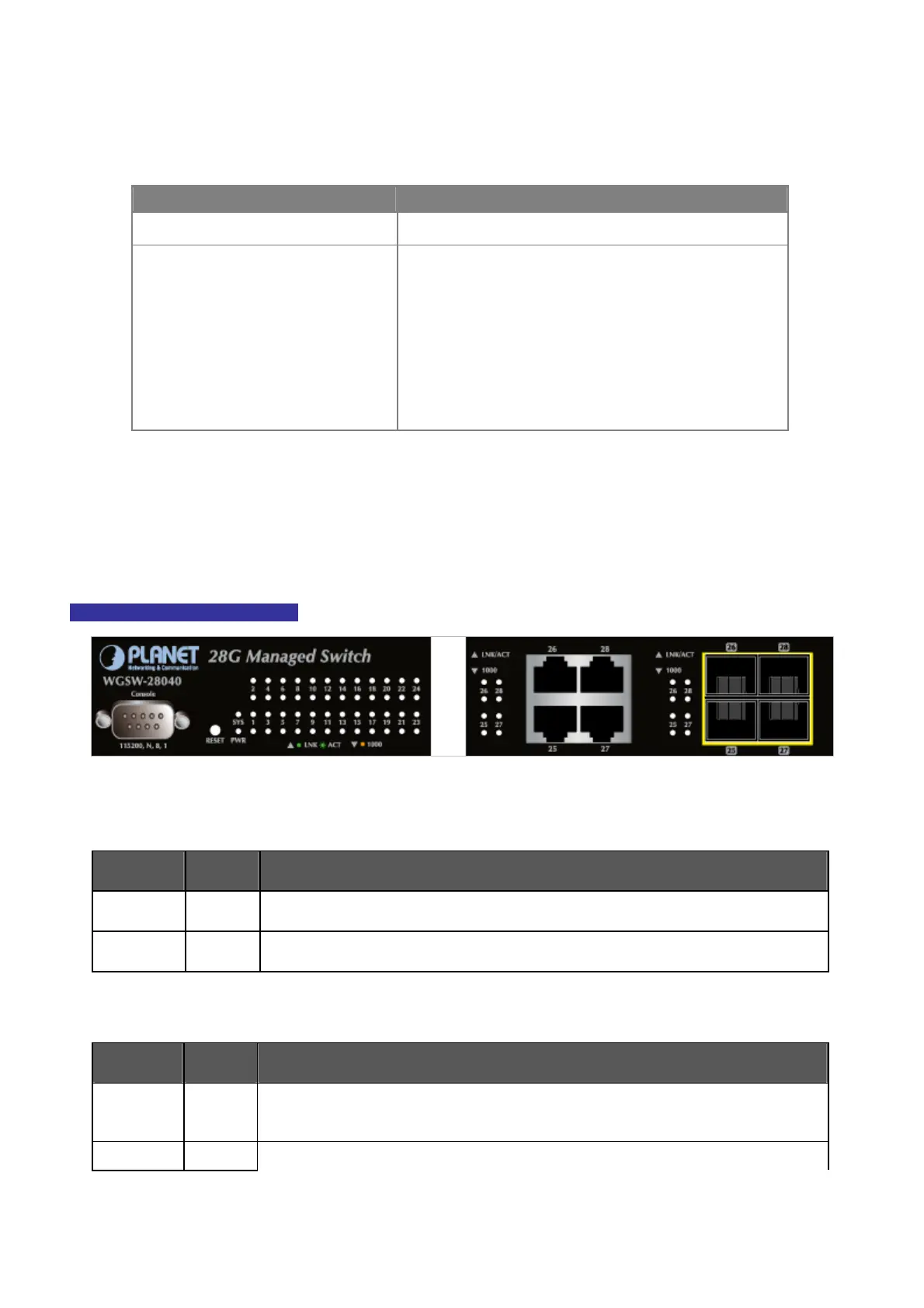
needed. Figure 2-3 & Figure 2-4 shows the LED indications of these Managed Switch.
WGSW-28040 LED indication
Figure 2-3 WGSW-28040 LED panel
■ System
LED Color Function
PWR
Green
Lights to indicate that the Switch has power.
SYS
Green
Lights to indicate the system is working.
■ 10/100/1000Base-T interfaces
LED Color Function
Lights:
To indicate the link through that port is successfully established.
LNK/ACT Green
Blink:
To indicate that the switch is actively sending or receiving data over that port.
1000 Orange Lights: indicate that the port is operating at 1000Mbps.



 To Next Page
 Loading...