Teklogix 7035, 8255 & 8260 Terminals User Manual 77
Chapter 3: Keyboards – Operating Instructions
AZERTY 8255/8260 Keyboards
3.8 AZERTY 8255/8260 Keyboards
3.8.1 Accessing Alpha Keys
The alpha keys on vehicle-mount AZERTY keyboards are directly accessible – a
key combination is not required.
For example, to type the letter ‘A’:
• Press the <A> key.
To type the letter ‘Z’:
• Press the <Z> key, and so on.
Creating Uppercase Letters
To display an uppercase letter:
• Press the <SHIFT> key before typing an alpha character.
3.8.2 Accessing AZERTY Function Keys
Vehicle-mount terminals are available in two keyboard types – ‘F1 to F6’ and
‘F1 to ‘F10’ (see “8255 And 8260 Vehicle-Mount Terminal Keyboards” on page 47
for a brief description). Depending on which keyboard type you are using, accessing
function keys differs slightly. These differences are highlighted in this section.
Important: Make certain that the appropriate keyboard type – ‘F1 to F6’
or
‘F1 to ‘F10’ – is selected in the “Keyboard Type” parameter
(see “Keyboard Type – Vehicle-Mounts Only” on page 130).
3.8.2.1 ‘F1 To F10’ Keyboard Function Key Access
‘F1 To F10’ keyboards have a total of 30 function keys, the first six of which are
directly accessible on the keyboard. The remaining 30 require key combinations.
Accessing Function Keys <F1> To <F10>
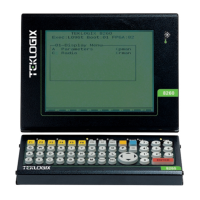
The first ten function keys on these vehicle-mounts are directly accessible from the
keyboard – that is, a key combination is not required. <F1> to <F10> are the bright
yellow keys located in the upper-left portion of the keyboard.
• To access function <F1>, press <F1>.
• To access function key <F2>, press <F2> and so on through to <F10>.


 To Next Page