Teklogix 7035, 8255 & 8260 Terminals User Manual 31
Chapter 2: Assembly And Basic Operation
Softkeys
2.8.4 Softkeys
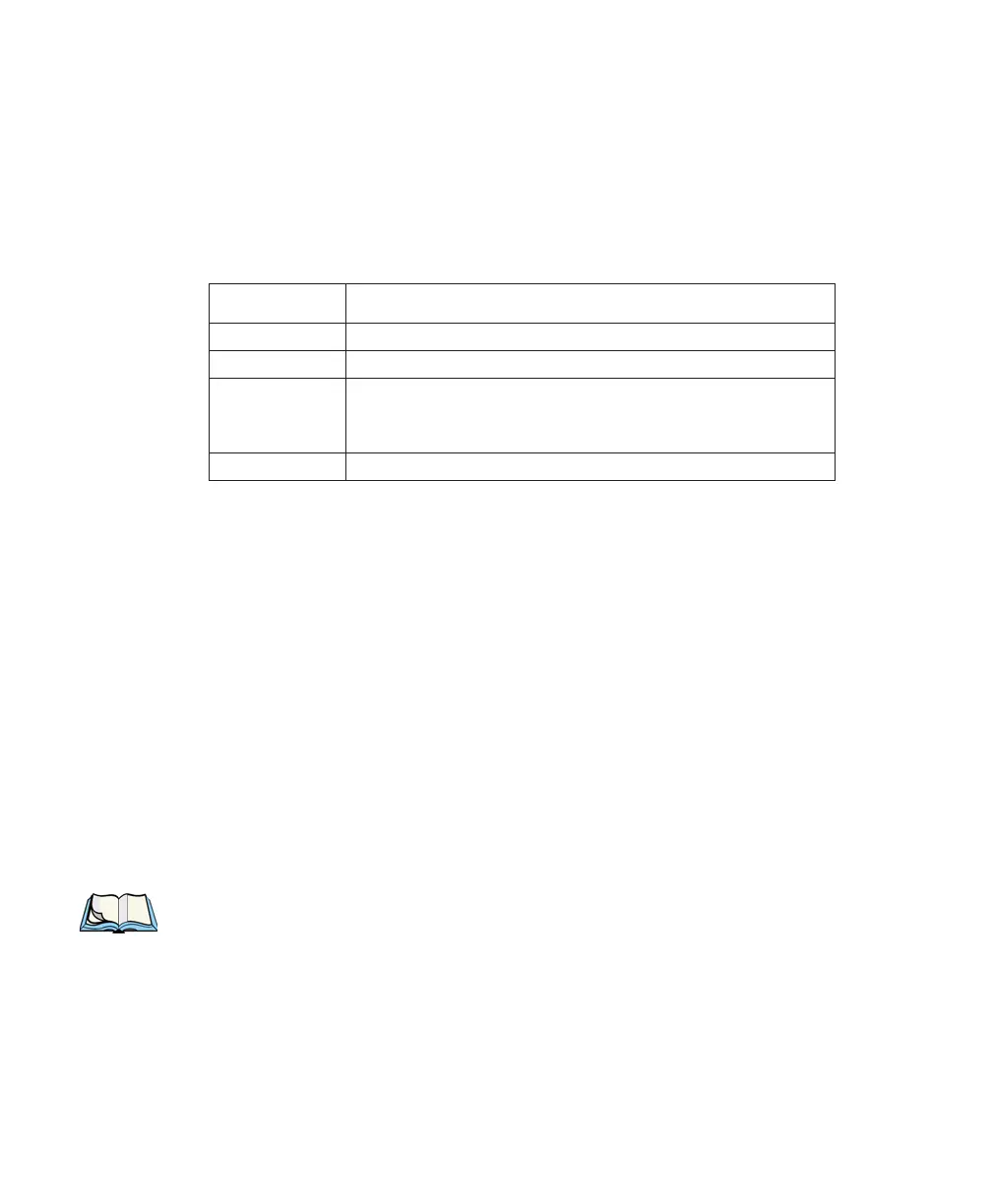
Softkeys are function keys that are programmed to execute specific actions when
pressed. Softkey labels are displayed on the terminal screens to identify the function
of each softkey. Table 2.2 lists the function of the softkeys programmed for the
Parameters menus.
Table 2.2 Softkeys For Parameter Menus
2.8.5 The Battery Gauge – 7035 Only
A horizontal bar graph, referred to as a battery gauge, is displayed in the status area
of the 7035 terminal screen. It keeps track of the percentage of remaining battery
power capacity – 0 to 100%, resolution 10% of nominal. The number on the
right-hand side of the bar graph indicates the maximum capacity of the battery (in
milliampere hours).
When the battery capacity is low, the battery gauge blinks and the terminal beeps.
Depending on the type of radio installed and terminal use, battery life is typically 9
hours. Fast charge time for a Lithium-Ion battery is generally 3.5 to 4 hours. Refer
to “The 7967 Gang Charger” on page 207 for battery charging details.
2.8.6 The Beeper
Note: For instructions on setting beeper duration and frequency, refer to the
section titled “Sound” on page 192.
The terminal beeper sounds under a variety of conditions. Some examples include:
a key is pressed, a keyboard character is rejected, the terminal is unlocked, bar code
input is accepted or rejected, or an operator’s entry does not match in a match
field. The beeper also emulates the function of the “PC speaker” when running
DOS applications.
Function Key Softkey Functions
<F1> NEXT – Displays the next sub-menu
<F2> PREVIOUS – Displays the previous menu.
<F3>
DEFAULT – Restores all parameters to the factory settings –
even after <F4> has been pressed to save the changes made to
parameters.
<F4> SAVE – Saves a change to a parameter value.


 To Next Page