Chapter 8: Terminal Accessories
Connecting The Power Source
204
Teklogix 7035, 8255 & 8260 Terminals User Manual
To attach the mounting bracket:
• Remove the two rubber feet closest to the front of the charger. Retain
the screws.
• Secure the mounting bracket to the charger using the screws removed
from the rubber feet.
• Use two #8 wood screws to secure the bracket to the appropriate surface
8.3.2 Connecting The Power Source
• Plug the female end of the AC line cord into the IEC connector at the back
of the charger.
• Plug the other end of the AC line cord into an appropriate power source.
When the charger is plugged in, all the LEDs turn on for a few seconds during a
self-test. The “Power” LED then remains on, indicating a power connection.
8.3.3 In-Unit Charger LED Indicators
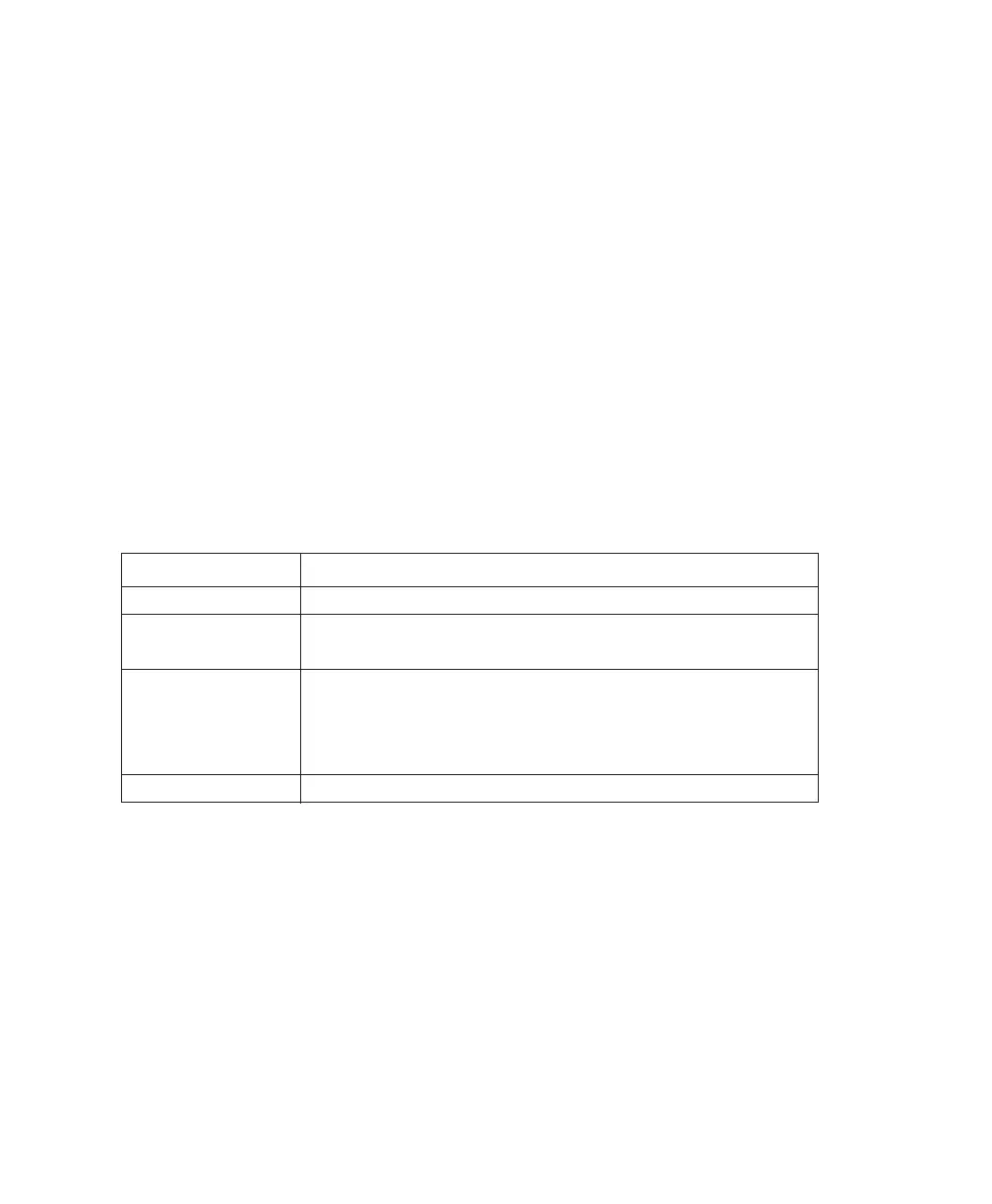
Table 8.1 Charger LEDs
8.3.4 Inserting The 7035 With Battery In The Charger
The 7942 Charger has a “Power” LED along with three additional LEDs – Ready,
Charge and Fault. Ensure that the green “Power” LED at the front of the charger is
“on”. The in-unit battery charge pocket is moulded, making it easy to slide the
terminal into the charger well.
• Grasp the terminal just below the display with the keyboard facing you, and
slide the lower portion of the terminal with battery into the charger.
• Apply steady, gentle downward pressure to properly mate the charger
connector with the battery in the terminal.
LED Indicator Definition
Power – Green • Always on when the charger is plugged in.
Charge – Yellow
• On during charge process.
• Off once battery is fully charged.
Fault – Red
• Blinking if a battery charge fails.
• On solid when battery is rejected.
(See “Battery Charge Fault Conditions” on page 205 and
“Charger Fault Conditions” on page 206 for details.)
Ready – Green • On when charge is completed successfully.


 To Next Page