Chapter 2: Assembly And Basic Operation
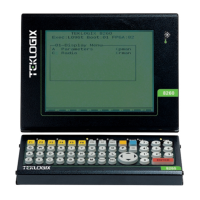
Contrast Adjustment – <BLUE> <F1> And <F2>
34
Teklogix 7035, 8255 & 8260 Terminals User Manual
2.9.1.1 Contrast Adjustment – <BLUE> <F1> And <F2>
The LCD (liquid crystal display) contrast is adjustable using the <BLUE> key and
function keys <F1> and <F2>.
Important: When you adjust the screen contrast using the <BLUE> <F1>
and <F2> key combination, the new setting is not saved to
memory. If the terminal is shut off and powered up again, the
contrast adjustment is lost.
If you adjust the contrast using the “Contrast” parameter, the
change is saved to memory.
To darken the display:
• Press the <BLUE> key, and then press <F1>. Repeat this key combination
until the contrast suits your needs. To work more efficiently with these keys,
refer to the note on page 34.
To lighten the display:
• Press the <BLUE> key, and then press <F2>. Repeat this key combination
until the contrast suits your needs. To work more efficiently with these keys,
refer to the note below.
Note: To more efficiently adjust the display contrast, lock the <BLUE> key
“on” by pressing it twice. You can then press the <F1> and <F2>
function keys until you can easily read the contents of the terminal screen.
When you have satisfactorily adjusted the contrast, press the <BLUE> key
a third time to unlock or turn it off.
2.9.1.2 Contrast Adjustment Using The “Contrast” Parameter
To access the “Contrast” parameter:
• In the “Parameters” menu, position the cursor on the “System” option, and
press <F1>.
• Position the cursor on the “Contrast” parameter, and enter a value from
-10 to 10. The greater the value assigned, the darker the screen contrast –
that is, entering a value of 10 results in a very dark screen.


 To Next Page