Configuration
CS210 Rev. B4 Feb 2015 27
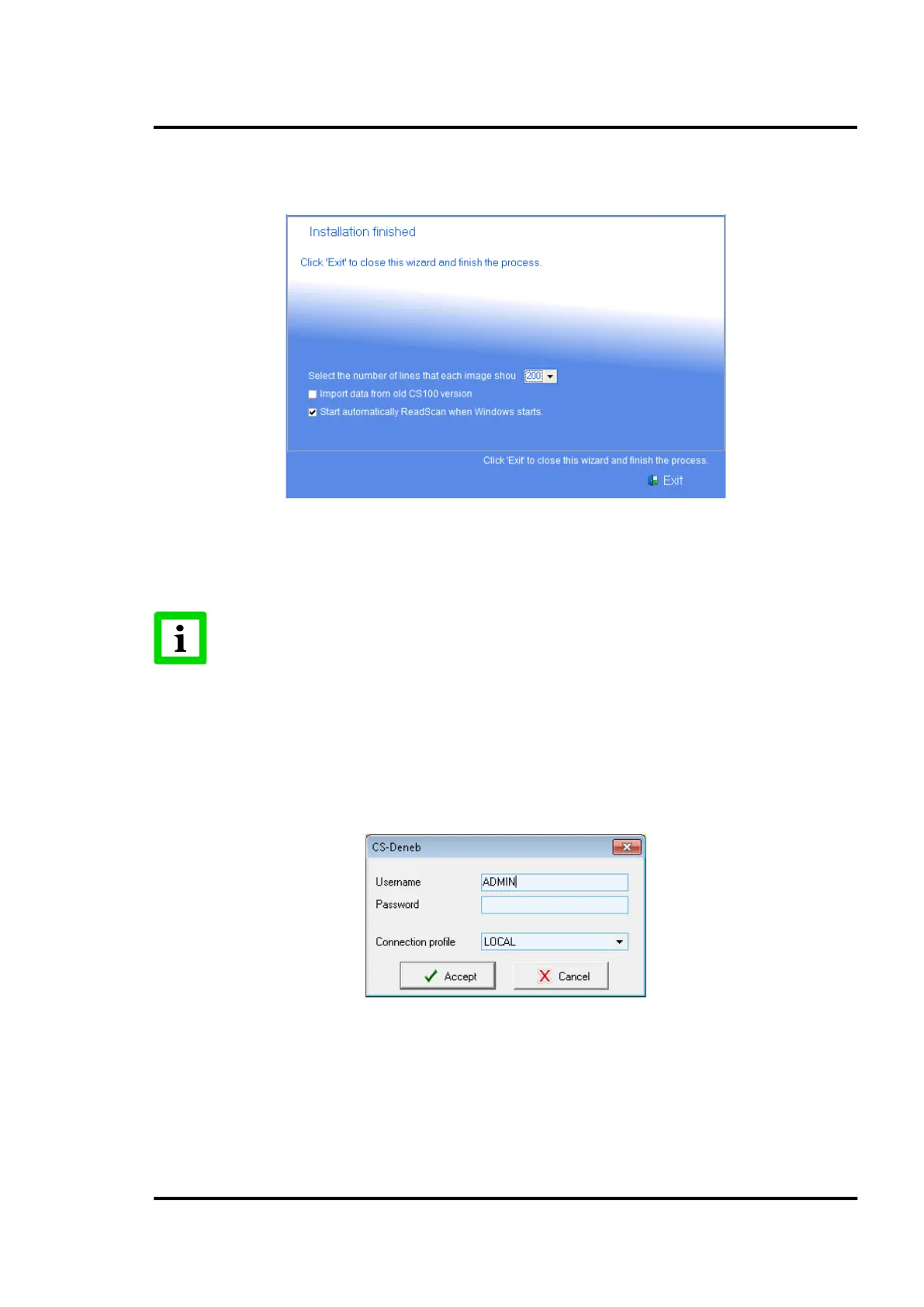
In addition, you find also the check box to start automatically ReadScan when Windows
starts. It is strongly recommended to keep this check box enabled!
Figure 13: Installation finished
• If the installation is successful, all necessary shortcut icons will appear in your PC desktop
screen and in the Start-menu (Start\Programs\Raytek\DataTemp CS).
For Windows Vista and Windows 7 operating systems, the user data will be stored in
the dedicated <My Documents> folder separately from the program files!
6.2 CS Configuration
To configure the DataTemp CS software, select the start menu, activate the CS program group and
click on the icon <CS Config> (alternatively you can also find the icon on the desktop). You will be
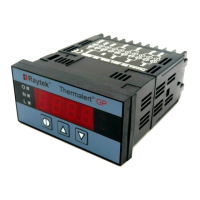
prompted to enter a password.
Figure 14: Authentication screen
At this point, a valid user and password must be entered for the selected profile. If this is the first
login, a single profile will be seen, and that profile is normally <Raytek>.
Predetermined user for CS Config (valid also for the program components CS Deneb and ReadScan):
Username: <ADMIN>
Password: {empty}


 To Next Page