Operation
64 Rev. B4 Feb 2015 CS210
7.2.2 <Main> <Historic time> <Short term>
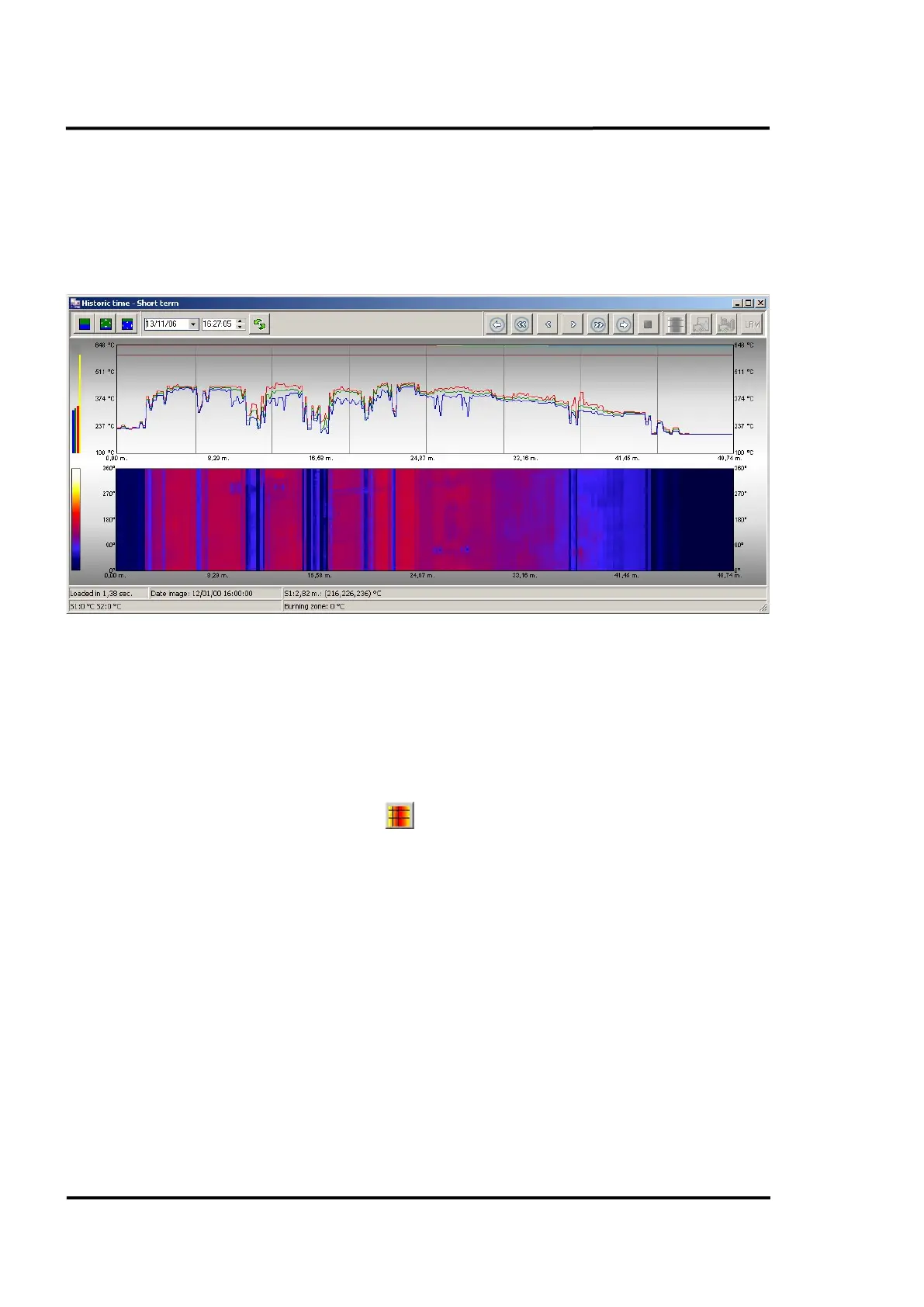
This screen is very similar to the Real-time screen described above (described in section 7.2.1 <Main>
<Real time>, page 61), and allows the user to view historical images stored by the system in the short-
term database. Next to the image, related information such as LRM information and active alarms
during the image are displayed in separate windows.
Figure 62: Short term - Historic time screen
The upper buttons helps to navigate thru all the images stored in the system:
• Navigate one by one (a new image with every click) or play the images in sequence.
• Navigate forward (from oldest to newest) or navigate backwards (from newest to oldest) in
self-running mode
For direct accessing the Histogram charts and Tendency chart (described in sections 7.2.11 <Graphic>
<Histogram>, page 73 and 7.2.12 <Graphic> <Trend>, page 74) you have to exit the zoom mode by
clicking on the <Go to mode Marking> icon , and activating two more icons in which provide
access to the Histogram and Tendency charts.
The Marking mode allows the user to define the kiln area to be studied in the charts and the user may
select the entire kiln or just one area. To select a specific area of the kiln, click on the starting point of
the desired area and click on the point where you want the area to finish. The status bar provides
information on the area selected, and by moving the border the size can be easily edited.


 To Next Page