Accessories
84 Rev. B4 Feb 2015 CS210
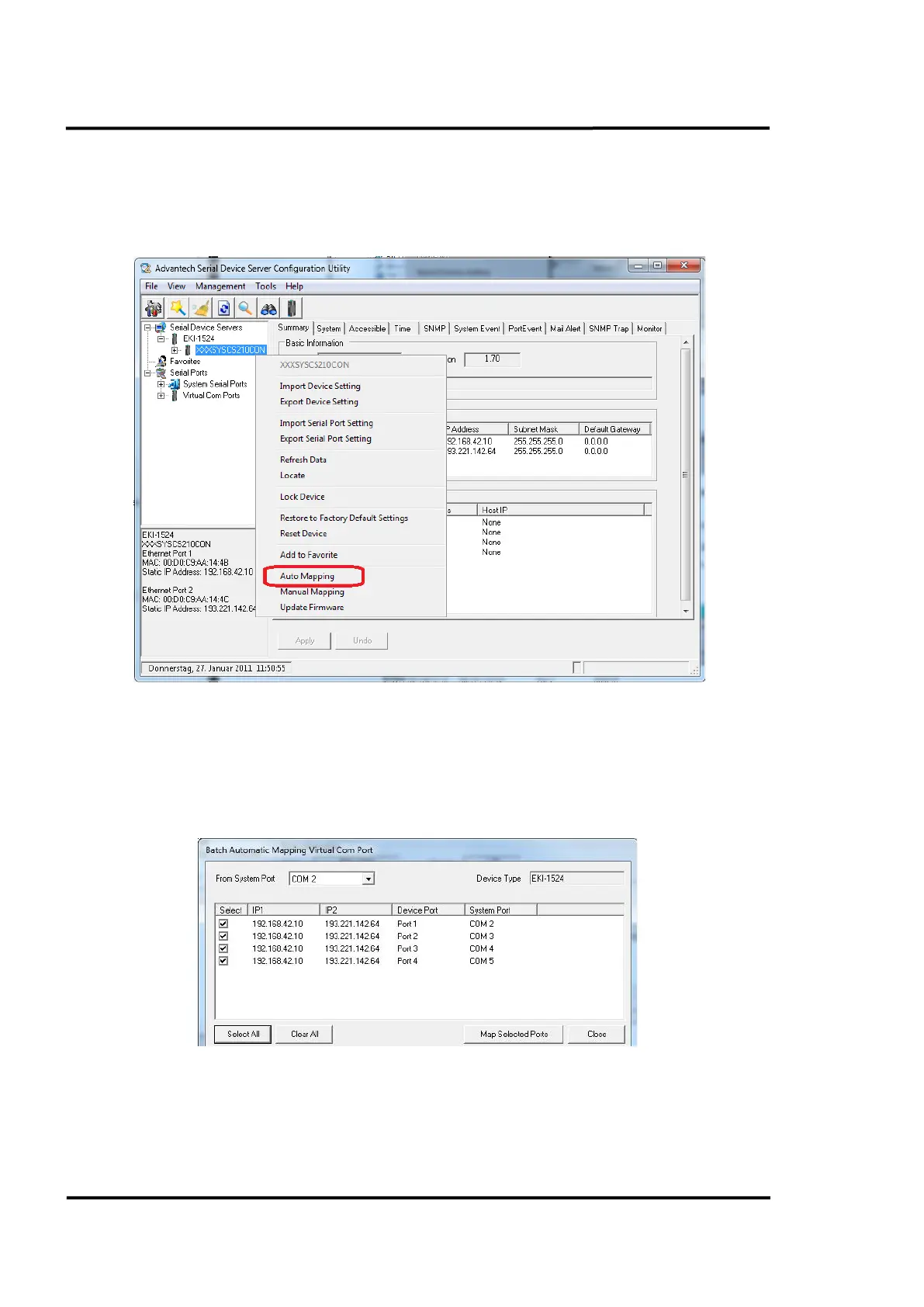
4. After the installation is finished, open the Serial Device Server Configuration Utility from the
Windows Start Menu by clicking <Start> <All Programs> <Advantech eAutomation> <Serial
Device Server Configuration Utility>. The Serial Device Server <XXXSYSCS210CON> will
appear in the sub-tree of Device Server List area as shown below (may take several seconds).
Figure 81: Selecting the <Auto Mapping> Function
5. Right click the serial device <XXXSYSCS210CON> and select the “Auto Mapping” function.
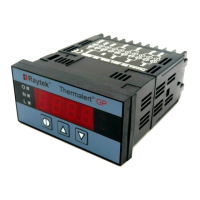
6. The serial ports that can be assigned to virtual COM will be shown in the following window.
Click the <Select All> button and press <Map Selected Ports> button. All selected serial ports
will be mapped to virtual COM ports in sequential order.
Figure 82: Mapping of Virtual Ports
7. The COM ports in the <Virtual Com Ports> listing are now available for use by Windows
applications.


 To Next Page