•
S:
Sexual situation
• L: Adult Language
•
D:
Sexually Suggestive Dialog
---------
• TV-PG: Parental guidance
• TV"14: Viewers 14 and over
• TV-MA: Mature audience
• ALL: Lock all TV ratings,
• FV: Fantasy violence
•
V:
Violence
• TV-Y: Young children
• TV-Y7: Children? and over
• TV-G: General audience
5.
At this point, one
of
the TV-Ratings
is
selected
Press the ENTER [3' button. Depending
on
your existing setup,
the"
')
"
symbol will
be
selected. (Blank =Unblocked, =Blocked)
While"
')
..
is
selected, press the ENTER
G'
button to block or unblock the
category.
To
select a different TV-Rating, press
the"
or
,.
button and then
repeat the process.
:-
Allow all: Press
to
unlock all TV ratings.
Block all: Press
to
lock all TV ratings.
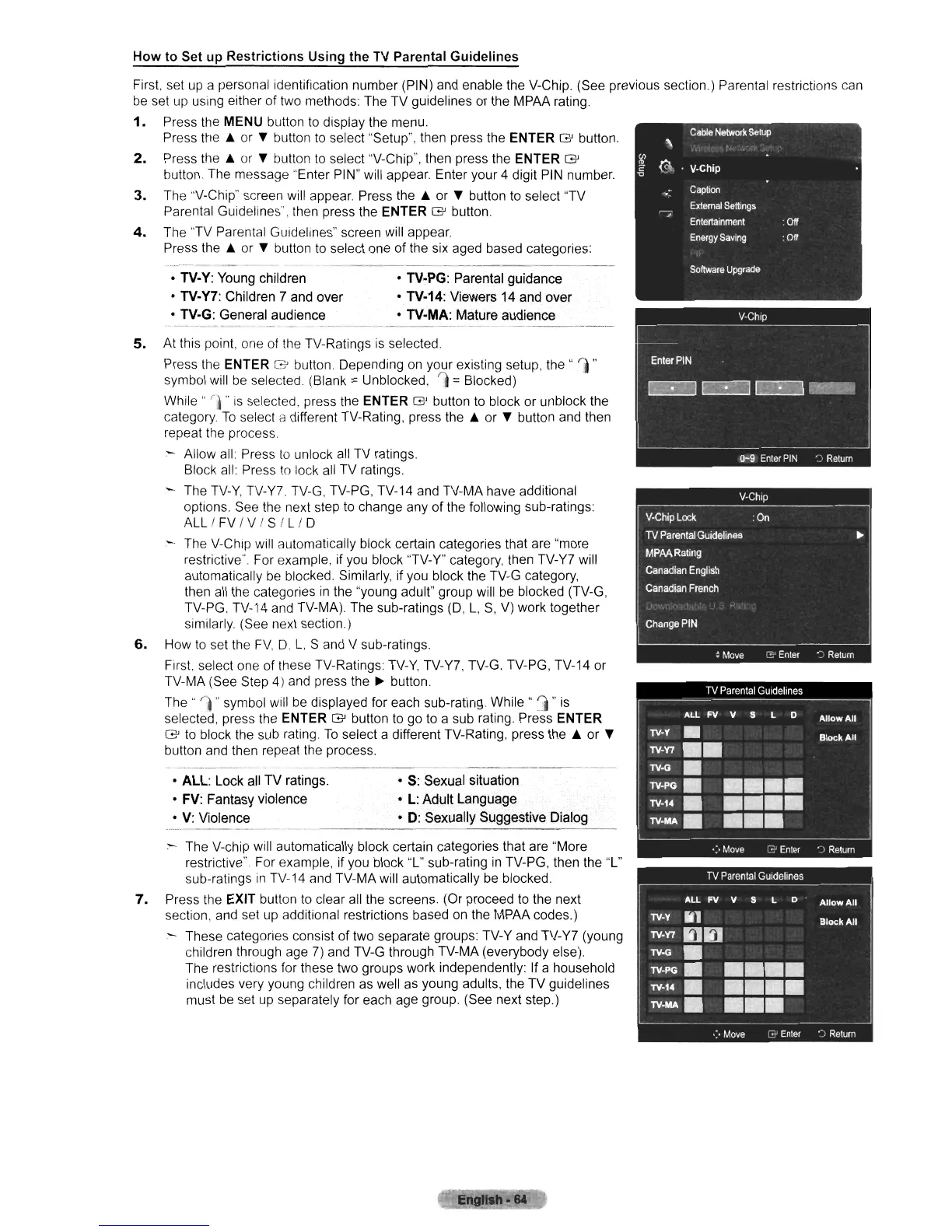
The TV-y' TV-Y? TV-G, TV-PG, TV-14 and TV-MA have additional
options. See the next step to change any of the following sub-ratings:
ALL!
FV I V I
Sill
D
- The V-Chip will automatically block certain categories that are "more
restrictive". For example, if you block "TV-
Y"
category, then
TV-
Y?
will
automatically
be
blocked. Similarly, if you block the TV-G category,
then all the categories
in
the "young adult" group will
be
blocked (TV-G,
TV-PG, TV-14 and TV-MA). The sub-ratings
(D,
L,
S,
V) work together
similarly. (See next section)
6.
How
to
set the
FV,
D.
L,
S
and
V sub-ratings.
First. select one of these TV-Ratings TV-
Y,
TV-
Y?,
TV-G, TV-PG, TV-14 or
TV-MA (See Step 4) and press the
~
button.
The"
,..." symbol will be displayed for each sub-rating.
While"
()
" is
selected, press the ENTER
G'
button
to
go to a sub rating. Press ENTER
G'
to
block the sub rating.
To
select a different TV-Rating, press
the"
or
,.
button and then repeat the process.
--------
---------_.
- The V-chip will automatically block certain categories that are "More
restrictive" For example, if you block "L" sub-rating
in
TV-PG, then the "L"
sub-ratings
in
TV-14 and TV-MA will automatically
be
blocked.
7.
Press the EXIT button
to
clear
all
the screens. (Or proceed to the next
section, and set
up
additional restrictions based on the MPAA codes.)
:-
These categones consist of two separate groups: TV-Y and TV-Y? (young
children through age
?)
and TV-G through TV-MA (everybody else).
The restrictions for these two groups work independently: If a household
includes very young children as well as young adults, the TV guidelines
must
be
set
up
separately for each age group. (See next step.)
How
to
Set
up
Restrictions
Using
the TV Parental
Guidelines
First. set
up
a personal identification number (PIN) and enable the V-Chip. (See previous section.) Parental restrictions can
be
set
up
using either of two methods The TV guidelines or the MPAA rating.
1.
Press the MEN U button
to
display the menu.
Press
the"
or
,.
button
to
select "Setup", then press the ENTER
G'
button.
2.
Press
the"
or
,.
button
to
select "V-Chip", then press the ENTER
G'
button The message "Enter PIN" will appear Enter your 4 digit
PIN
number
3.
The "V-Chip" screen will appear Press
the"
or
,.
button
to
select "TV
Parental Guidelines", then press the ENTER
G'
button.
4.
The "TV Parental Guidelines" screen will appear.
Press
the"
or
,.
button to select one of the six aged based categories:












 To Next Page