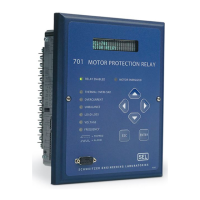
Date Code 20010719 701 Motor Protection Relay
Front-Panel Operation
Front-Panel Menus & Operations
5.7
Step 4. Using the arrow pushbuttons, continue to move within the character
table and select each of the characters to build the Access Level 2
password.
Step 5. With the correct Access Level 2 password spelled in the upper line of
the display, press the {ESC} pushbutton to move the cursor from the
lower line of the display. Press the {ENTER} pushbutton to accept
the password shown in the upper line of the display. If the password is
correct, the relay displays the message “Level 2 Access Granted.”
Press the {ENTER} pushbutton to continue your task. If the pass-
word is incorrect, the relay displays the message “Invalid Password.”
Press the {ENTER} pushbutton to return to your previous task.
NOTE: The factory default Access Level 2 password is 701.
To Correct Entry Errors
Step 1. If the cursor in the upper line of the display is blinking, press the
{ESC} pushbutton once.
Step 2. Use the left or right arrow pushbutton to move the underline cursor to
the position of the incorrect letter.
Step 3. With the incorrect letter underlined, press the {Down Arrow}
pushbutton. The blinking cursor will reappear in the upper line of the
display and the underline cursor will appear in the lower line.
a. To substitute a new character in the location of the blinking
cursor, use the arrow pushbuttons to move the underline cursor
to the location of the desired character in the character table and
press the {ENTER} pushbutton.
b. To insert a character in front of the blinking cursor, use the arrow
pushbuttons to move the underline cursor to INS and press the
{ENTER} pushbutton. Use the arrow pushbuttons to move the
underline to the desired character in the character table and press
the {ENTER} pushbutton.
c. To delete the character at the blinking cursor, use the arrow
pushbuttons to move the underline cursor to DEL and press the
{ENTER} pushbutton.
d. To clear the entire password and start over, use the arrow
pushbuttons to move the underline cursor to CLR and press the
{ENTER} pushbutton.
Step 4. Continue making corrections until the password appears in the upper
line of the display. With the correct Access Level 2 password spelled
in the upper line of the display, press the {ESC} pushbutton to move
the cursor from the lower line of the display. Press the {ENTER}
pushbutton to accept the password shown in the upper line of the
display. If the password is correct, the relay displays the message:
“Level 2 Access Granted.” Press the {ENTER} pushbutton to
continue your task. If the password was incorrect, the relay displays
the message “Invalid Password.” Press the {ENTER} pushbutton to
return to your previous task.


 To Next Page