5.5
Date Code 20090730 Instruction Manual SEL-734 Meter
Time-of-Use
TOU Setup
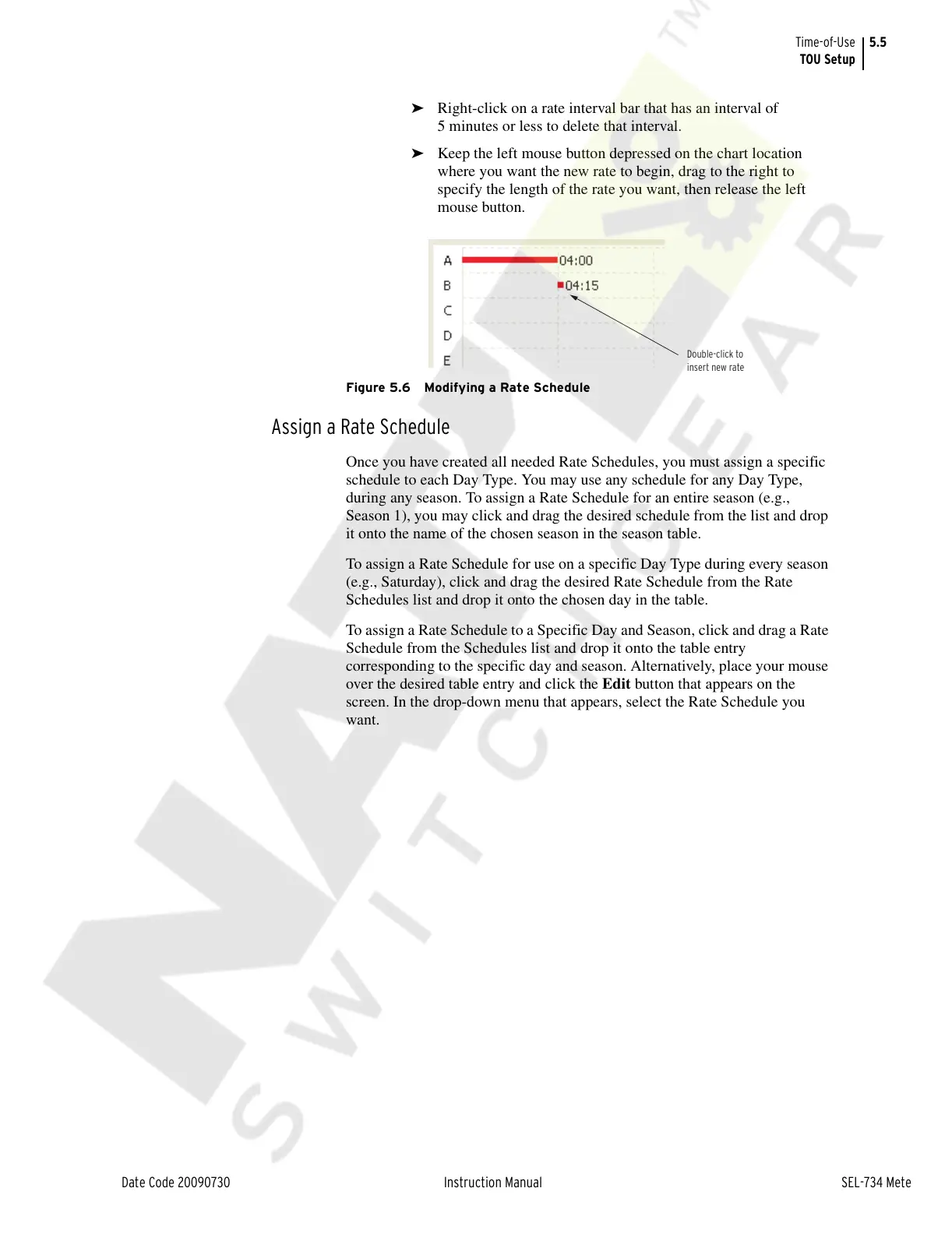
➤ Right-click on a rate interval bar that has an interval of
5 minutes or less to delete that interval.
➤ Keep the left mouse button depressed on the chart location
where you want the new rate to begin, drag to the right to
specify the length of the rate you want, then release the left
mouse button.
Figure 5.6 Modifying a Rate Schedule
Assign a Rate Schedule
Once you have created all needed Rate Schedules, you must assign a specific
schedule to each Day Type. You may use any schedule for any Day Type,
during any season. To assign a Rate Schedule for an entire season (e.g.,
Season 1), you may click and drag the desired schedule from the list and drop
it onto the name of the chosen season in the season table.
To assign a Rate Schedule for use on a specific Day Type during every season
(e.g., Saturday), click and drag the desired Rate Schedule from the Rate
Schedules list and drop it onto the chosen day in the table.
To assign a Rate Schedule to a Specific Day and Season, click and drag a Rate
Schedule from the Schedules list and drop it onto the table entry
corresponding to the specific day and season. Alternatively, place your mouse
over the desired table entry and click the Edit button that appears on the
screen. In the drop-down menu that appears, select the Rate Schedule you
want.
Double-click to
insert new rate
Courtesy of NationalSwitchgear.com


 To Next Page