10.17
Date Code 20090730 Instruction Manual SEL-734 Meter
Communications
Command Explanations
FIL DIR Command (View Settings File Directory)
=>FIL DIR <Enter>
SET_ALL.TXT R
CFG.TXT R
ERR.TXT R
SET_PF.TXT RW
SET_P2.TXT RW
SET_P3.TXT RW
SET_P4.TXT RW
SET_P1.TXT RW
SET_G.TXT RW
SET_1.TXT RW
SET_F.TXT RW
SET_L.TXT RW
SET_R.TXT RW
SET_E.TXT RW
SET_D.TXT RW
SET_TOU.TXT RW
=>
FIL READ Command (Transfer Settings File)
FIL READ transfers the settings files from the meter to a PC. You must use a
terminal emulation program that supports manual Ymodem file transfer (e.g.,
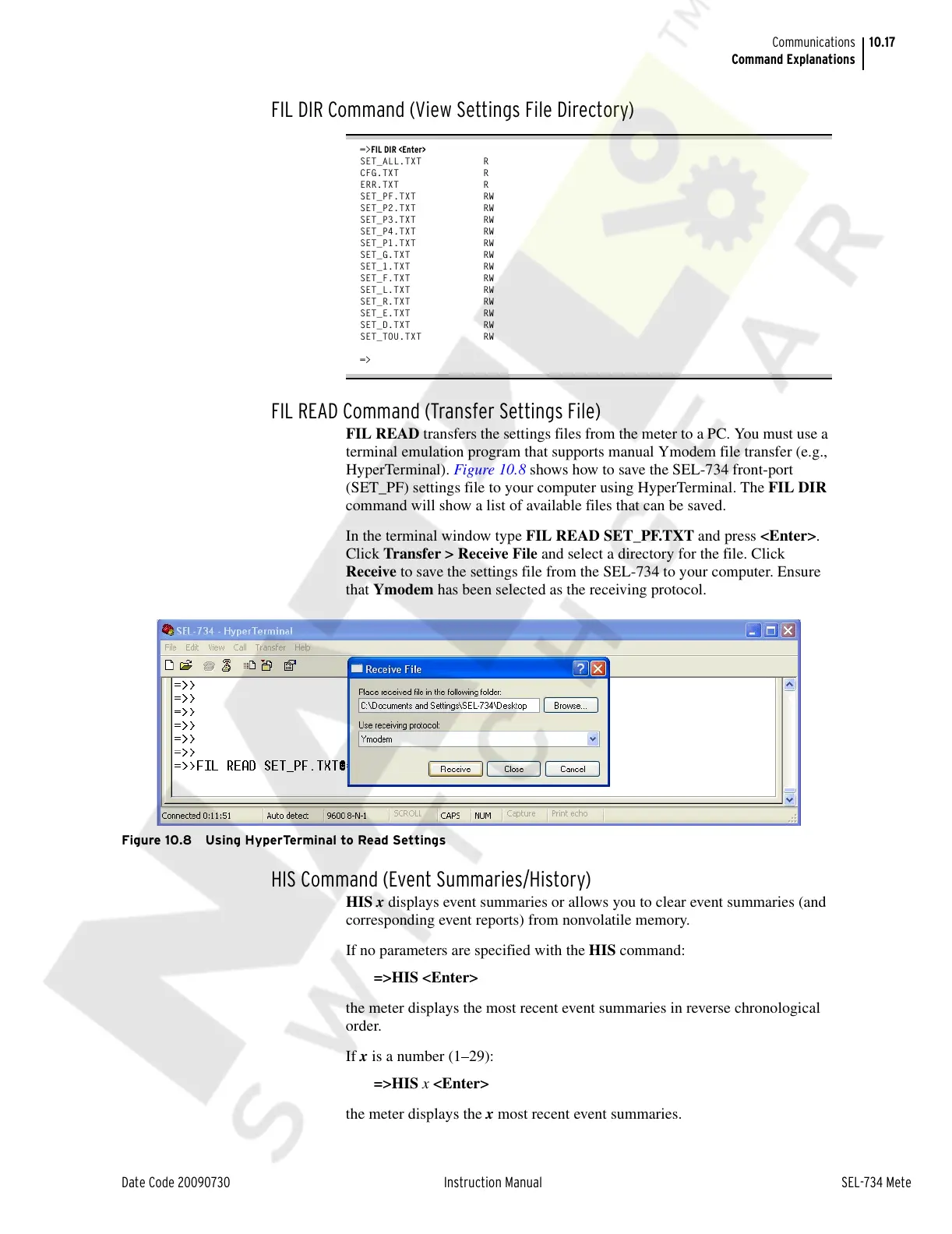
HyperTerminal). Figure 10.8 shows how to save the SEL-734 front-port
(SET_PF) settings file to your computer using HyperTerminal. The FIL DIR
command will show a list of available files that can be saved.
In the terminal window type FIL READ SET_PF.TXT and press <Enter>.
Click Transfer > Receive File and select a directory for the file. Click
Receive to save the settings file from the SEL-734 to your computer. Ensure
that Ymodem has been selected as the receiving protocol.
Figure 10.8 Using HyperTerminal to Read Settings
HIS Command (Event Summaries/History)
HIS x displays event summaries or allows you to clear event summaries (and
corresponding event reports) from nonvolatile memory.
If no parameters are specified with the HIS command:
=>HIS <Enter>
the meter displays the most recent event summaries in reverse chronological
order.
If x is a number (1–29):
=>HIS x <Enter>
the meter displays the x most recent event summaries.
Courtesy of NationalSwitchgear.com


 To Next Page