Program steps and cycles | Set Tool
8.2 Set Tool
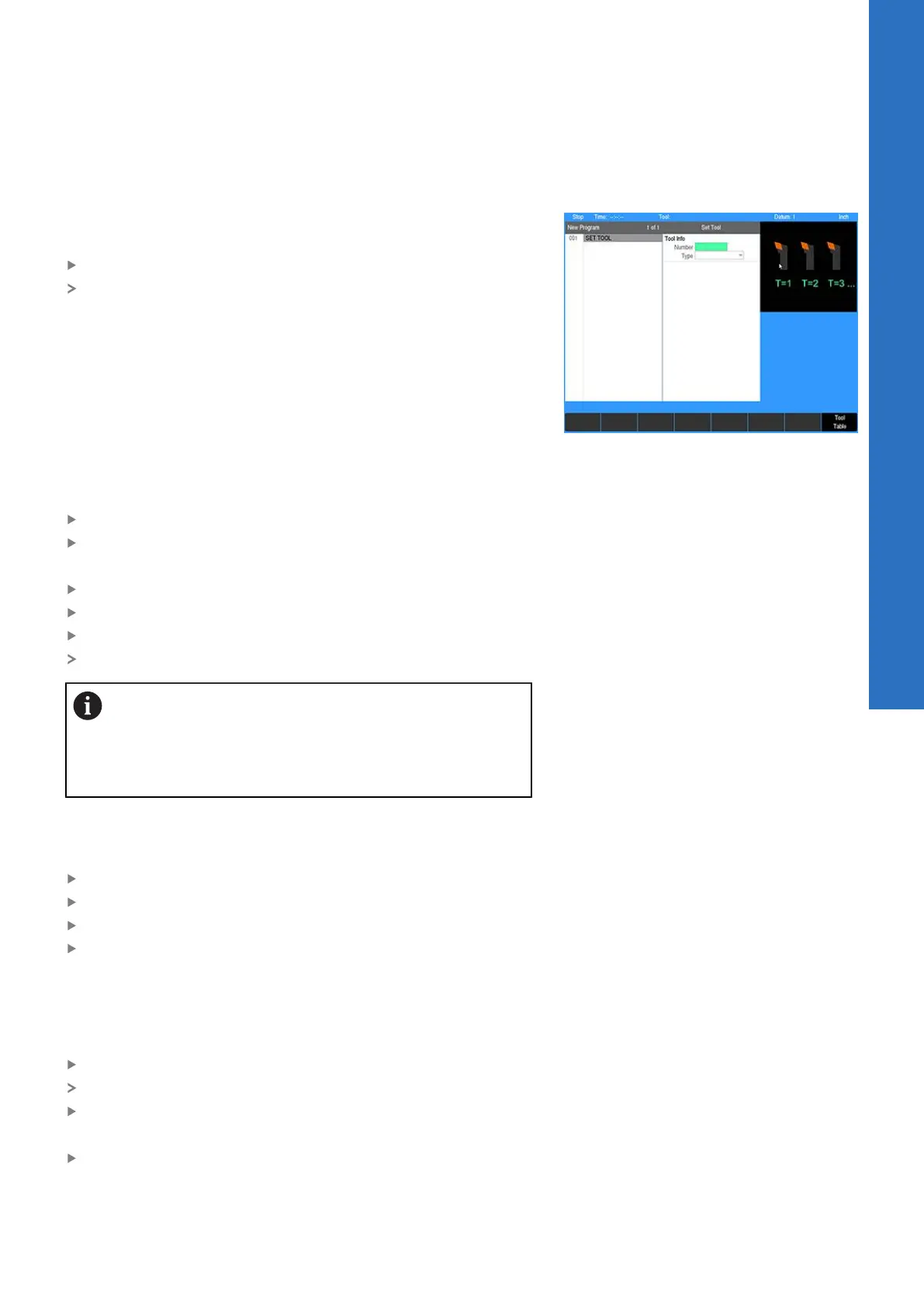
The Set Tool step is used to program a tool change.
To set a tool:
From the PGM screen, press the TOOL key
The Set Tool dialogue opens
In the Set Tool dialogue, the tool settings may be entered directly
into the fields, the current settings from a tool in the Tool Table
may be imported into the dialogue, or a tool in the table may be
programmed by its number.
Specifying the tool by its tool table number
If the tool’s number is known:
Enter the number in the Tool Number field
Press the ENTER key
If the tool’s number is not known:
Press the Tool Table soft key to open the tool table
Highlight the tool to be used
Press the USE key
The tool’s number is transferred to the Set Tool dialogue
When a tool is specified by number, only the tool
number is saved to the program. The current settings for
the specified tool are displayed, but not saved as part of
the program step. The tool settings are retrieved from
the tool table each time the Set Tool step is run.
Importing tool settings from the tool table
To import tool settings:
Highlight any of the Tool Size data fields
Press the Tool Table soft key to open the table
Highlight the tool to be used
Press the USE key
Only the tool’s data is transferred to the Set Tool dialogue.
Entering the tool data
To enter tool data:
Select the tool Type from the drop down menu
The dialogue will show fields applicable to the Type selected
Enter the tool Size information
The fields shown depend on the Type of tool selected.
Enter the Offset to the tool tip in the X and Z axes
8
ACU-RITE | TURNPWR | User's Manual | 08/2020
115


 To Next Page