Program edit mode | Programming introduction
5
Program saving
When you create programs with the control, they can be saved
within the control's User folder, on a USB device, or a network
location.
The control will retain a program in memory so it is not lost in the
case of a power failure.
Programs can be organized in the control, on a USB device, or a
network location; or in personalized folders that the operator can
create.
Saving a program
A new blank program requires a minimum of one step added
before it can be saved. A newly created set of program steps
can be saved to the existing program, or can be saved as a new
program by replacing the current name.
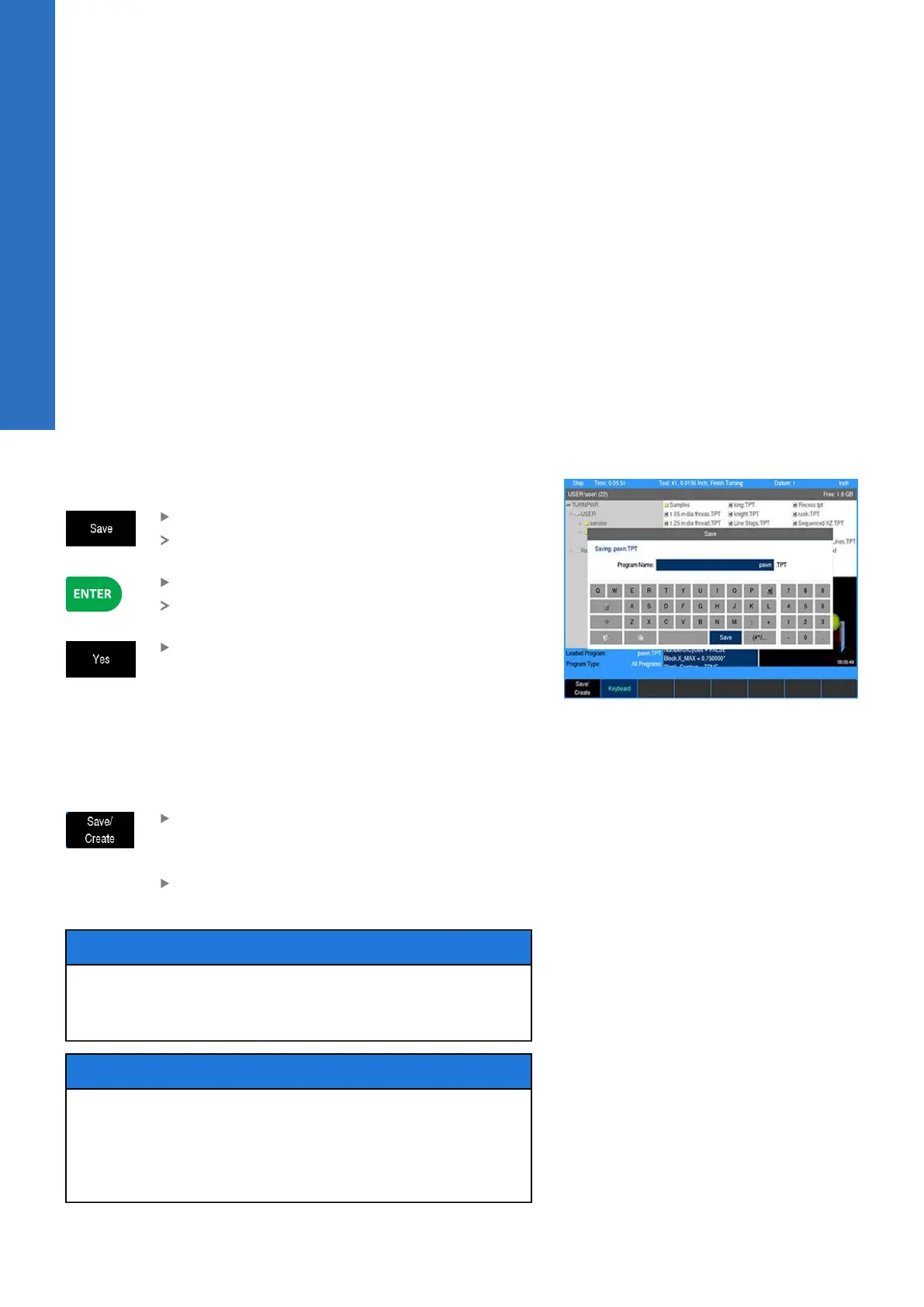
To save the current active program:
Press the Save soft key
The keyboard will popup with the Save key
highlighted
Press the ENTER key
A prompt will ask to overwrite the existing
program
Press the Yes soft key
The keyboard will automatically be displayed with the current
program name highlighted in the keyboard display window. For
additional information see "Keyboard", Page 30.
The Save/Discard key is also available to quickly save a program, or
discard any changes made since the last time it was saved.
Press the Save/Create soft key to save the
program with its current name
or
Enter a new name for the current program to
create a new program
NOTICE
A name can not be longer than 60 alphanumeric characters. The
control displays program names as they were entered. No two
programs can have the same name.
NOTICE
The program’s graphic preview is updated whenever the
program is saved. In order for the new graphic preview to be
created correctly, the program must not have any errors. The
operator must allow the program graphics to finish drawing the
program before pressing any keys.
76
ACU-RITE | TURNPWR | User's Manual | 08/2020


 To Next Page