Simulators for Windows PCs | Virtual machine simulator
14.2 Virtual machine simulator
Simulation software
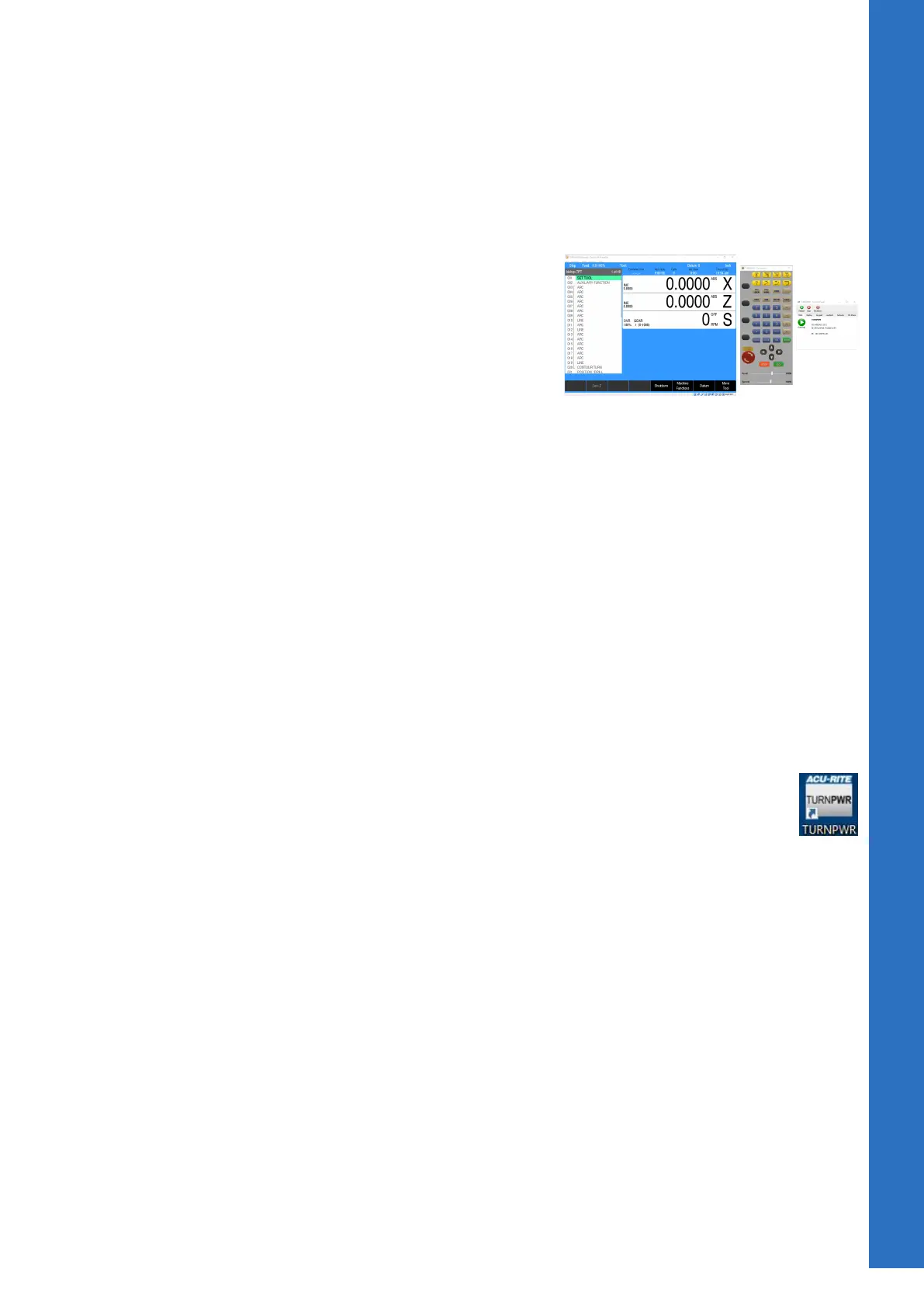
The simulation software provides a convenient way to write
part programs and simulate machine behavior using a standard
Windows computer. Features and functionality are virtually identical
to that of the control itself.
Installation
Installing the Virtual Machine (VM) Simulator is a two step process.
First, the VM software is installed and then the control software
is installed. The VM is installed by launching the setup program
and following the installer prompts. On some systems, you may
be required to restart the computer after installation before the
application will function properly.
Following the initial VM installation, the first startup of the control
software will automatically update the control software within the
VM. The installation of the control software in the VM is similar to
installation of the software on the actual control. Follow prompts
during the installation and reboot as needed. Once the software is
fully installed and running, verify that the software version matches
the software version running on your machine console.
If the versions do not match see "Updating", Page 192.
Operation
The simulator software can be started by using either the shortcut
created on your desktop during installation or from the Start menu.
Once the software is running, it is operated in the same manner
as the machine itself. Similarly, it should be shut down using the
same sequence of selecting Shutdown and confirming Shutdown
at the prompt. Alternatively, a shutdown can be done using the
ShutDown button in the Control Panel window. For additional
information, see "Control panel", Page 193.
Programs created in the simulation software can be copied to the
CNC, and (with the correct setup) used on your machine.
14
ACU-RITE | TURNPWR | User's Manual | 08/2020
191


 To Next Page