Program edit mode | Folder management
5.2 Folder management
The control offers several versatile features for loading, saving,
deleting, and backing up programs. Programs can be organized
by creating folders. Folders may be used to group programs by
job, operator, date, customer, or any other method preferred.
Folders can be quickly selected, created, make a backup copy, or if
necessary, deleted.
Creating folders can only be done in PGM mode.
Creating a folder
First decide where to place the folder. It can be placed on V:\User
which is the control folder in the console, on a USB device, on a
network, or within sub-folders that have already been created. Use
the following steps to create any type of folder, top level or sub
level folders.
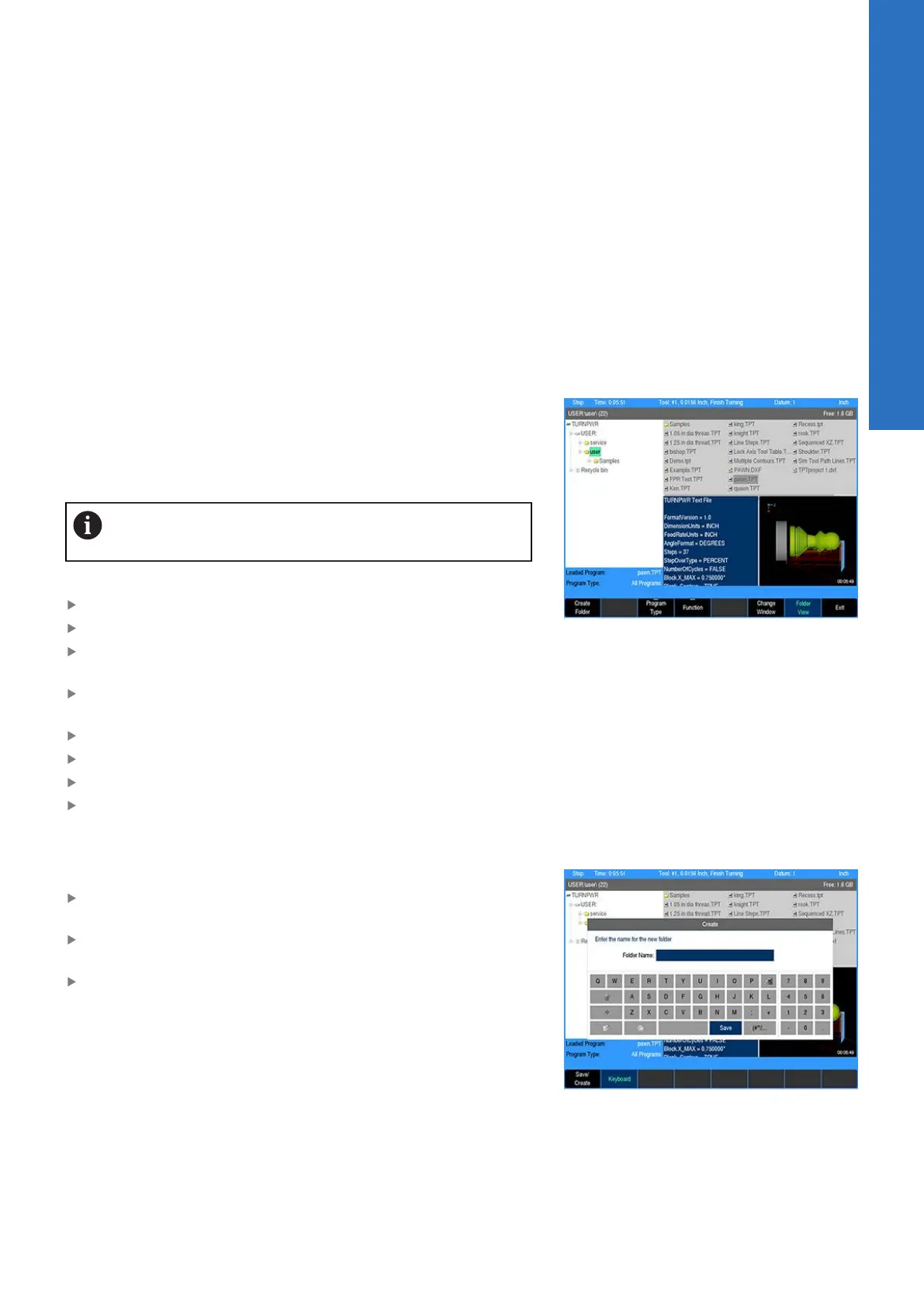
When the Folder View soft key is activated, it remains
active until it is pressed again to deactivate folder view.
To create a folder:
Press the Program Functions soft key
Press the Folder View soft key
Press the Change Window soft key to select the Folder Tree
window
Navigate through the folders to place the cursor where the new
folder is to be created by using the Arrow keys
To expand a folder use the Right Arrow key
To collapse an expanded folder, use the Left Arrow key
Highlight the folder where the new sub-folder is to be placed
Press the Create Folder soft key
Naming a new folder
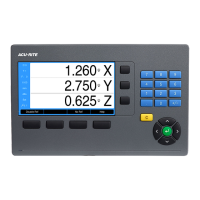
To name a new folder:
Using the on screen Keyboard, enter the name of the new
folder
If the keyboard is not automatically displayed, press the
Keyboard soft key
Once the new folder’s name has been entered, press the Save/
Create soft key to create the new folder
5
ACU-RITE | TURNPWR | User's Manual | 08/2020
77


 To Next Page