Windows Interface and Utilities U511 User’s Manual
7-2 Aerotech, Inc. Version 1.1
7.3. UNIDEX 511 Parameter Editor
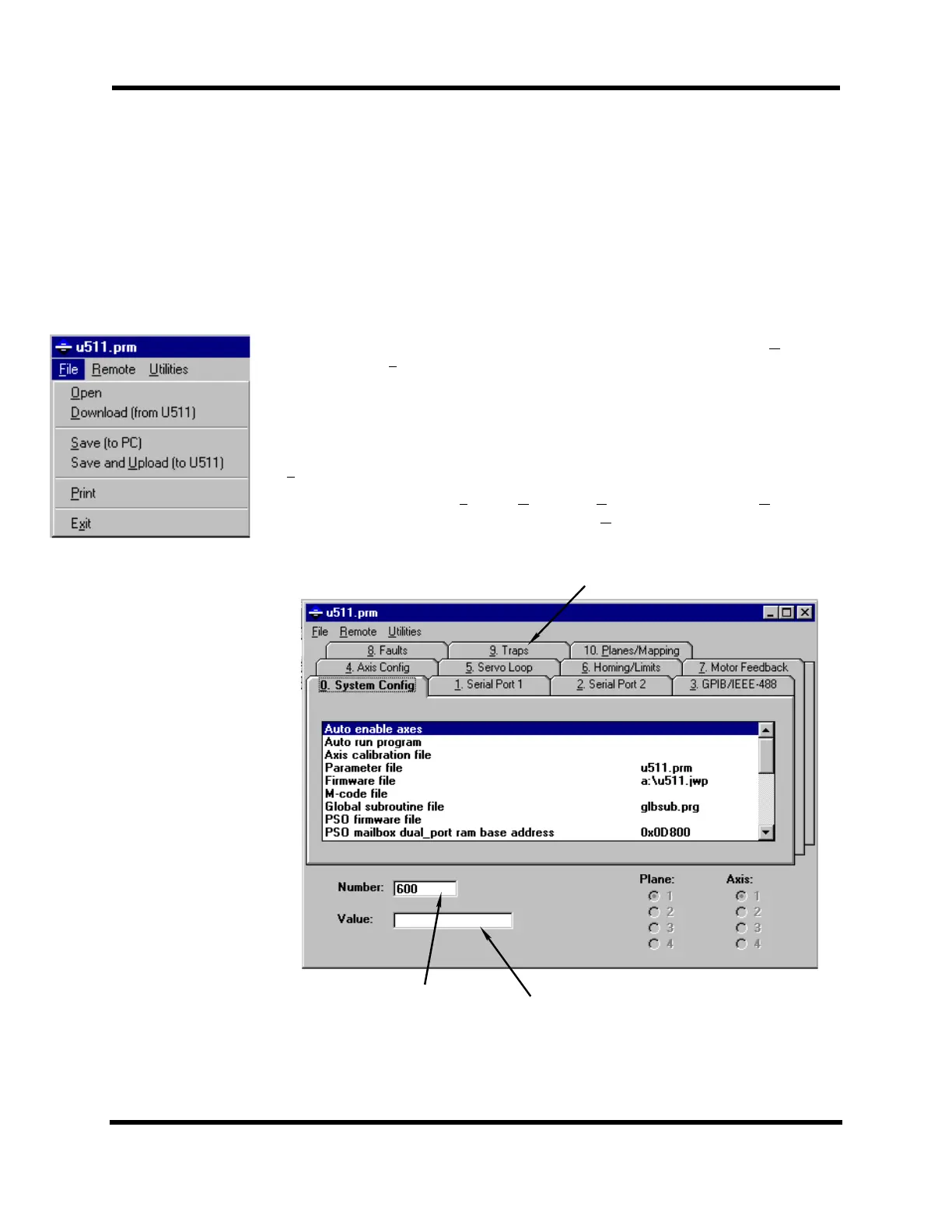
On startup of the Parameter Editor, the U511 will send the current parameter file to the
Edit Parameter screen. The parameters are organized in the same manner as the
parameters displayed by the U511 when entering the Setup menu from the U511 front
panel. Each tab on the software corresponds to a page on the U511 software. Refer to
Figure 7-1. A description of each parameter is listed in Chapter 4: Parameters. To change
a value of a parameter, select the parameter on the tab, then change the value in the text
box and hit ENTER.
To save the changes after all changes have been made, select “Save and Upload (to
U511)” from the File menu option. This selection will bring up a file dialog box. Type or
select the file name the parameters will be saved as. Note that the parameter file currently
being used by the U511 is listed on Tab 0: System Config. If renaming the file on the
U511, make sure that parameter 603 (“Parameter file”) is set to this new parameter file
name. To make the parameter changes take effect, cycle the power or press the RESET
button on the front panel of the U511. To save a backup file of the parameters, select
“Save (to PC)” and enter a name for the parameter file.
The other menu items under File are “Open” and “Download (from U511).” Open is used
to open a parameter file that exists on the PC. The Download selection opens and sends a
parameter file that exists on the U511.
Tabs Same as Pages in Setup Menu
Parameter Number
Chan
e Parameter Value Here
Figure 7-1. The Edit Parameter Screen
Artisan Technology Group - Quality Instrumentation ... Guaranteed | (888) 88-SOURCE | www.artisantg.com


 To Next Page