U511 User’s Manual The User Interface
Version 1.1 Aerotech, Inc. 3-9
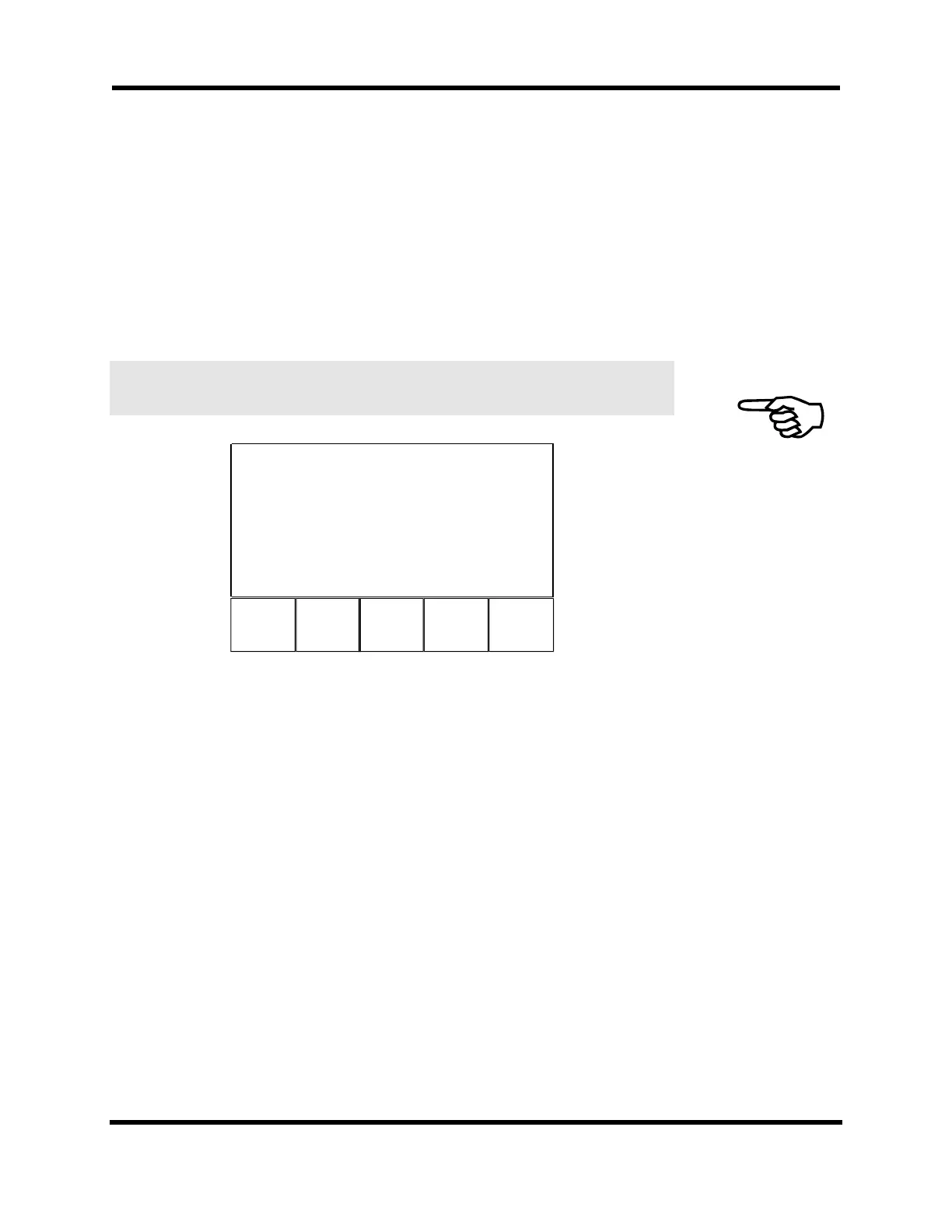
The following screen (Figure 3-9) is an example of an Edit Command screen. Pressing the
Commands key (F4) while the cursor is on a blank line accesses the Edit Command
screen. The Edit Command screen is used to enter commands without using a keyboard
and to help with program command syntax. The most commonly used commands are
displayed in the first screen. Other commands follow alphabetically. A command can be
selected by using the PgUp, PgDown, and arrow keys to locate the cursor on the desired
command then pressing ENTER. After pressing ENTER, a specialized command screen,
which will help the user with the program command syntax, will be displayed.
Use of the Edit Command screen is only necessary when a keyboard is unavailable.
F1 F2 F3 F4
Index
ENABLE DISABLE HOME SLEW
FREERUN DWELL INDEX LINE
CC CW Fa OUT
IO IOSET Loop NEXT
IF GOTO :label ;com
nt
Press ENTER for syntax
PgUp PgDown Q
t
Figure 3-9. Edit Command Screen
This screen has three selectable functions that are described below:
F1 PgUp This function is used to page up through the commands.
F2 PgDown This function is used to page down through the commands.
F5 Quit The Quit function is used to exit or quit this operation.
The specialized command screens that appear after pressing ENTER on the Edit
Command screen (or by pressing Commands [F4] while the cursor is on a command in
the Program Editor screen) differ depending on the command that was selected. An
example of one of these specialized command screens is shown in Figure 3-10. This
screen is for the INDEX command. The first line of the screen shows the file name and
the line of the program that the command is being added to. The next line shows the name
of the command. The third line shows the syntax for the command. In this case, the syntax
structure means that the axis to be moved (X, Y, Z, or U) must be followed by a distance
(a, b, c, or d), followed by the feedrate of the move for each axis (XFe, XFf, etc.). The
fourth line is where the user builds the command to be inserted into the program using the
functions at the bottom of the screen. To insert a modified command into the Program
Editor, the user must press ENTER after the command has been built. When this is done,
the program returns to the Program Editor screen with the new command displayed in it.
Artisan Technology Group - Quality Instrumentation ... Guaranteed | (888) 88-SOURCE | www.artisantg.com



 To Next Page