6.3 Tuning fuel 6 TUNING THE MS3PRO
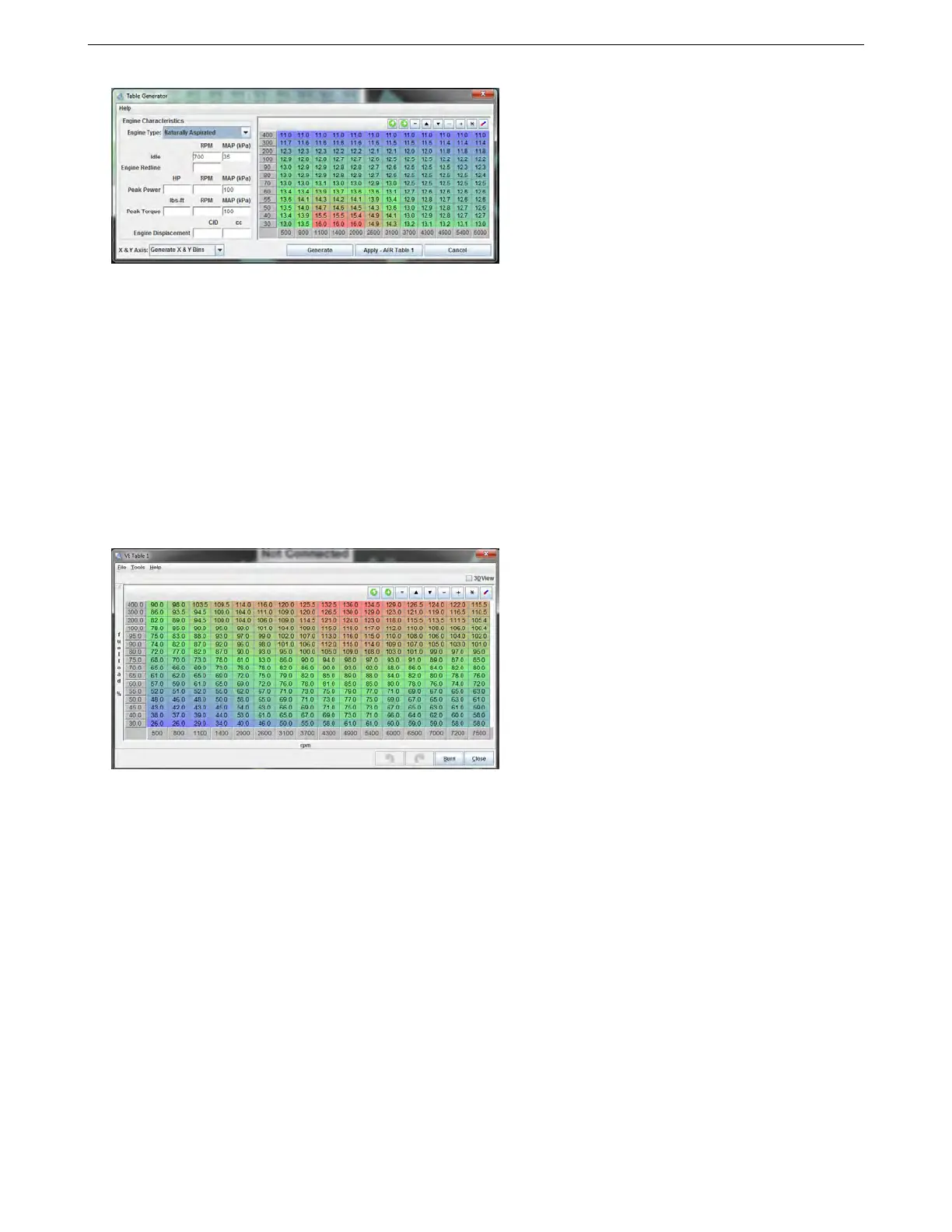
In this menu, you can enter information about the engine at left. The “X and Y Axis” option gives you the
option of retaining the current load and RPM bins, or generating new ones based on the data entered. First, click
Generate to create the table, then the Apply button to activate the new table or Cancel to close the generator and
not use the generated table.
If you are running MAF mode, this is your main fuel tuning table. If you do not hit the actual AFR targets, you
will need to adjust the MAF flow curve under the Basic / Load Settings menu.
If you set “Incorporate AFR Target” under the General Settings menu to “include AFRtarget,” this table is used
to scale the fueling. A table entry of 14.7:1 will mean no fuel scaling. Numbers less than that will increase the
fuel, and numbers higher will decrease the fuel. When using this mode, you’ll tune your VE table to hit your AFR
targets, then adjusting the AFR target table will directly adjust the fuel to the desired AFR number.
6.3.4 VE table
The VE table is your primary tuning table unless running in MAF mode (and in MAF mode, it can be used as a
corrective trim table). At its simplest, bigger numbers equal more fuel.
In any mode that uses this table, the numbers in the VE table are a percentage. The fueling equation takes
the base pulse width from Required Fuel, scales it by the percentage in the VE table, and then applies any
other corrections, enrichments, and the like, such as air density correction and warmup enrichment. If you have
the tuning set to incorporate the AFR target, theoretically, the VE table will match the engine’s actual volumetric
efficiency. Don’t be alarmed if you need to enter numbers above 100, particularly in boost. The maximum number
is 255.
If you are running in MAF mode with the VE table enabled as a trim table, start by adjusting all cells to 100.
The table will apply a percent trim to the fueling calculated from the MAF sensor curve and AFR table.
We recommend first setting up an appropriate AFR table, then adjust the numbers in the VE table (upwards to
add fuel, downwards to take it away) until your actual air/fuel ratio hits the target table.
Before starting to tune the VE Table, it is recommended that you turn the Acceleration Enrichment (AE) off so
you can see whats happening to the mixture as a direct result of the table rather than having fuel added from Accel
Enrichment. See the next section on how to switch this off. You may find that you’ll need to be light on the throttle,
as the AE is needed to fill "holes" that occur when the throttle opens quickly. Remember to tune the AE when you
have a tuned VE Table.
Another item to turn off during tuning is the Overrun settings as the PW may drop to 0.0mS causing lean spots.
You’ll find this by going to the Basic / Load Settings menu and selecting General Settings. Overrun fuel cut is in
the lower right corner. The default tune has this turned off.
Tuning the VE table involves enriching (by increasing the VE) or leaning (be decreasing VE) at each point in
the VE table. Most of your driving will occur in a diagonal strip of the VE table, from low rpm, low kPa (i.e. idle)
AMP EFI MS3Pro manual version 1.202, firmware 1.5.0, 4/21/2017 Page 112



 To Next Page