8.4 Tooth / trigger logger and troubleshooting RPM issues 8 TROUBLESHOOTING AND DATA LOGGING
8.4.2 Using the diagnostic logger
The tooth / trigger logger, accessible under TunerStudio’s Diagnostic tab, lets you visualize crank and cam signals.
It does not give you a voltage reading directly, but it will show you the state of the crank or cam signal, either on
or off, as it reaches the MS3Pro’s processor. Use this to troubleshoot issues with the MS3Pro’s RPM input. There
are several different modes. They work in a similar way:
The Logger Type setting selects which log type to use.
The Start, Stop, and Clear buttons work as you’d expect.
The Open Log button lets you pull up previous logs.
To capture a log to a file, first click the Capture Log to File button. You will be prompted to save a file. After you
save the file, you may then start the log and collect data.
8.4.3 Tooth logger
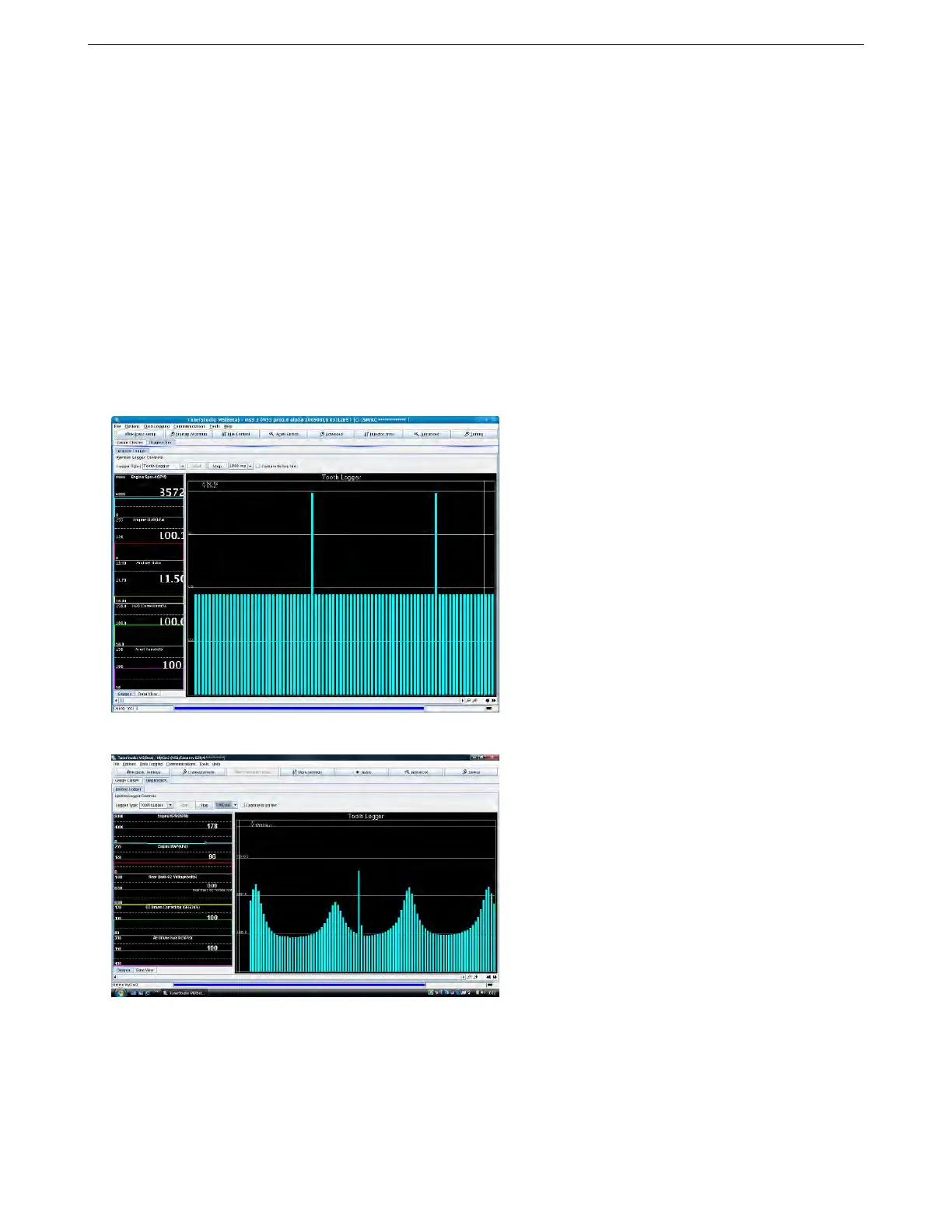
This records the tach events that are received by the main tach input (crank) after any noise filtering. The height
of the bar on the screen represents pulse length. The taller the bar, the longer the pulse. This one is useful for
interpreting sync issues with a missing tooth type wheel.
Here’s one with a simulated 36-1 wheel.
In the above 36-1 screenshot you can see 34 normal teeth and the single long "missing" tooth. Usually, the log
isn’t quite as perfect. Here’s one from a real 60-2 crank trigger while cranking a motor.
In the above 60-2 screenshot you can see 57 normal teeth and the single extra long "missing" tooth. The cyclic
nature of the teeth is due to the engine speeding up and slowing down during cranking. The OEM has place the
missing tooth in a good place to avoid confusion with the compression effect. With poor choice it can be difficult
for the code to reliably detect the tooth.
AMP EFI MS3Pro manual version 1.202, firmware 1.5.0, 4/21/2017 Page 294



 To Next Page