8 TROUBLESHOOTING AND DATA LOGGING
8 Troubleshooting and Data Logging
8.1 Resets
A reset is when a disruption in power or a spike in voltage causes the processor to briefly shut down. This will
cause the engine to hiccup while running, and will display a couple other symptoms. The MS3Pro will reset when
it is powered up, and this is the right time for it to reset. Having it reset on a running engine, however, is something
you’ll want to fix right away.
• The MS3Pro will briefly disconnect from the laptop or other devices on USB or RS232.
• Data logs will indicate a “Mark (number) - RESET”.
• The SecL count will drop to zero.
The last item is a key part for spotting true resets in a data log. If the engine hiccups, but the SecL count does not
drop back to zero, you’ve got something else, such as a fuel cut, loss of RPM signal, or other issue. If it’s a real
reset, here are the items we recommend checking first.
First, make sure the MS3Pro has all ground wire used, and grounded to the engine block, cylinder head, or
negative terminal of the battery. Chassis grounds can have issues caused by rust or points where current runs
through nothing but a thin spot weld.
Check where the MS3Pro is getting power from a clean source - ideally, you’ll want it to be powered off the
battery, with no devices that draw significant current getting power from the same feed. Many resets come not
from EMI / RFI interference, but from something like an ignition coil or fuel pump injecting voltage spikes into the
power feed.
Make sure that you are using resistor type spark plugs, good spark plug wires (if you’re not running coil on
plug), and that the spark plug wires are not within one inch of any wires going to or from the MS3Pro.
8.2 Capturing data logs
Data logs allow recording information from the engine for later analysis. These can help you troubleshoot your fuel
tables, sensor readings, and more. You can record data logs from a laptop or with the MS3Pro’s built in SD card.
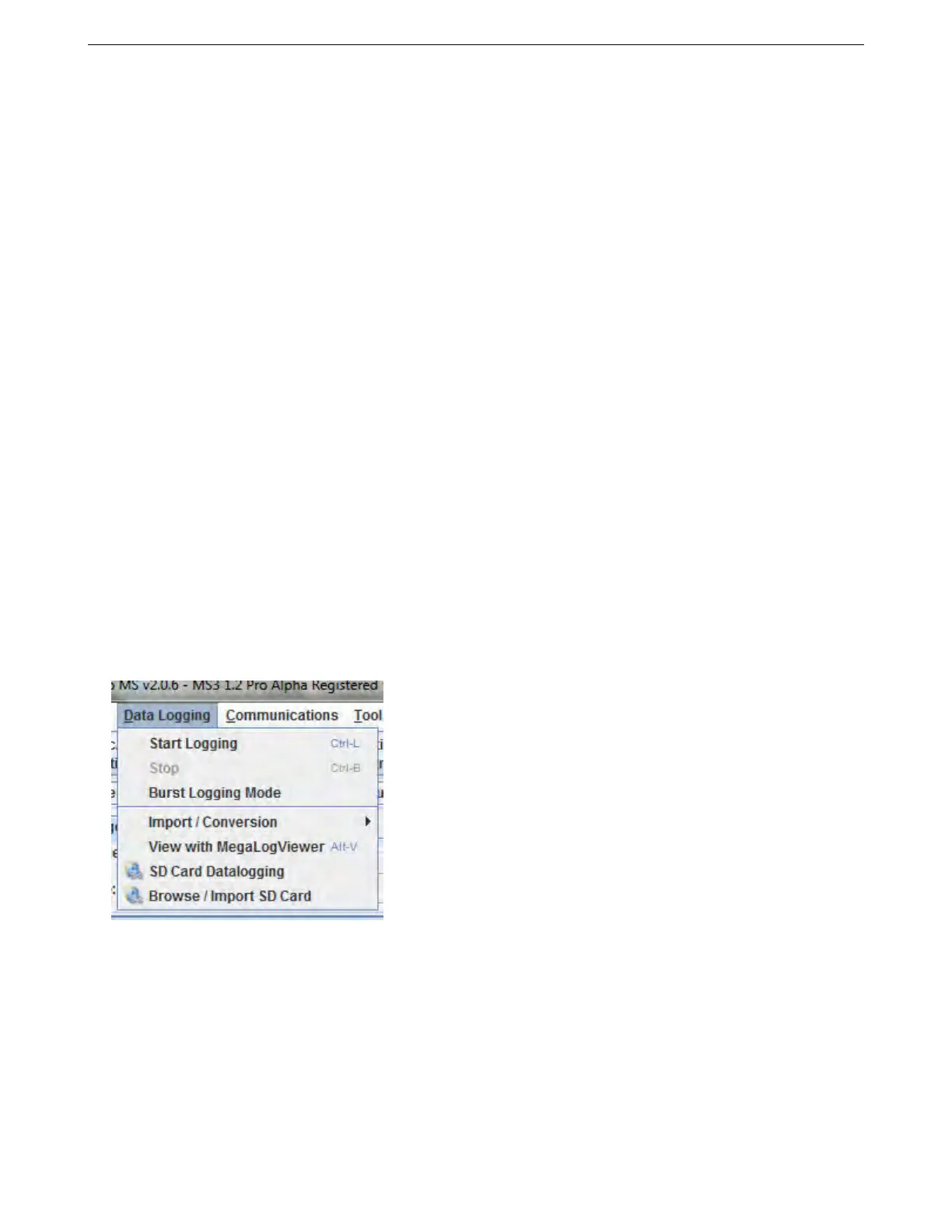
All of these are accessible from the Data Logging menu.
Use MegaLogViewer to play back the data logs.
8.2.1 Data logging with a laptop
To start a data log, go to the Data Logging menu and select Start Logging. TunerStudio will prompt you for a file
name. You can go with the default date stamp, or enter a more descriptive name. The data log starts when you
save the file. It stops when you either select Stop or close TunerStudio.
Burst logging mode shuts down gauge updates and several other features. We don’t recommend using this
except for logging on extremely slow devices.
Automatic logging enables TunerStudio to start or stop logging based on ECU variables or math expressions.
For example, you can set TunerStudio to start logging when the RPM goes over a certain value, or when the SD
card logging reports an error.
AMP EFI MS3Pro manual version 1.202, firmware 1.5.0, 4/21/2017 Page 280



 To Next Page