2.2 TunerStudio 2 INSTALLING THE SOFTWARE
allows you to load custom dash files. You can edit any gauge cluster once the project is opened, or load an
alternate gauge cluster. Click “Finish” to confirm your gauge selection and launch the new project.
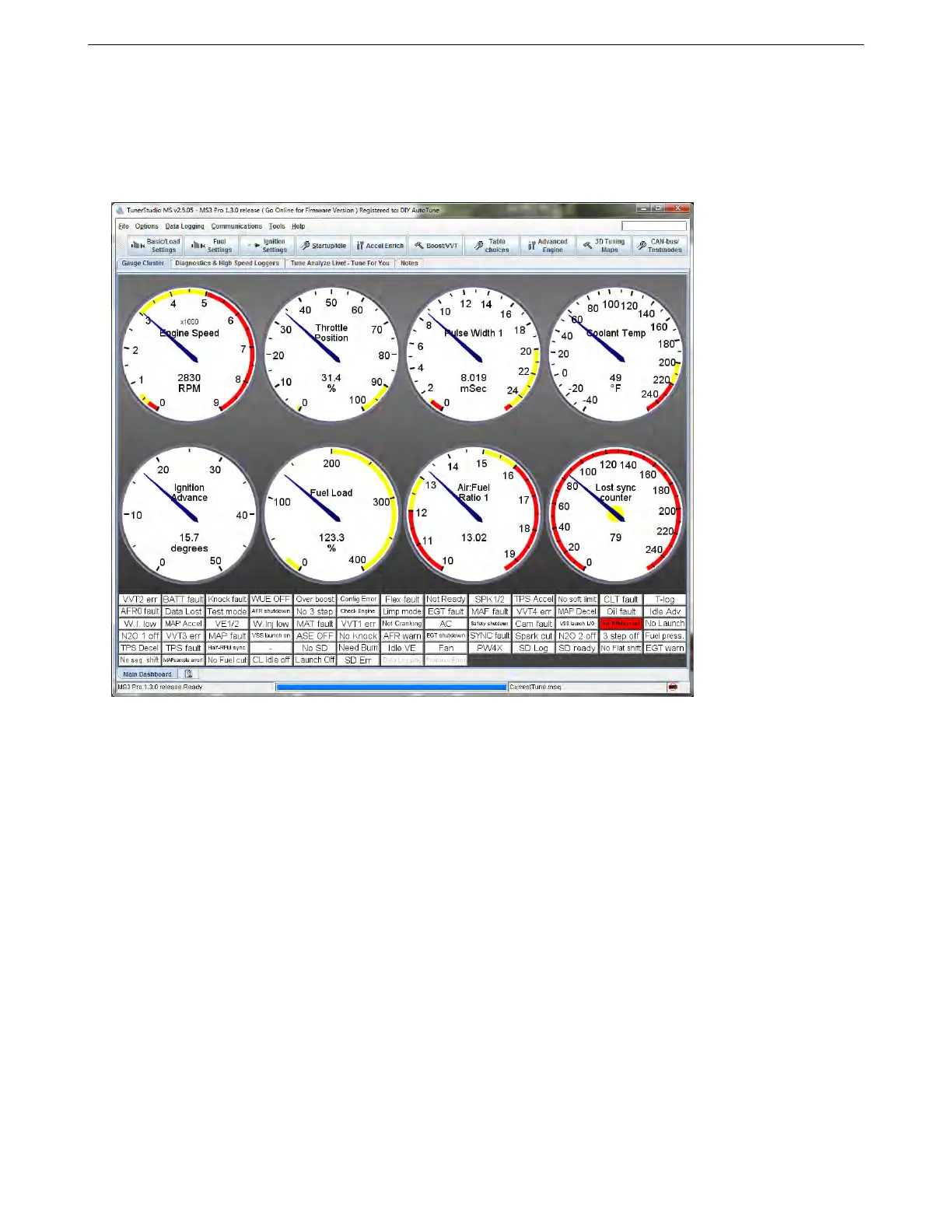
2.2.3 TunerStudio main screen
Once you’ve made a project, TunerStudio will bring up its main screen.
The screen is divided into several sections.
• The title bar at the top displays the current TunerStudio version, the project name, and when connected to
the MS3Pro, the firmware version.
• The menu bar at the top deals mostly with TunerStudio functions, such as loading and saving files. They also
allow for calibrating the sensors.
• The large row of buttons bring up menus to access the settings in the ECU.
• The row of tabs below the buttons lets you select four different screens:
– Gauge Cluster: Displays basic information about the sensor readings, ECU calculations, and status.
– Diagnostics & High Speed Loggers: These are used for various specialized troubleshooting functions;
see section 8 for more detail.
– Tune Analyze Live! Tune For You: This allows TunerStudio to recalculate new fuel tables based on
oxygen sensor feedback.
– Notes: A text editor for taking notes.
• You can change any gauge or indicator in the cluster by right-clicking on it and swapping it to a different
function.
• There is a second set of tabs at the bottom of the gauge cluster that allows you to set up multiple, separate
gauge clusters. Click on the rectangular icon to create a new cluster.
AMP EFI MS3Pro manual version 1.202, firmware 1.5.0, 4/21/2017 Page 19



 To Next Page