2.2 TunerStudio 2 INSTALLING THE SOFTWARE
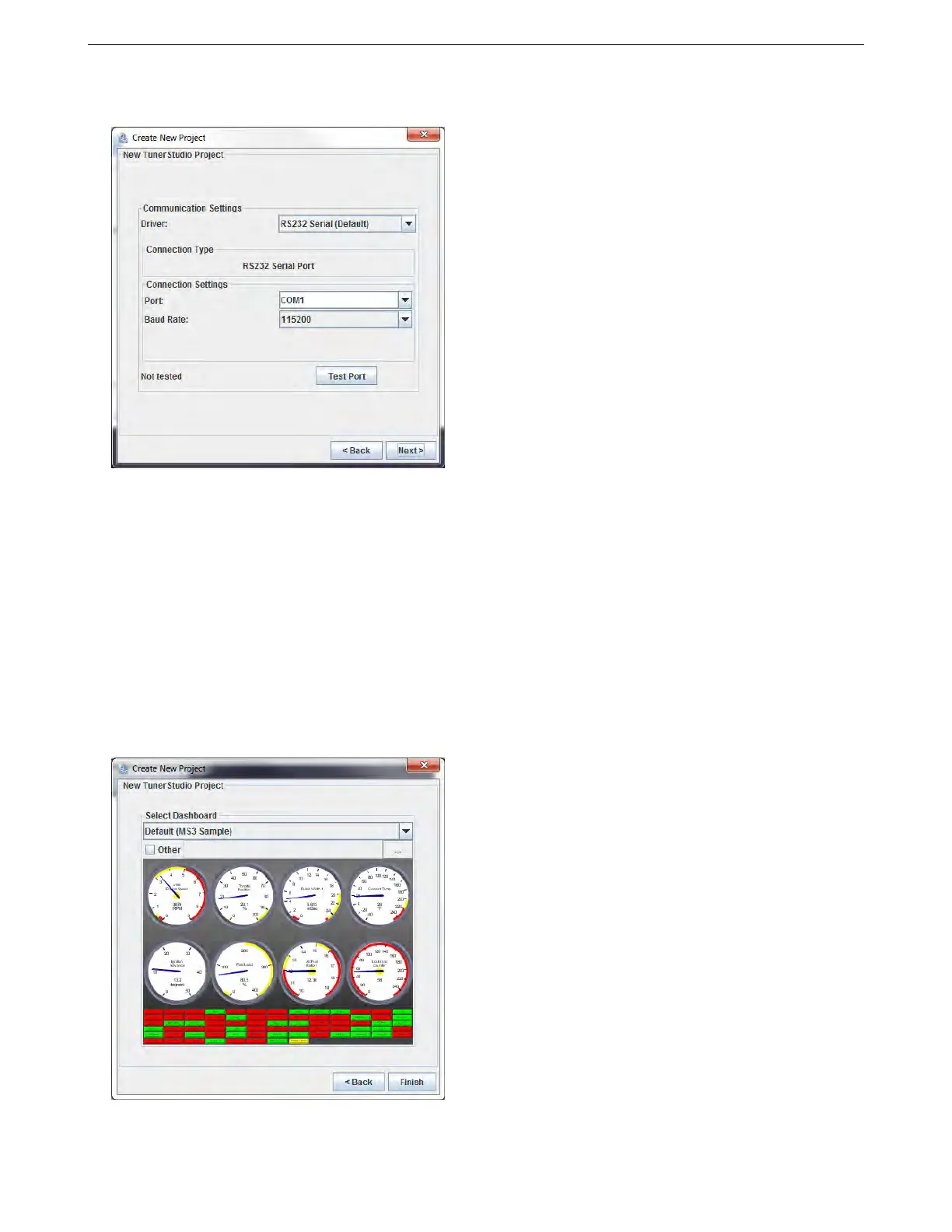
Clicking Next will bring up a communications test screen. This allows you to select what port is used and what
driver type to use.
Driver options include:
1. RS232 serial. Use this for connecting to the MS3Pro’s RS232 port without a USB adapter. This setting will
also work with third party USB adapters that behave like a virtual COM port. The unregistered version of
TunerStudio will use this with the MS3Pro’s USB connection and AMP EFI’s USB adapters as well.
2. Bluetooth Direct. Use when connecting a built in Bluetooth connection on the laptop to a Bluetooth to serial
adapter, such as the one sold by EFI Analytics.
3. FTDI - D2XX Driver. This works with the MS3Pro’s internal USB port, or AMP EFI’s USB-2920 adapter
on the MS3Pro’s RS232 port. Provides somewhat faster and more reliable communication than using this
adapter in RS232 Serial mode.
4. TCP/IP - WiFi Driver. Use with WiFi to serial adapters.
Specify which driver you will use at the top of this screen. MS3Pro normally communicates at a 112500 baud rate.
After clicking Next, TunerStudio’s final project setup screen lets you select a gauge display.
This display will show the gauges and indicators cycling through their range of readings. There are several
ready to run gauge options that you can select from the drop down menu at the top. Checking the “other” box
AMP EFI MS3Pro manual version 1.202, firmware 1.5.0, 4/21/2017 Page 18



 To Next Page