Chapter 6 Displaying Images in the Viewer 153
II
Sampling Color Values
The Color meter displays the color values of the pixels in the image beneath the
pointer or the target area of the Loupe.
To use the pointer to sample the color values in an image:
m Place the pointer over the area of the image where you want to sample the color values,
and view the values at the top of the Adjustments Inspector or Adjustments HUD.
Note: When you select a large image with multiple adjustments applied, ellipsis
points (...) may appear in the Color meter rather than numerical values. As soon as
Aperture renders the image, the appropriate numerical values appear.
Choosing a Color Value Option
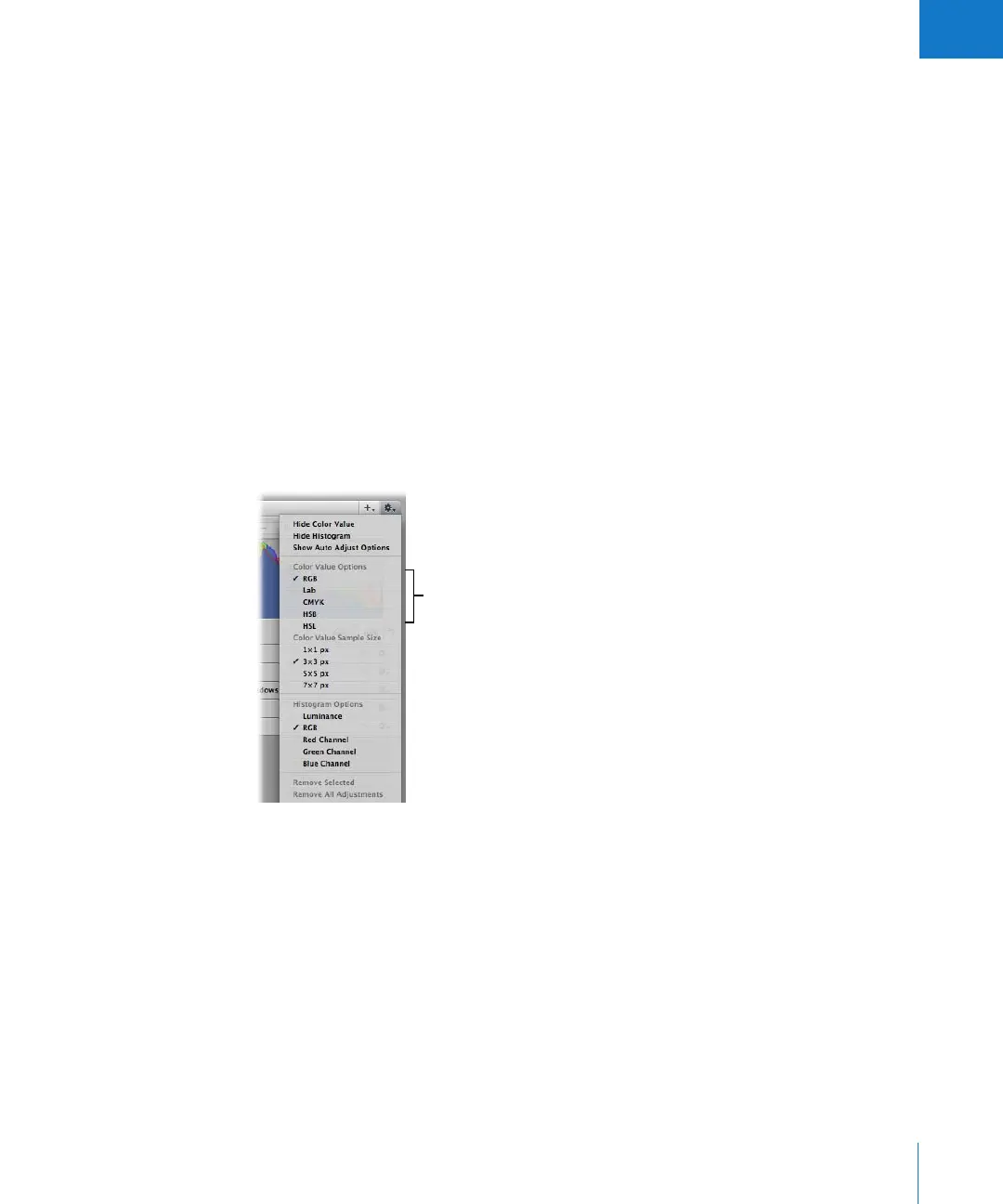
You can set the Color meter to display RGB, Lab, CMYK, HSB, or HSL color values.
To choose a color value option for the Color meter:
m In the Adjustments Inspector or Adjustments HUD, choose a color value option from
the Adjustment Action pop-up menu.
Choose a color value option here.





 To Next Page