Chapter 18 Creating Webpages 341
III
 Add Text Box button: Click this button to add a text box to the bottom of the
current webpage.
 Columns value slider: Specify the number of columns you want on a page. Click the
arrows to increase or decrease the number of columns, or double-click in the number
field and enter a new value.
 “Fit images within” pop-up menu: Choose an option for how you want images to
appear on the webpage.
 Width value slider: Use this to specify the width of photo boxes on the page. Click the
arrows to change the width, or double-click in the number field and enter a new value.
 Height value slider: Use this to specify the height of photo boxes on the page. Click
the arrows to change the height, or double-click in the number field and enter a
new value.
 Export Web Pages button: Click this button to export your webpages.
 Publish to .Mac button: Click this button to publish your finalized webpages to your
.Mac account. See “Exporting to .Mac” on page 348.
 Previous Page button: Click this button to go to the previous webpage.
 Next Page button: Click this button to go to the next webpage.
Viewing and Navigating Through Webpages
As you modify your webpages, there are some easy ways to view and navigate
through your pages.
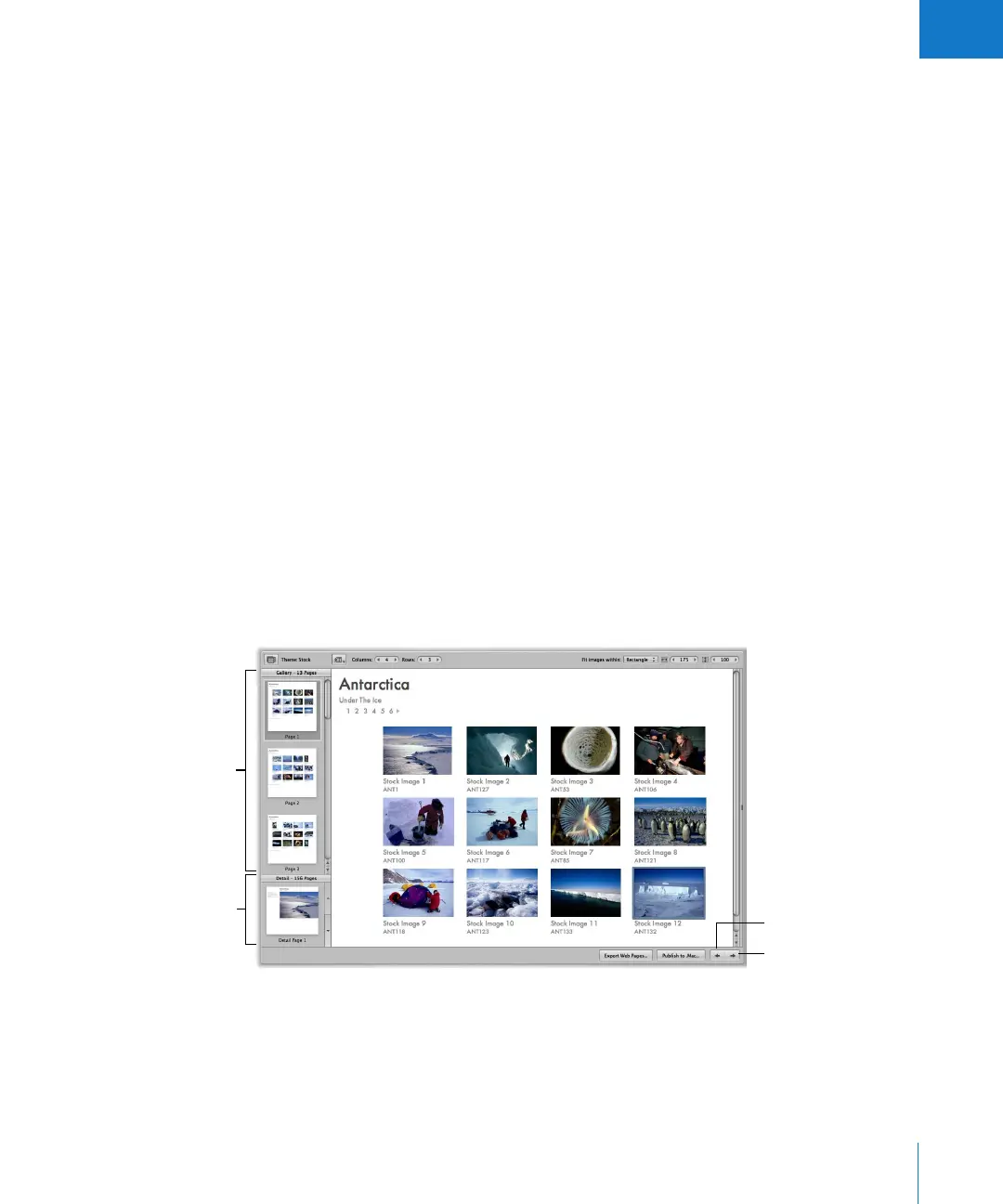
Click here to see the
enlarged version of the
selected image.
Next Page button
Previous Page button
Select the page you want
to work on here.





 To Next Page