344 Part III Distribution and Backup
Resizing the Images on Webpages
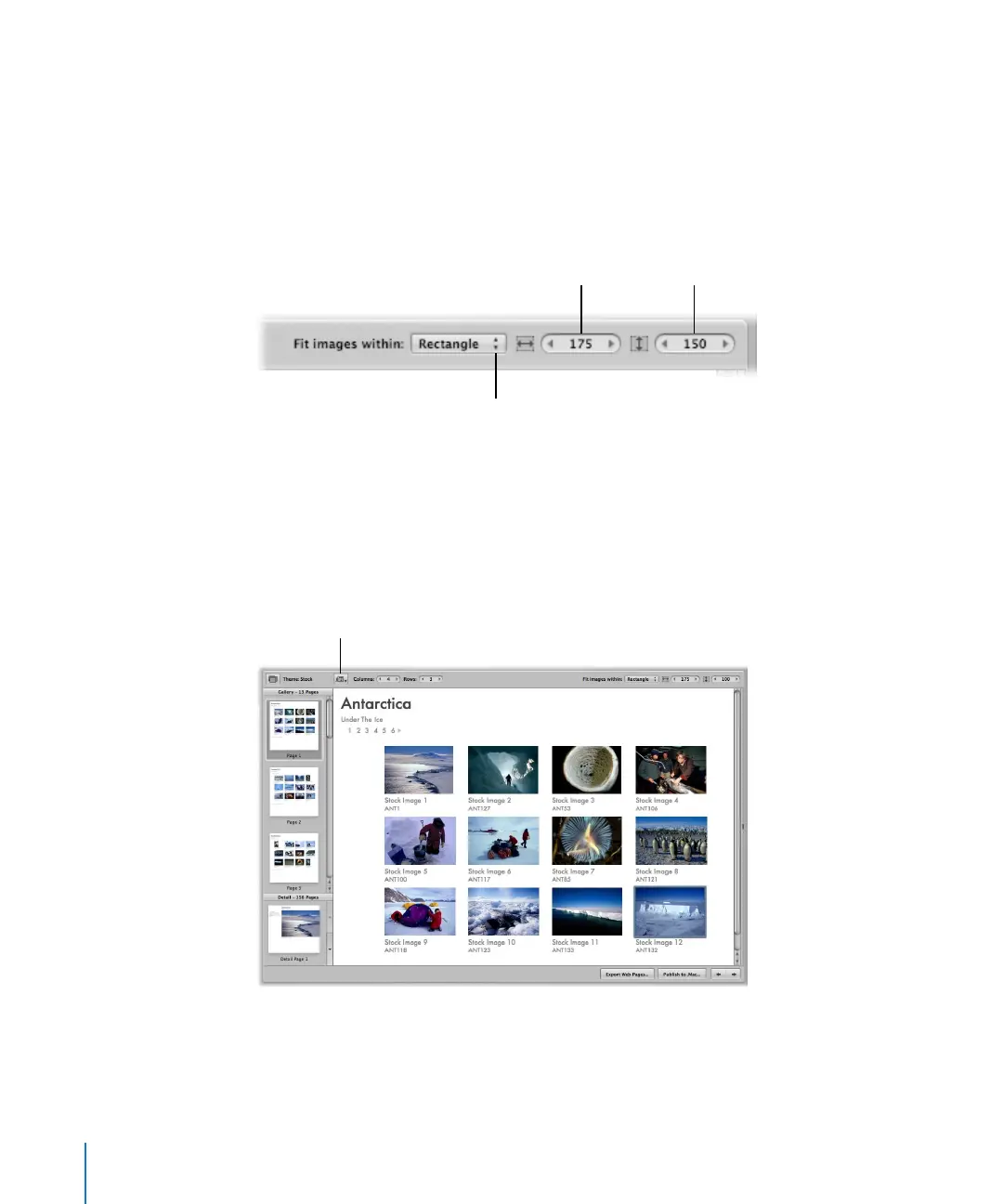
You can increase or decrease the size of images on your pages.
To change the size of images on the page:
1 From the “Fit images within” pop-up menu, choose whether you want the images to be
spaced according to their longest edge or both edges.
2 To increase or decrease the image size, double-click in the number field of the Height
and Width value sliders and enter new numbers, or click the left or right arrows.
Displaying Images with Metadata
You can specify that your images appear with metadata on your web gallery or journal
pages. You can choose different combinations of metadata to appear on your pages.
For example, you might display your web gallery pages with a simple set of metadata
that includes the filename, caption, and image date.
To specify the types of metadata that appear with your images:
m In the Webpage Editor, choose an option from the Metadata View pop-up menu.
Width value slider
Choose how you want your
images to fit on the pages
from this pop-up menu.
Height value slider
Metadata View
pop-up menu




 To Next Page