232 Part II Photo Editing
To switch metadata views in the Browser, do one of the following:
m Choose View > Metadata Overlays > Change Browser Set (or press Shift-U).
m Choose View > View Options (or press Command-J), select the Set 1 or Set 2 button in
the Grid View or List View Columns section, then click Done.
To turn image tooltips on or off, do one of the following:
m Choose View > Image Tooltips (or press T).
m Choose View > View Options (or press Command-J), select or deselect the Image
Tooltips checkbox, then click Done.
Viewing and Changing Metadata in the Metadata Inspector
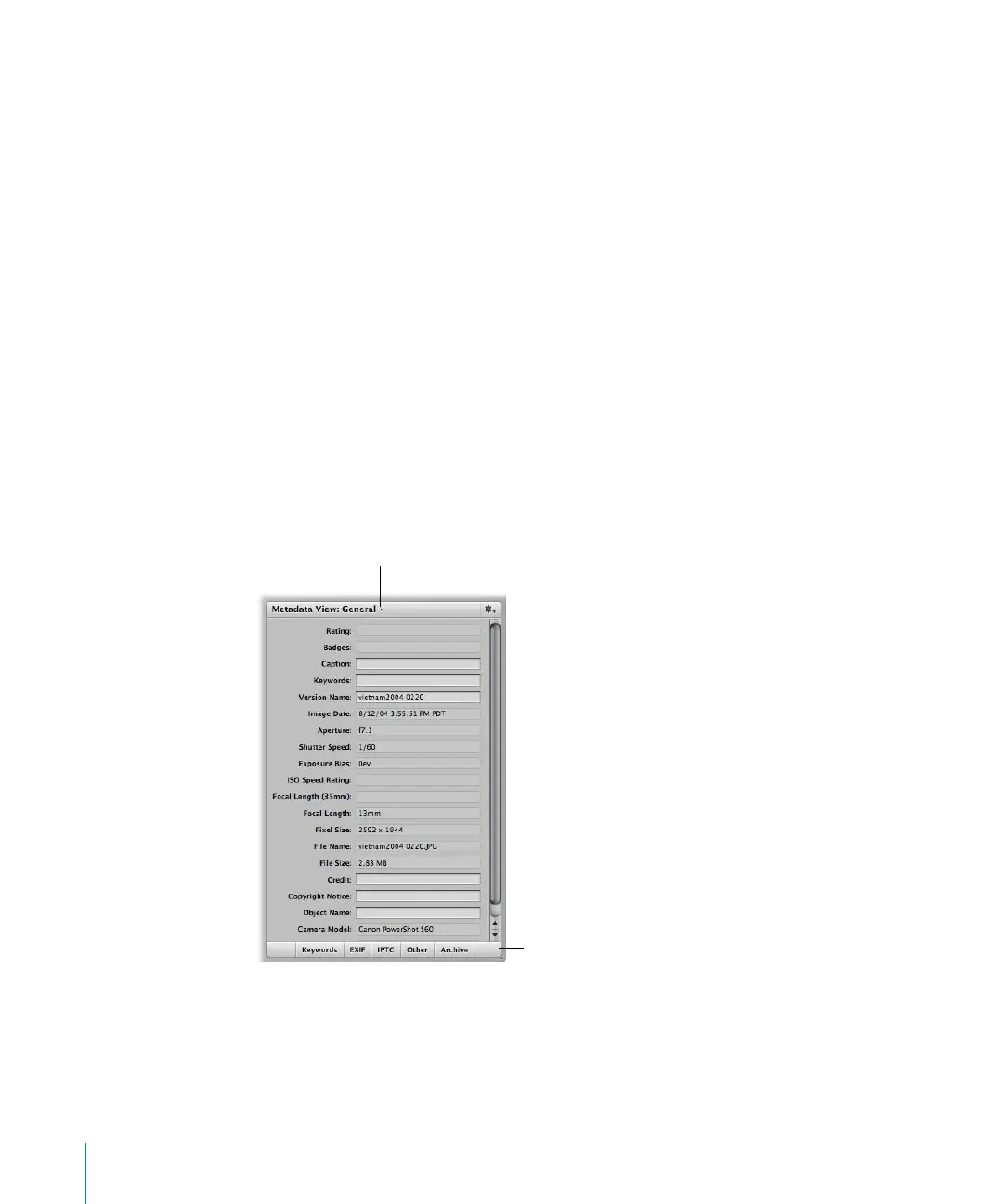
You can view or change the metadata for a selected image in the Metadata Inspector.
The selected image’s metadata appears in text fields. You can change the metadata
categories shown in the Metadata Inspector by choosing a different metadata view
from the Metadata View pop-up menu. You can also view keywords, EXIF information,
IPTC information, other miscellaneous metadata that you specify, and backup location
information by clicking the buttons at the bottom of the inspector.
Choose a metadata view
from the Metadata View
pop-up menu.
To view a subset of the
image’s metadata, click
the appropriate button.





 To Next Page