Chapter 11 Working with Metadata 233
II
To view and change metadata in the Metadata Inspector:
1 Select an image.
2 To show the Metadata Inspector, choose Window > Show Metadata (or press Control-D).
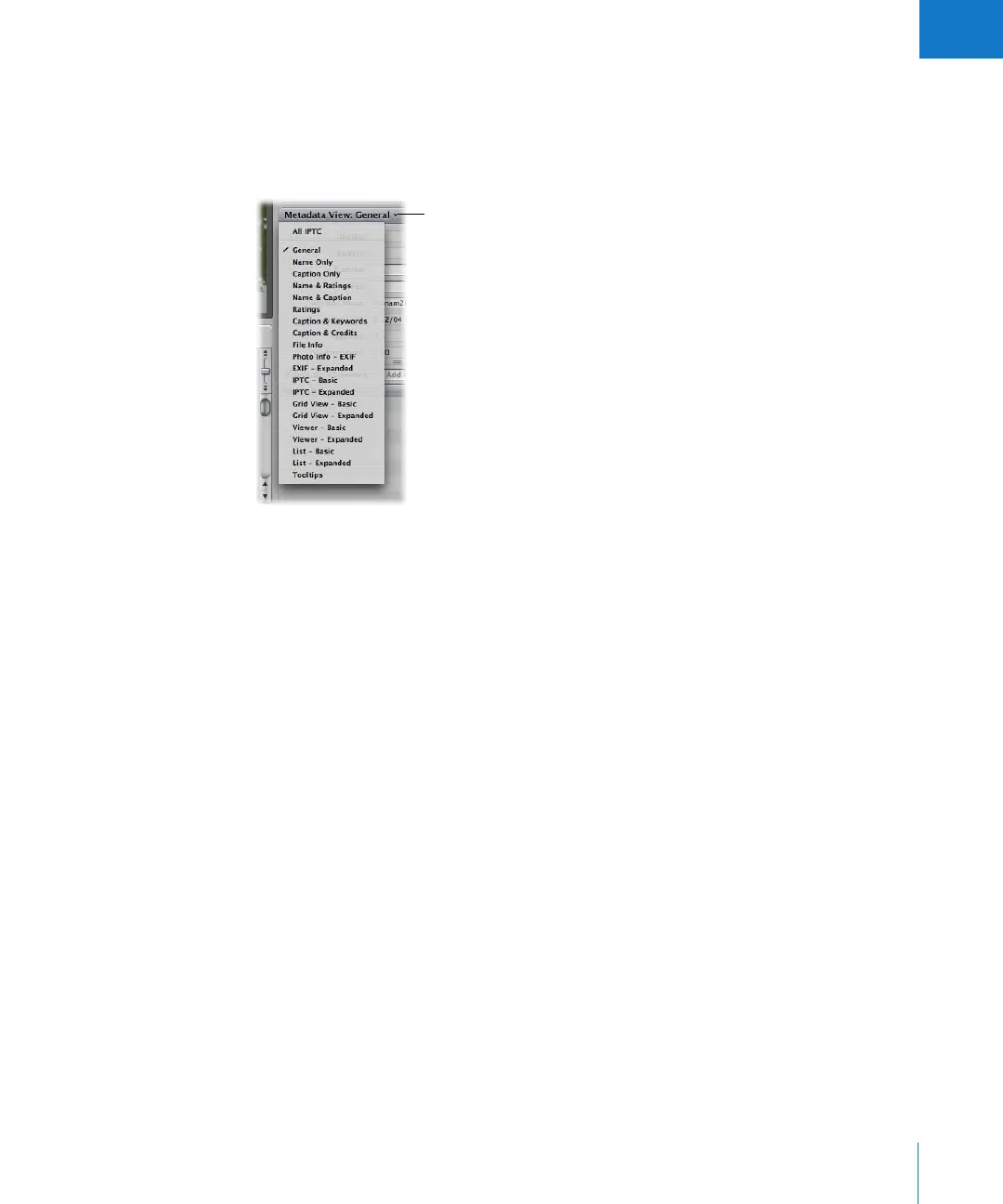
3 Choose a metadata view from the Metadata View pop-up menu.
4 To change the metadata in an editable text field, click in the text field to make it active,
then enter the text you want.
Working with the AutoFill List Editor
As you enter metadata in the Metadata Inspector’s fields, Aperture checks for previous
entries, and if it locates a match, it completes the entry for you. For example, if you
used the keyword Landscape previously, and you type the first few letters of Landscape
again, Aperture automatically enters Landscape in the field. You can set up and change
the list of metadata that Aperture automatically enters using the AutoFill List Editor.
You can enter up to 20 entries for a field type. If you’ve made a spelling mistake when
typing an entry, you can also use the AutoFill List Editor to correct the mistake so that
Aperture always suggests the correct spelling.
Choose a metadata view
from this pop-up menu.





 To Next Page