66 Part I Interface and Acquisition
Customizing the Toolbar Buttons
Aperture provides a simple drag-and-drop interface for adding, deleting, and
rearranging the toolbar buttons.
To customize the toolbar:
1 Do one of the following:
 Choose View > Customize Toolbar.
 Control-click the toolbar, then choose Customize Toolbar from the shortcut menu.
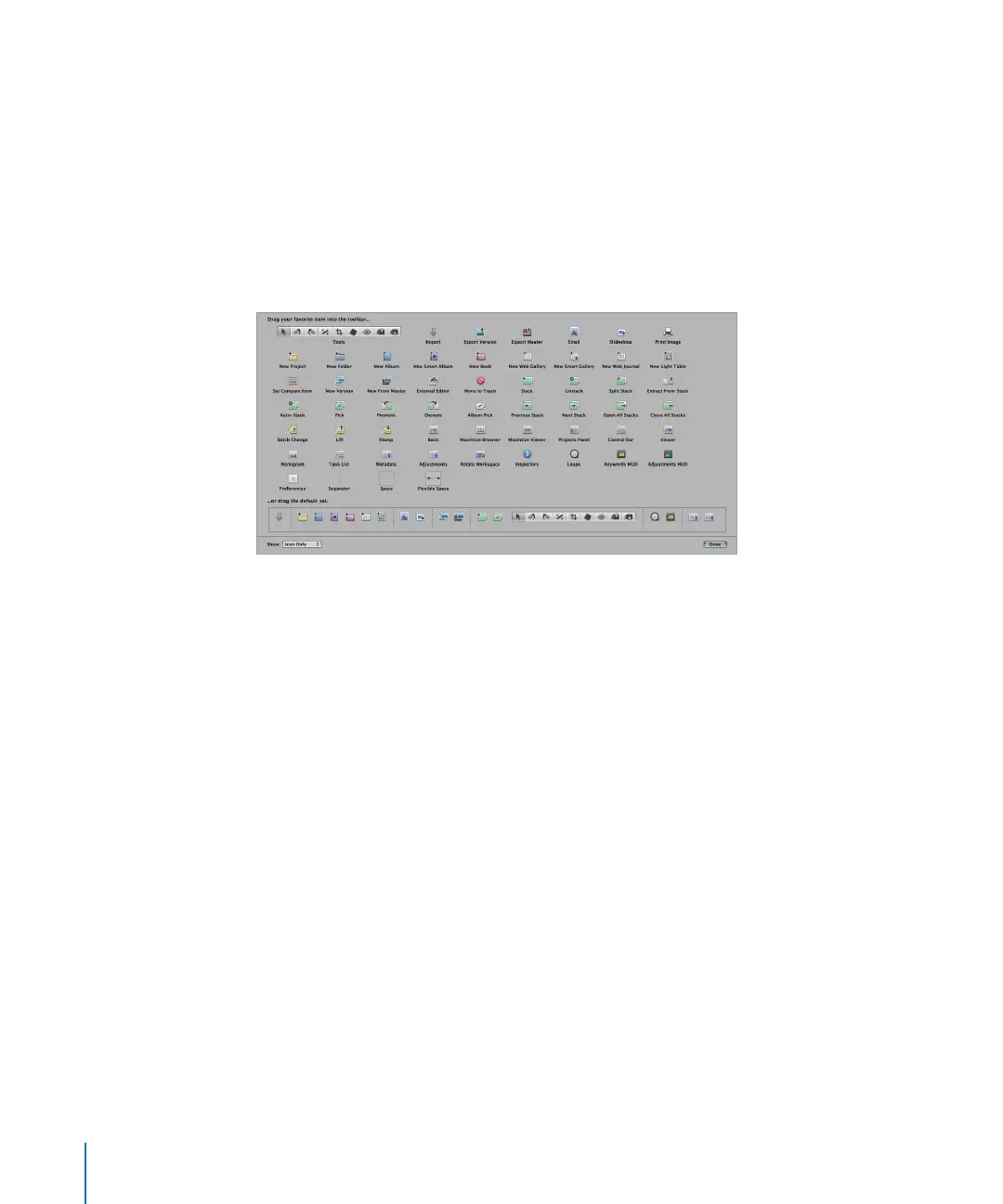
A dialog appears, showing icons for toolbar buttons and tools.
2 Configure the toolbar by doing any of the following:
 To add tools to the toolbar: Drag their icons from the dialog to the location where you
want them to appear in the toolbar.
 To remove items from the toolbar: Drag them out of the toolbar, or Control-click the
item you want to remove and choose Remove Item from the shortcut menu.
 To change the order of the items in the toolbar: Drag each item to its new position.
 To control whether each tool’s icon and text appear in the toolbar: Choose Text Only,
Icon Only, or Icon & Text from the Show pop-up menu in the lower-left corner of the
dialog, or Control-click the toolbar and choose Text Only, Icon Only, or Icon & Text
from the shortcut menu.
3 Click Done when you have finished configuring the toolbar.
To reset the toolbar:
m To return the toolbar to its default state, drag the default toolbar up from the bottom
of the dialog and into the toolbar area.





 To Next Page