Chapter 15 Exporting Your Images 309
III
Modifying an Export Preset
You can modify existing presets when you need to. The next time you export using that
preset, Aperture remembers your modified settings and exports your images accordingly.
To modify an existing preset:
1 Do one of the following:
 Choose Aperture > Presets > Image Export.
 With an image selected, choose File > Export Version (or press Command-Shift-E) and
in the dialog that appears, choose Edit from the Export Preset pop-up menu.
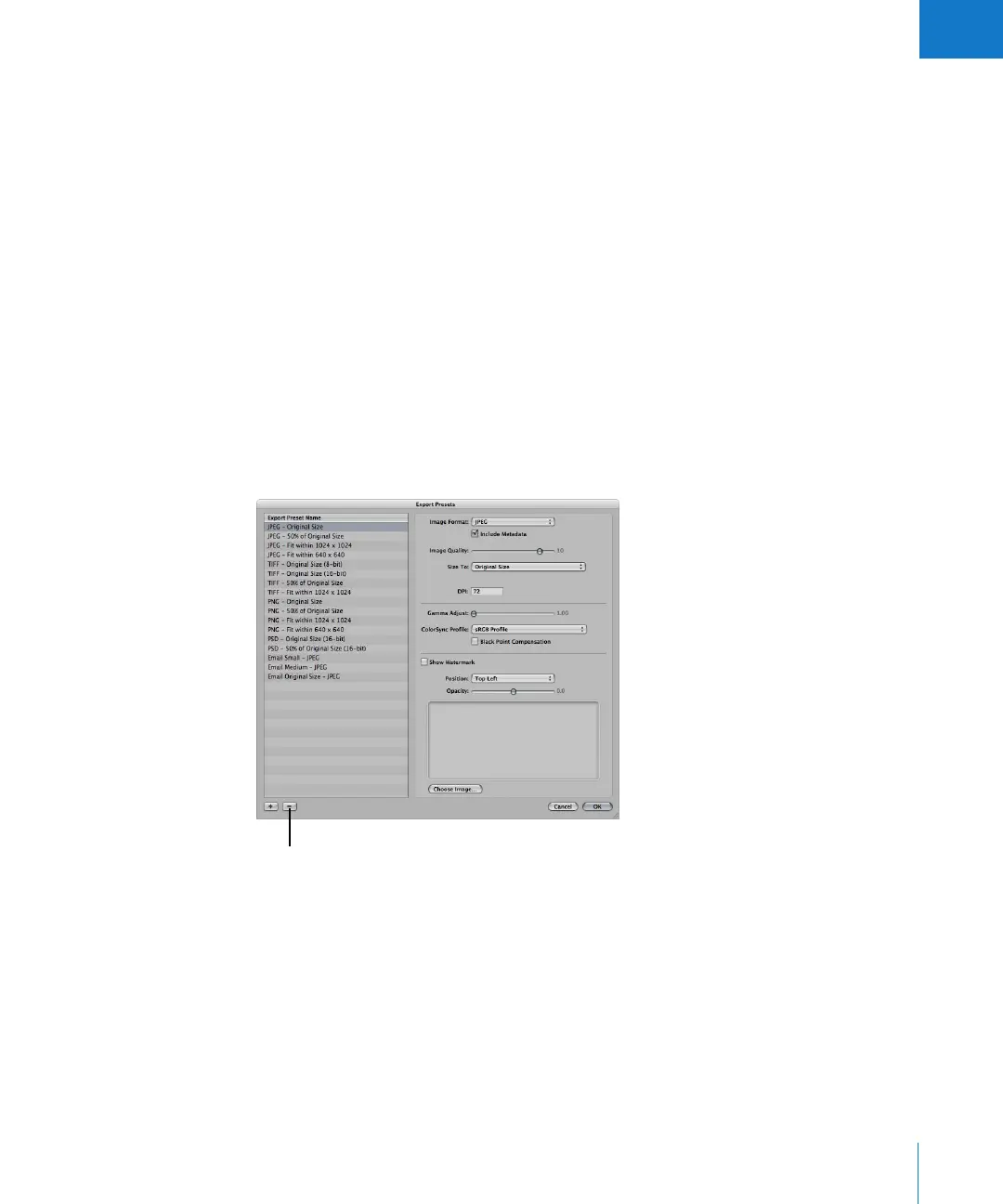
The Export Presets dialog appears.
2 Select the preset you want and change its settings as required, then click OK.
Deleting an Export Preset
You can delete an export preset when you no longer need it.
To delete an export preset in the Export Presets dialog:
1 Select the preset, then click the Delete (–) button.
The preset disappears from the preset list.
2 Click OK.
The preset is permanently deleted.
Note: If you click the Delete button and then click Cancel, the preset will reappear the
next time you open the Export Presets dialog.
Click the Delete button to
delete the selected preset.





 To Next Page