Chapter 2 The Aperture Interface 57
I
Webpage Editor
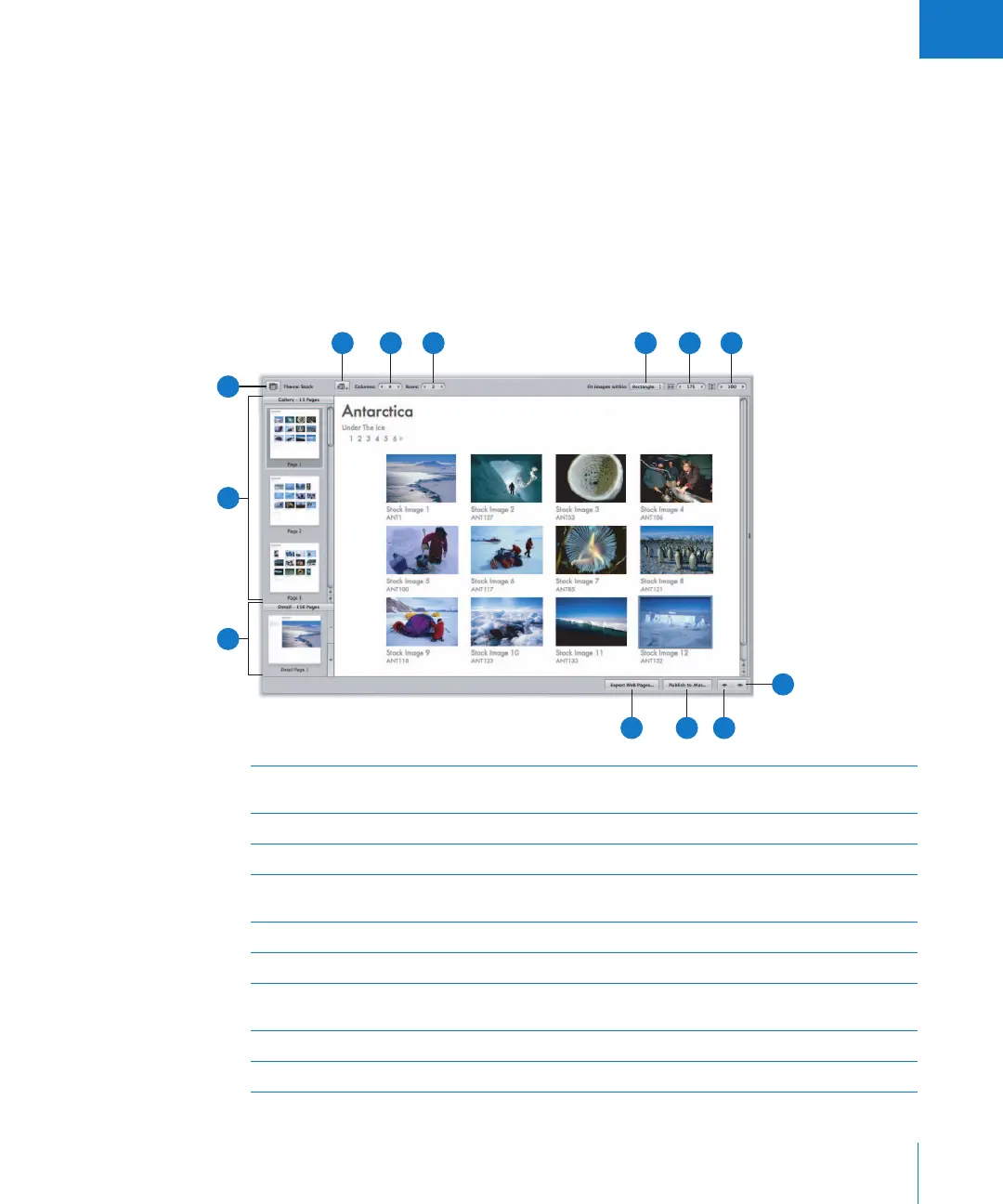
You can use the Webpage Editor to create professional-quality, gallery-style pages and
web journal pages for displaying your images. After designing your pages, you can post
them to your .Mac account or web server. The controls in the Webpage Editor differ slightly
depending on whether you have selected a web gallery album or a web journal album.
Web Gallery Controls
To work with a web gallery in the Webpage Editor, select a web gallery album in the
Projects panel and select a page to view from the thumbnail pages on the left side.
When the selected page appears, you can add and arrange images and text.
A
Detail Images panel Click the thumbnail image in this panel to see the enlarged version
of the selected image.
B
Gallery Pages panel Click a page’s thumbnail to see the enlarged version.
C
Site Theme button Click this button to choose a theme, or layout, for your webpages.
D
Metadata View
pop-up menu
Choose a metadata view to use with the webpage images from
this pop-up menu.
E
Columns value slider Specify the number of columns you want on a page.
F
Rows value slider Specify the number of rows you want on a page.
G
“Fit images within”
pop-up menu
Choose how to display images on the webpage.
H
Width value slider Specify the width of the images displayed on the page.
I
Height value slider Specify the height of the images displayed on the page.
D
E F
G
H
I
L M
K
J
A
B
C





 To Next Page