Chapter 10 Applying Keywords to Images 205
II
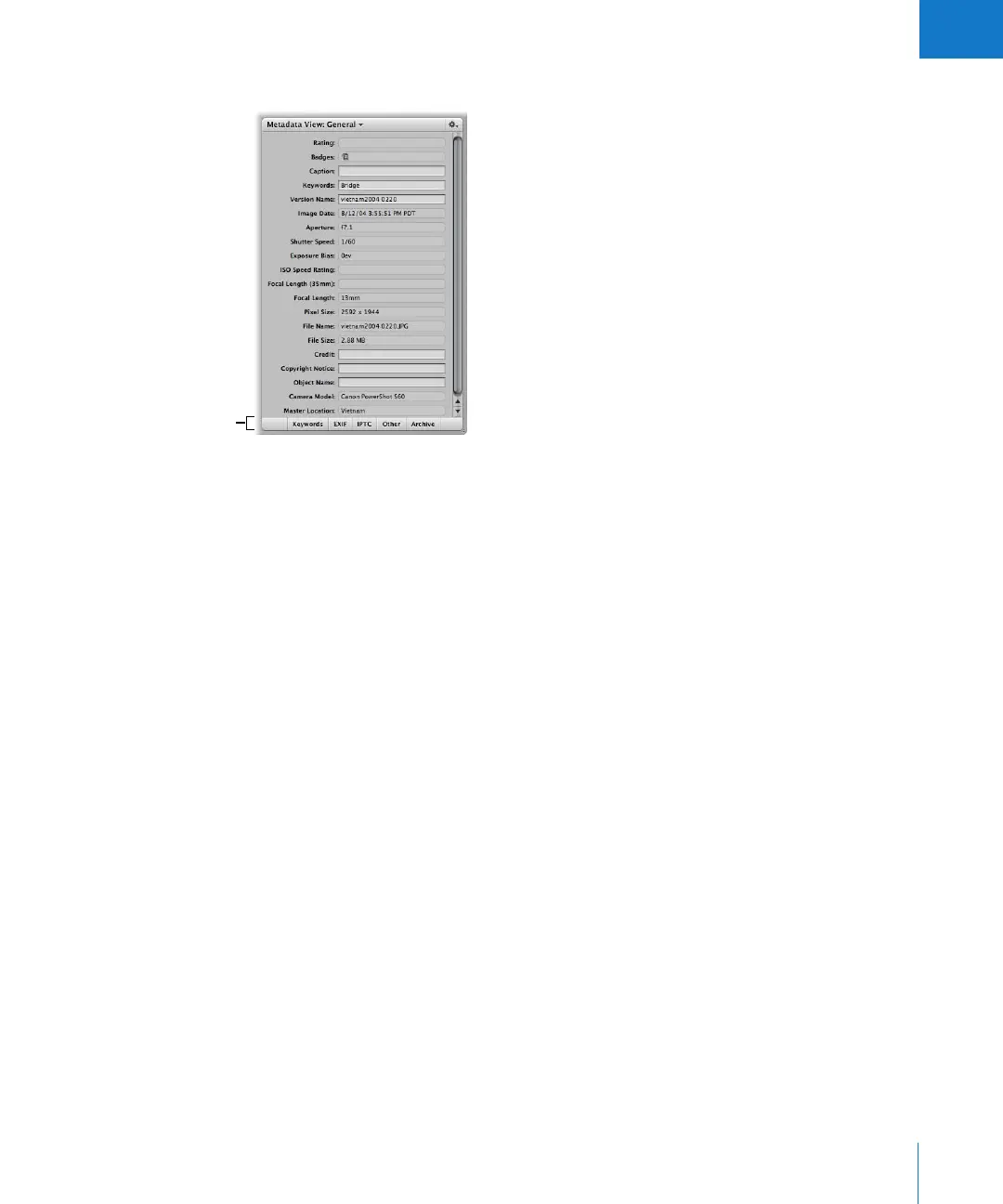
2 Click the Keywords button at the bottom of the Metadata Inspector.
3 In the Browser, select an image to see its keywords.
Any keywords applied to the selected image appear in the Keyword summary area of
the Metadata Inspector.
Viewing Keywords in the Browser in List View
When the Browser is set to list view, Aperture can display a column that shows the
keywords assigned to images.
To view keywords in the Keywords column of the Browser:
1 Choose View > View Options (or press Command-J).
The View Options window appears.
2 In the List View Columns section, select the Set 1 button, if necessary, and choose
Caption & Keywords from the Set 1 pop-up menu, then click Done.
3 To set the Browser to list view, click the List View button (or press Control-L).
The Browser switches from grid view to list view. The keywords for each image appear
in the Keywords column.
Click the Keywords
button to display the
keywords applied to a
selected image.





 To Next Page