320 Part III Distribution and Backup
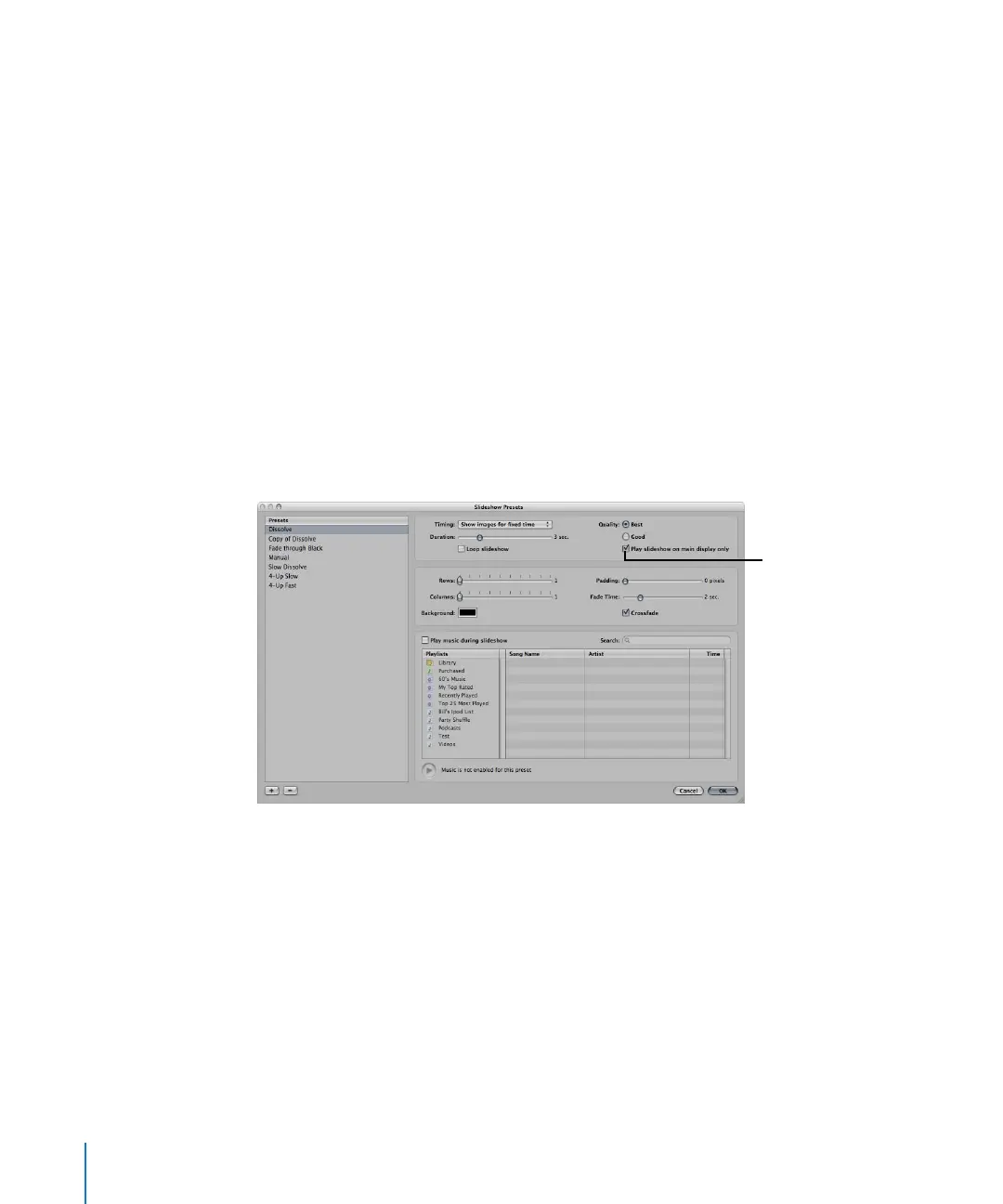
Playing Your Slideshow on Your Main Display Only
Your slideshow automatically plays according to your default display setup. If you use a
dual-display system but want to view a slideshow only on your main display, you can
easily make that change in the Slideshow Presets dialog.
To play your slideshow only on your main display:
1 Select a set of images to be displayed in your slideshow.
2 Choose File > Slideshow (or press Shift-S).
The Run Slideshow dialog appears.
3 Choose Edit from the Slideshow Preset pop-up menu.
The Slideshow Presets dialog appears.
4 Do one of the following:
 Select a slideshow preset to modify.
 Create a new slideshow preset.
5 In the Slideshow Presets dialog, select the “Play slideshow on main display only” checkbox.
6 Click OK.
The Run Slideshow dialog appears.
7 Click Start to begin playing the slideshow presentation.
Select this checkbox.





 To Next Page