Chapter 11 Working with Metadata 237
II
 To add or remove other fields: Click the Other button and select or deselect the
checkboxes for the fields you want to add or remove. You can also create new
metadata fields by entering text in the New Custom Metadata and Metadata Value
fields, and then clicking the Add (+) button. The new metadata field appears in the
Name list, and you can select its checkbox to add it to the metadata view.
 To add or remove information about where and when an image was backed up in a
vault: Click the Archive button and select or deselect the Include in Summary checkbox.
Managing Metadata Views
You can make changes to the list of metadata views that appears in the pop-up menus
in the View Options window and Metadata Inspector.
To arrange the metadata view list:
1 To show the Metadata Inspector, choose Window > Show Metadata (or press Control-D).
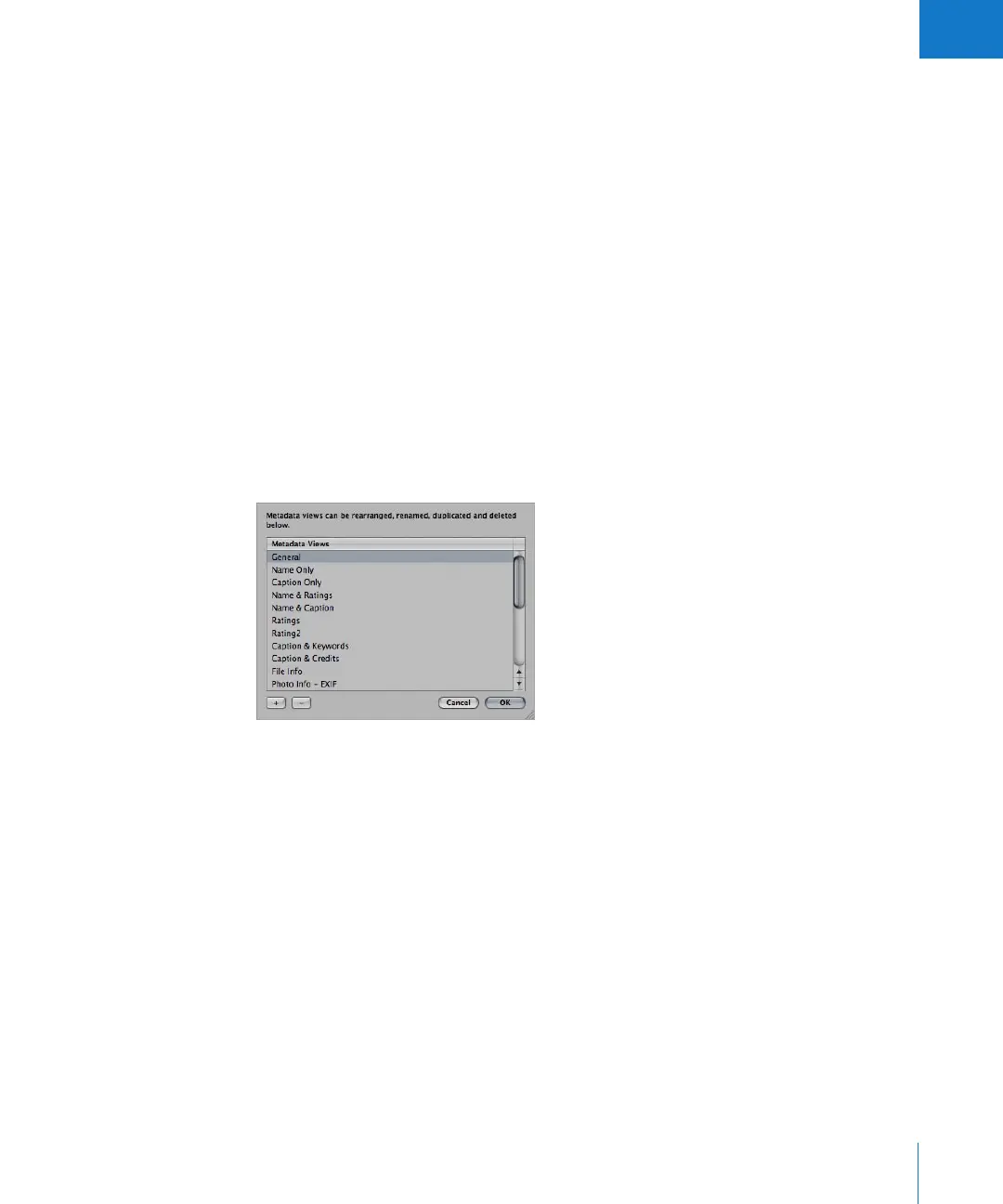
2 Choose Manage Views from the Metadata Action pop-up menu.
3 To rearrange the order of metadata views, drag them to new locations in the Metadata
Views list.
You can also rename, add, or delete metadata views in this dialog.
To rename a metadata view:
m Double-click the metadata view name, then type a new name in the field that appears.
To add a duplicate metadata view:
m Select a metadata view, then click the Add (+) button.
To delete a metadata view:
m Select a metadata view, then click the Delete (–) button.





 To Next Page