214 Part II Photo Editing
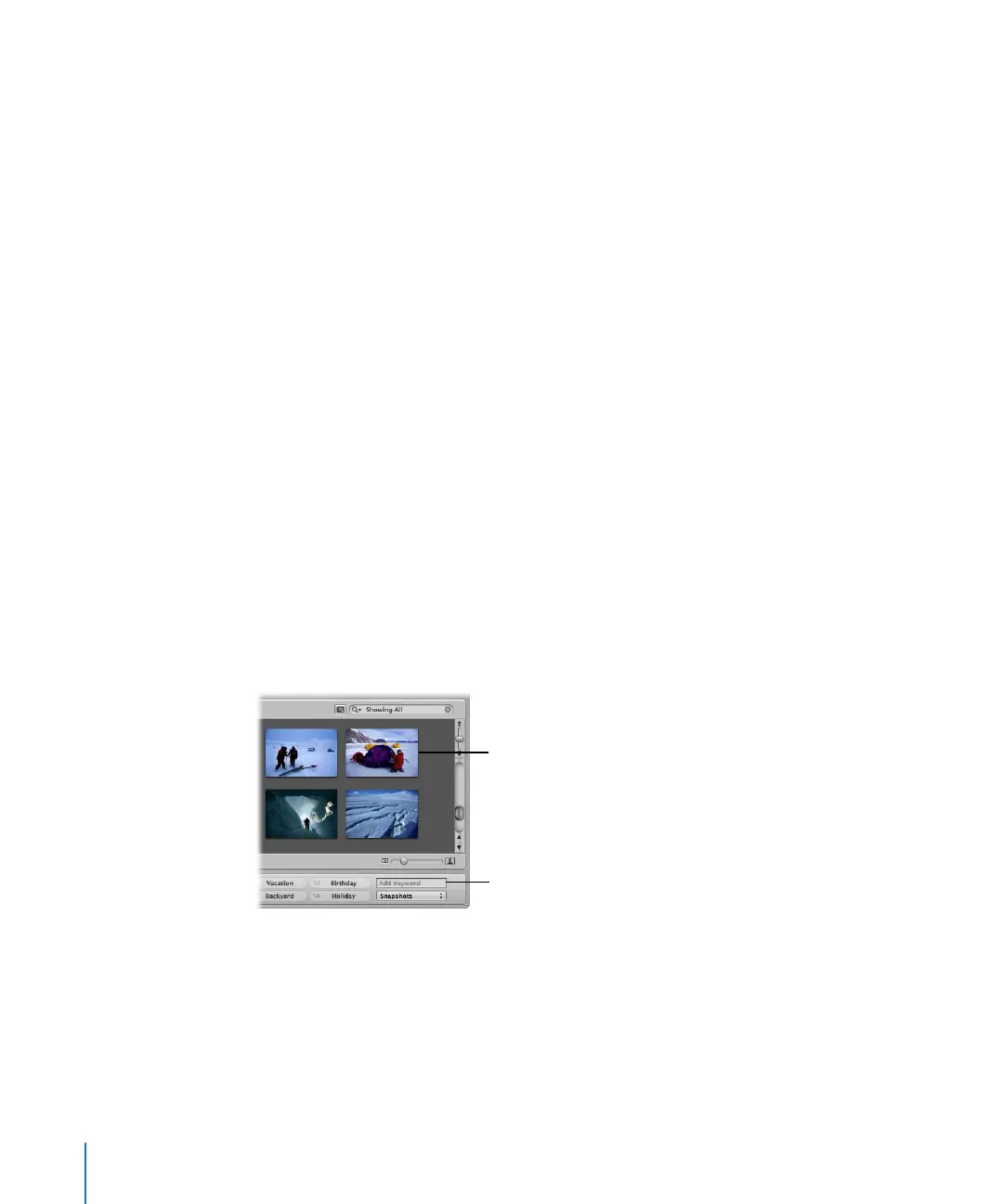
 Add Keyword field: Type a new keyword in this field and press Return to add it to a
selected image. To remove a keyword you’ve just applied, type the keyword again
and press Shift-Return. If the Keywords HUD is locked, you are asked whether you
want to unlock the Keywords HUD and add the keyword to the keyword library, or
not add the keyword to the image.
 Keyword Preset Group pop-up menu: Use this to choose the keyword preset group
you want displayed. The first eight keywords in the group are assigned to the
keyboard shortcut combination Option and a number key from 1 through 8.
Adding Keywords to Images Using Keyword Controls
You can easily add a preset keyword to an image.
To add a preset keyword to an image:
1 Select the image to which you want to assign a keyword.
2 Do one of the following:
 Choose Metadata > Add Keyword, then choose the keyword you want from
the submenu.
 Press Option and a number key from 1 to 8 to assign one of the first eight keywords.
 Click a keyword button in the control bar.
You can also easily apply a new keyword that’s not part of your keyword library.
To apply a new keyword using the keyword controls:
1 In the Browser, select an image or group of images.
2 In the control bar, type the new keyword in the Add Keyword field, then press Return.
The keyword you entered is now applied to the image or group of images.
To view keywords applied to images, see “Viewing Keywords Applied to Images” on
page 202.
Select the image to
which you want to apply
a new keyword.
Enter your keyword in
this field, then press
Return.





 To Next Page