60 Part I Interface and Acquisition
Light Table
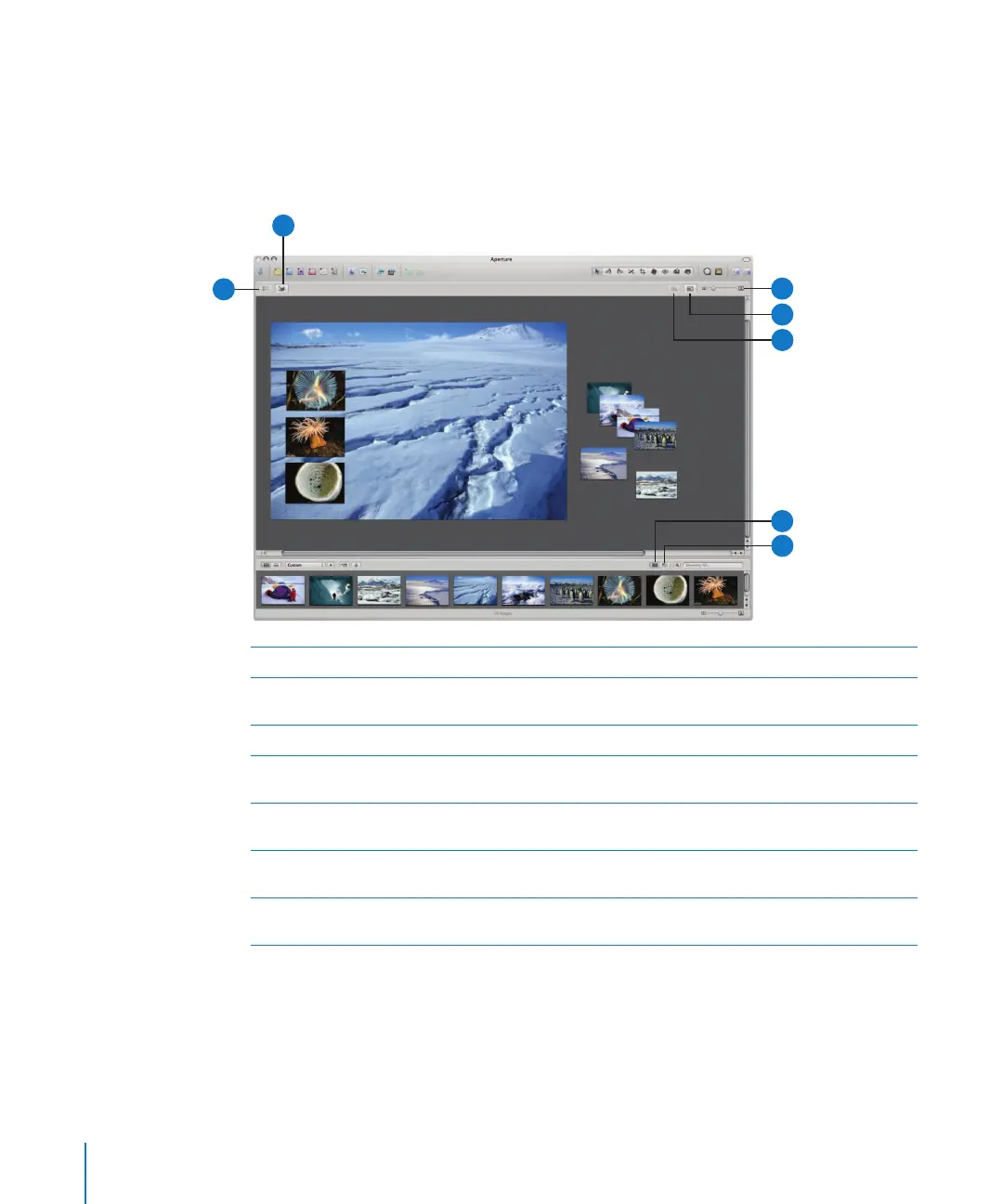
The Light Table provides an open workspace where you can freely arrange images. You
can use the Light Table to review and compare images, create mockups of webpages,
compare color values in a selection of images before applying color corrections, or do
anything else that involves viewing and comparing your images.
To learn more about the Light Table, see Chapter 17, “Using the Light Table,” on page 323.
A
Put Back button Click this button to remove a selected image from the Light Table.
B
Uncover button Click this button to reveal images that are covered by other images
in the Light Table.
C
Light Table Zoom slider Drag the Light Table Zoom slider to change the Light Table’s size.
D
Scale to Fit All
Items button
Click this button to fit the entire Light Table on your screen.
E
Navigator button When the Light Table is larger than your screen, click this button to
reposition your view on another area of the Light Table.
F
Show All Images button Click this button to see the entire contents of the Light Table album
in the Browser.
G
Show Unplaced
Images button
Click this button to see only images in the Browser that are not yet
placed in the Light Table.
A
B
C
D
E
F
G





 To Next Page