244 Part II Photo Editing
Displaying Images with Badge Overlays
Badge visibility is determined by the metadata view that is displayed. You can control
whether badges are visible by choosing a metadata view that includes badge
overlays; you can also control whether badge overlays are visible by turning metadata
views on or off.
Important: Badge overlays appear only in the Aperture application; they do not appear
on images exported or printed from Aperture.
To display badge overlays on images in the Viewer:
1 Choose View > View Options (or press Command-J).
The View Options window appears.
2 Select the Viewer checkbox.
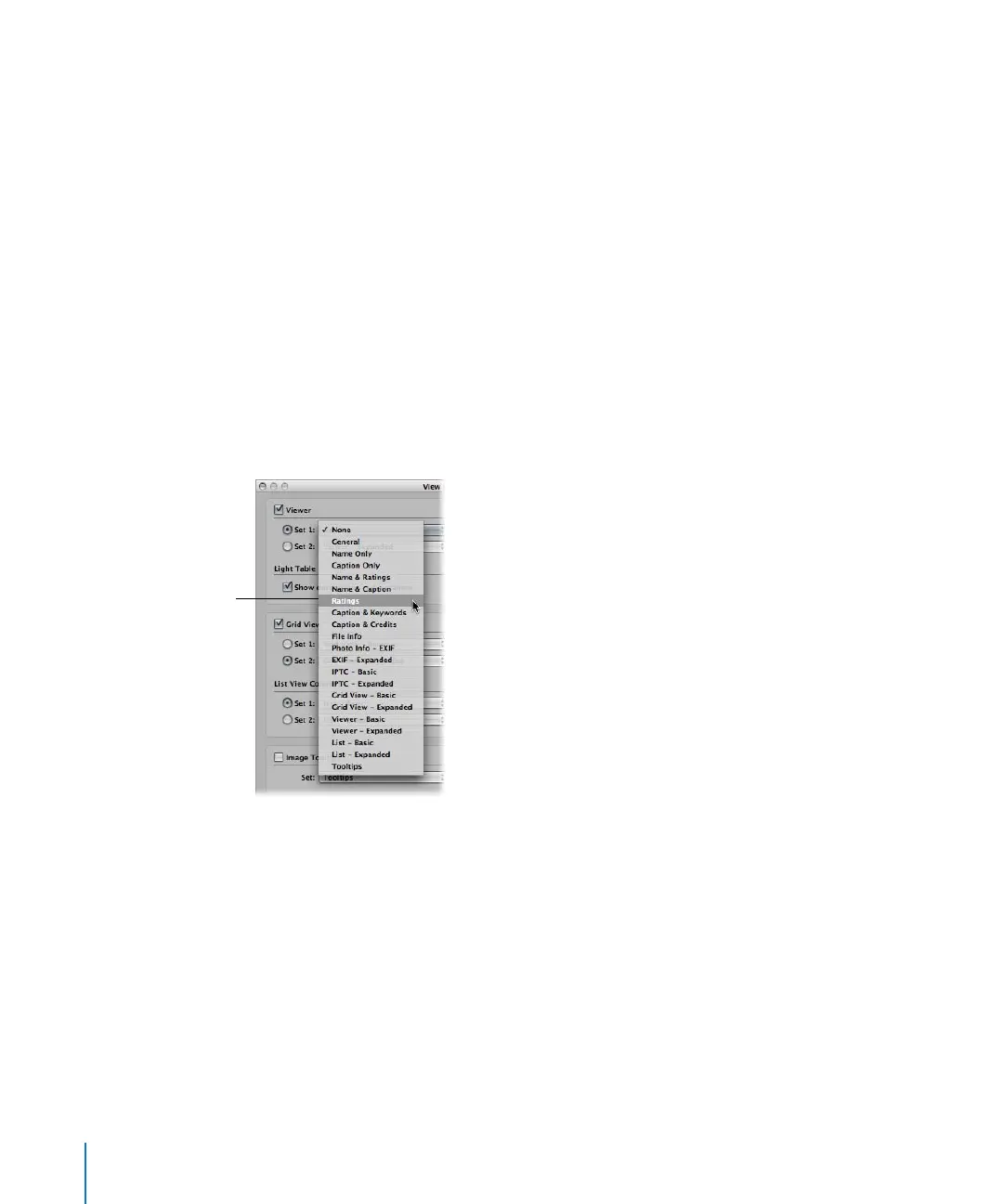
3 From the Viewer Set 1 pop-up menu, choose a metadata view that includes badge
overlays. Some examples are General and Ratings, as well as Viewer-Basic and
Viewer-Expanded.
4 Click Done.
Badges are now visible in the Viewer.
You can turn off the display of badge overlays in the Viewer by turning off the display
of metadata. For more information, see “Turning the Display of Metadata On or Off”
on page 231.
Choose a metadata view
that includes badge
overlays from the Set 1
pop-up menu.





 To Next Page