238 Part II Photo Editing
Working with Metadata Presets
You can create your own preset combinations of metadata that you want applied to
images. You create a preset by first choosing a metadata view that displays the types of
metadata you want to apply. You can also create a custom view if you want. You then
add the metadata you want to apply to the view’s metadata fields, and save the
information as a metadata preset. Your metadata preset is then available to be chosen
when you import images, batch change images, or modify an image’s metadata in the
Metadata Inspector. Aperture also provides easy methods of managing your presets.
Creating Metadata Presets
You can create new metadata presets that apply different combinations of metadata.
To create a new metadata preset:
1 To show the Metadata Inspector, choose Window > Show Metadata (or press Control-D).
2 Choose the metadata view that you want to use for the preset from the Metadata View
pop-up menu.
3 Enter the metadata you want applied to your images in the metadata fields.
4 Choose Save as Preset from the Metadata Action pop-up menu.
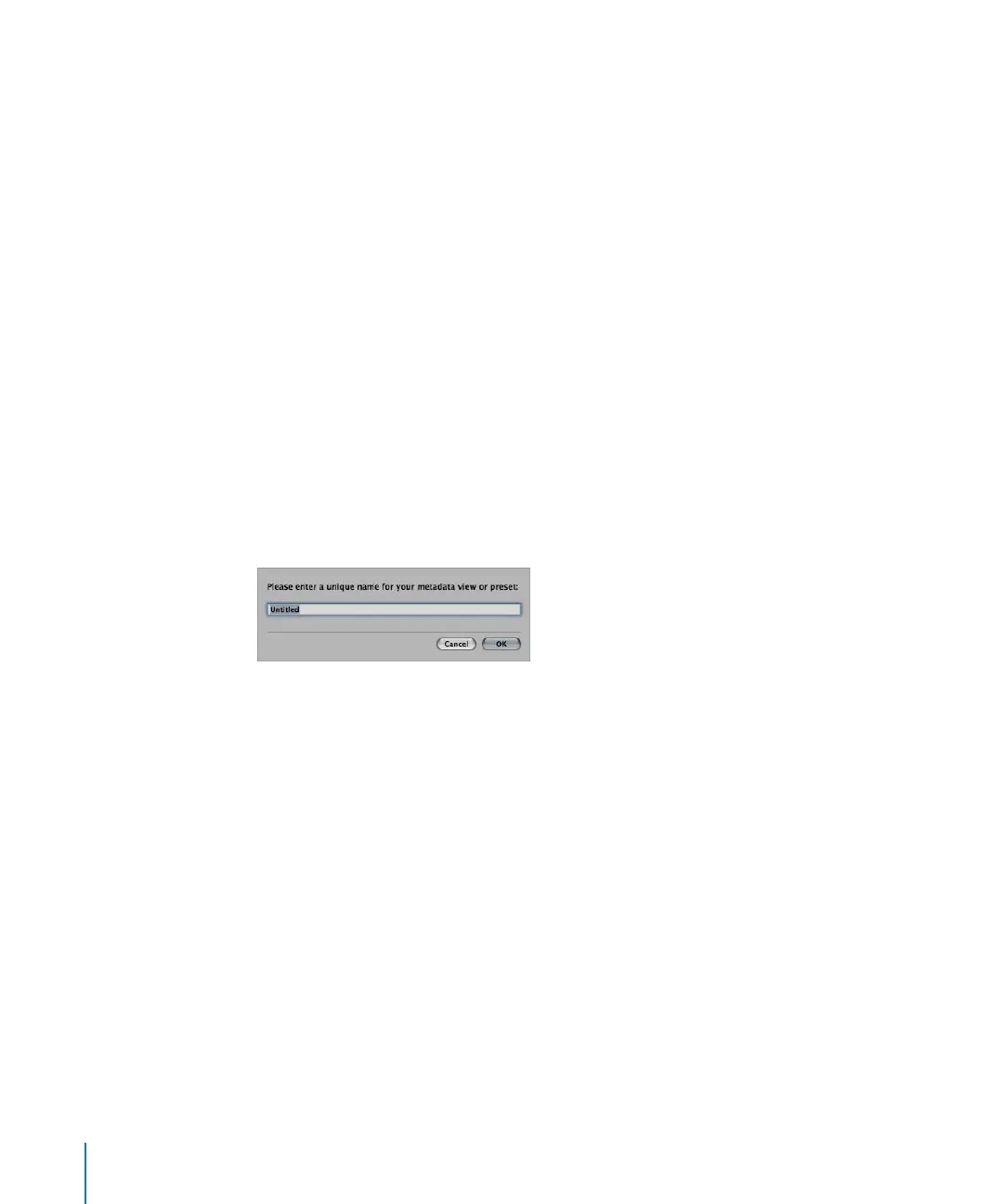
5 In the dialog that appears, enter a name for the new metadata preset, then click OK.
The new metadata preset now appears under the Append with Preset and Replace
with Preset commands in the Metadata Action pop-up menu.
To modify an existing metadata preset:
1 To show the Metadata Inspector, choose Window > Show Metadata (or press Control-D).
2 Choose the metadata view that you want to use for the preset from the Metadata View
pop-up menu.
3 Choose Replace with Preset from the Metadata Action pop-up menu, then choose the
preset you want to modify.
4 Enter the changes you want in the metadata fields in the Metadata Inspector.
5 Choose Save as Preset from the Metadata Action pop-up menu.
6 Give the metadata preset a new name, then click OK.
If you want, you can delete the previous metadata preset or rename presets by
choosing Manage Presets from the Metadata Action pop-up menu.





 To Next Page