58 Part I Interface and Acquisition
Web Journal Controls
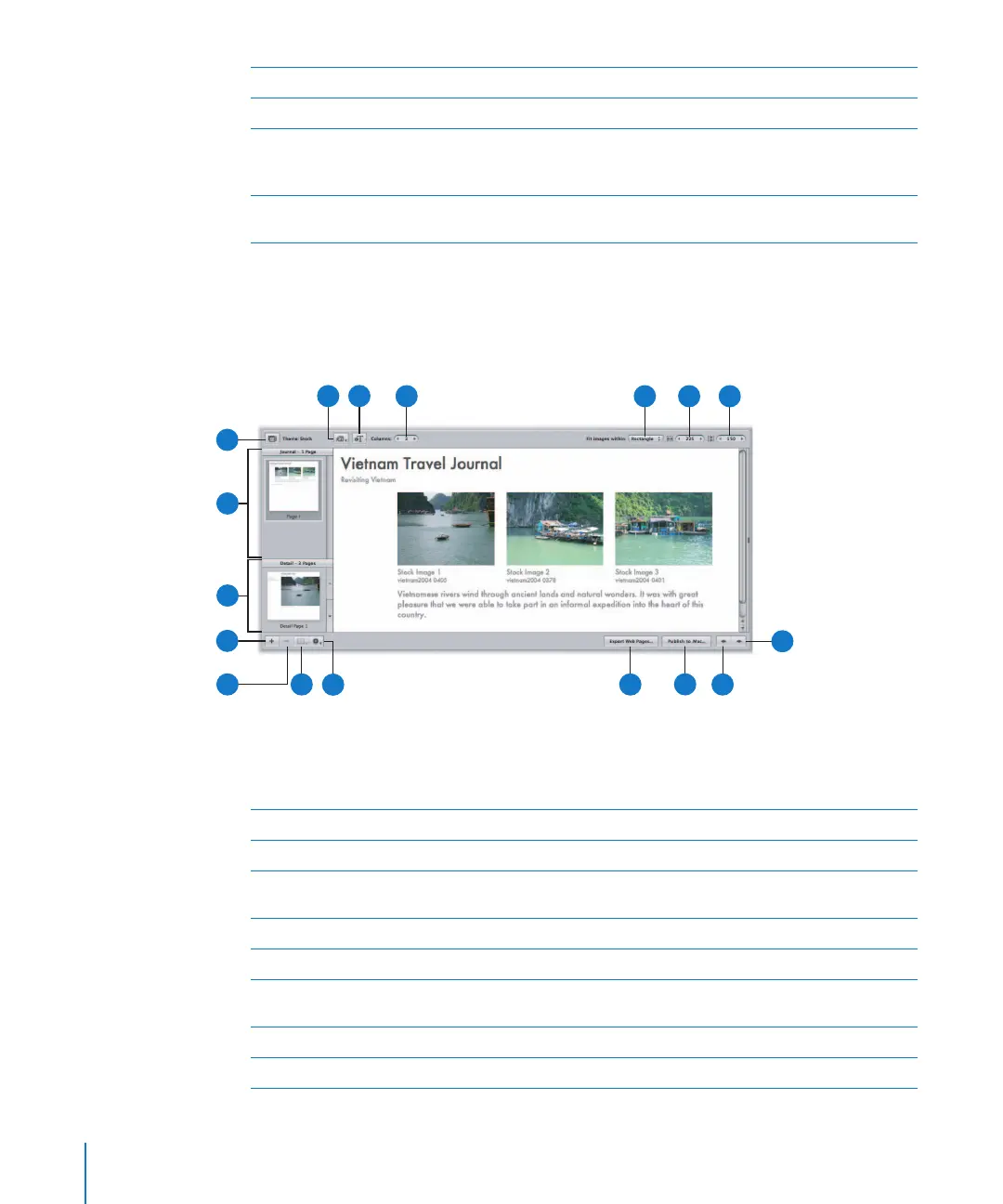
You can also create journal-style webpages, mixing paragraphs of text and images, to
display on the web. When working with a web journal, you can manually arrange
images and text on the page.
To work with a web journal in the Webpage Editor, select a web journal album in the
Projects panel, and select a page to view from the thumbnail pages on the left side.
When the selected page appears, you can add and arrange images and text.
J
Next Page button Click this button to go to the next web gallery page.
K
Previous Page button Click this button to go to the previous web gallery page.
L
Publish to .Mac button Click this button to publish your finalized webpages to your .Mac
account. For more information, see “Exporting to .Mac” on
page 348.
M
Export Web Pages
button
Click this button to export your webpages. For more information,
see “Exporting Webpages as HTML Files” on page 350.
B
C
A
D
F
G
H
I
J
O
P
M
N
Q
E
K
L
A
Remove Page button Click this button to remove a selected page from your web journal.
B
Add Page button Click this button to add a page to your web journal.
C
Detail Images panel Click the thumbnail image in this panel to see the enlarged version
of a selected image.
D
Journal Pages panel Select a page’s thumbnail in this panel to see the enlarged version.
E
Site Theme button Click this button to choose a theme, or layout, for your webpage.
F
Metadata View
pop-up menu
Choose a metadata view to use with the webpage images from
this pop-up menu.
G
Add Text Box button Click this button to add a text box to the current webpage.
H
Columns value slider Specify the number of columns you want on a page.





 To Next Page