Chapter 17 Using the Light Table 325
III
Creating a Light Table Album
To view images in the Light Table, you first create a Light Table album. You can create a
new empty album and drag or import images into it, or select images in a project and
create a Light Table album to hold them.
To create a new, empty Light Table album:
1 In the Projects panel, select Library or the project where you want the new Light Table
album to appear.
2 Do one of the following:
 Choose File > New > Light Table.
 Control-click in the Projects panel, then choose New > Light Table from the
shortcut menu.
 Choose New Empty Light Table from the Add to Library pop-up menu in the
Projects panel.
A new, untitled Light Table album appears.
3 Enter a new name for the Light Table album.
Now you can drag or import images into the new Light Table album.
To create a Light Table album that holds a selection of images:
1 In the Browser, select the images you want in the Light Table album.
2 Do one of the following:
 Choose File > New From Selection > Light Table.
 Control-click in the Projects panel, then choose New From Selection > Light Table
from the shortcut menu.
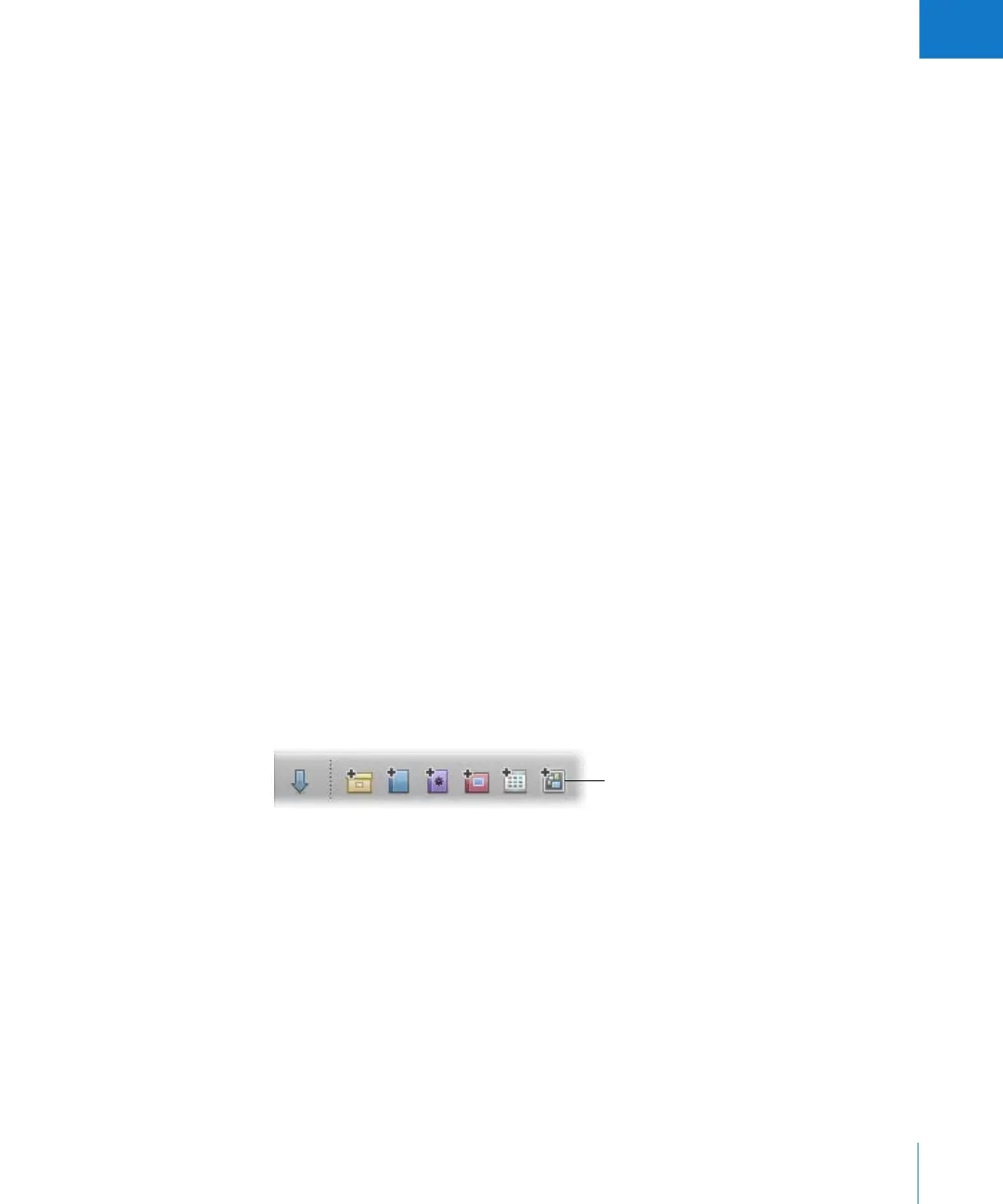
 Click the New Light Table Album button.
 In the Projects panel, choose New Light Table From Selection from the Add to Library
pop-up menu.
A new, untitled Light Table album appears with the selected images in it.
3 Enter a new name for the Light Table album.
You can now begin placing images in the Light Table.
Click this button to create a
new Light Table album.





 To Next Page