Chapter 2 The Aperture Interface 49
I
Adjustments Inspector
You can use controls in the Adjustments Inspector to apply, edit, and remove image
adjustments. Controls in the Adjustments Inspector are grouped according to the type
of image adjustment they perform. You can see the controls for an adjustment by
clicking its disclosure triangle.
To show the Adjustments Inspector, do one of the following:
m Choose Window > Show Inspectors (or press I) to open the Inspectors panel.
m Double-click an image in the Browser to open the Inspectors panel.
m Choose Window > Show Adjustments (or press Control-A).
A
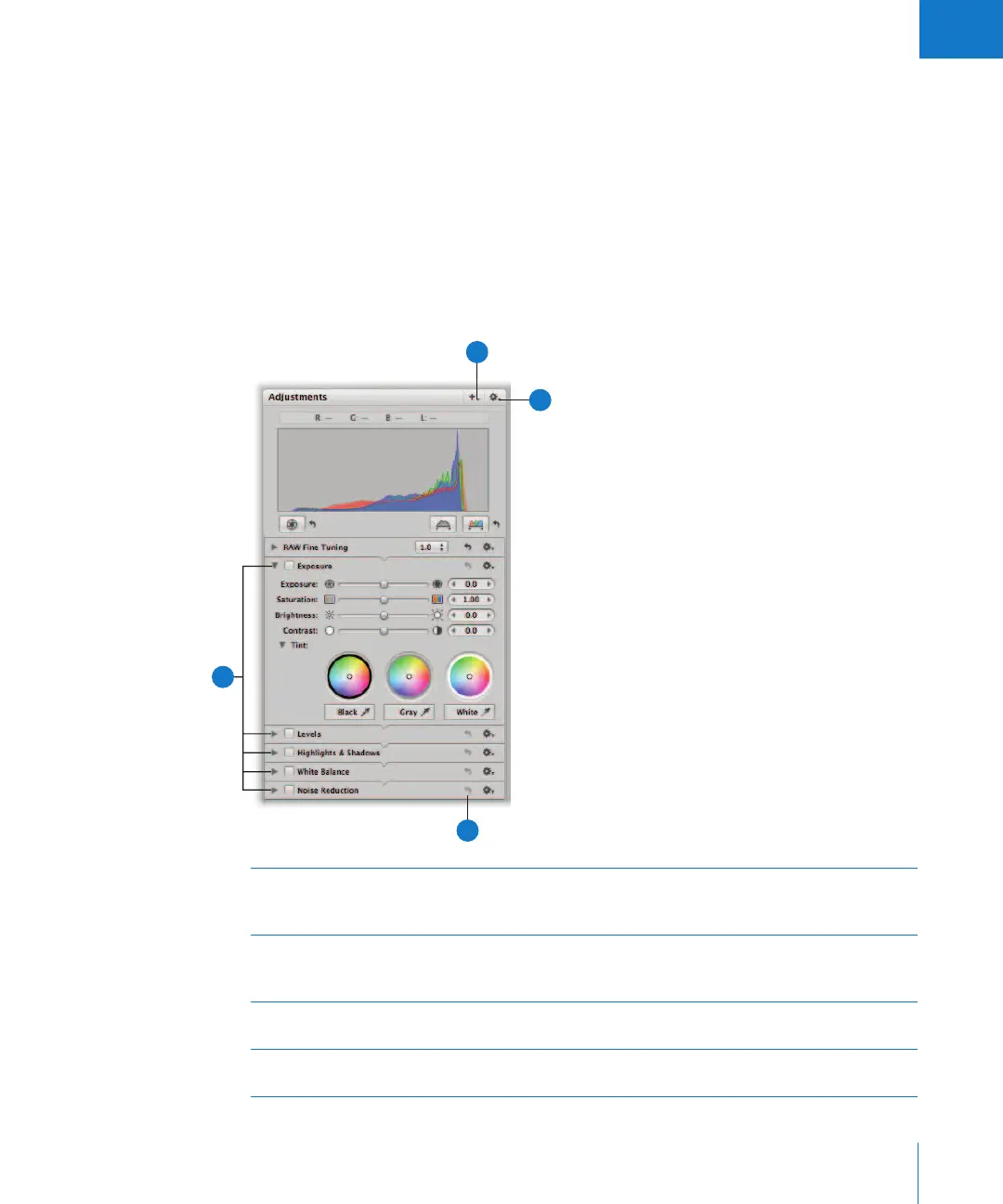
Adjustments Click the disclosure triangle for an adjustment to view its controls.
Select the checkbox for an adjustment to apply changes using the
adjustment controls.
B
Add Adjustments
pop-up menu
Choose the types of adjustments you want to apply to an image
from this pop-up menu. When you choose an adjustment, its
controls appear in the Adjustments Inspector.
C
Adjustment Action
pop-up menu
Choose a histogram view and remove selected or all
adjustments made.
D
Reset button Click the Reset button for an adjustment to reset the controls to
their default settings.
B
C
A
D





 To Next Page