252 Part II Photo Editing
To show the Query HUD, do one of the following:
m Choose Edit > Find (or press Command-F).
m Click the Query HUD button (with a magnifying glass icon) beside the search field in
the Browser.
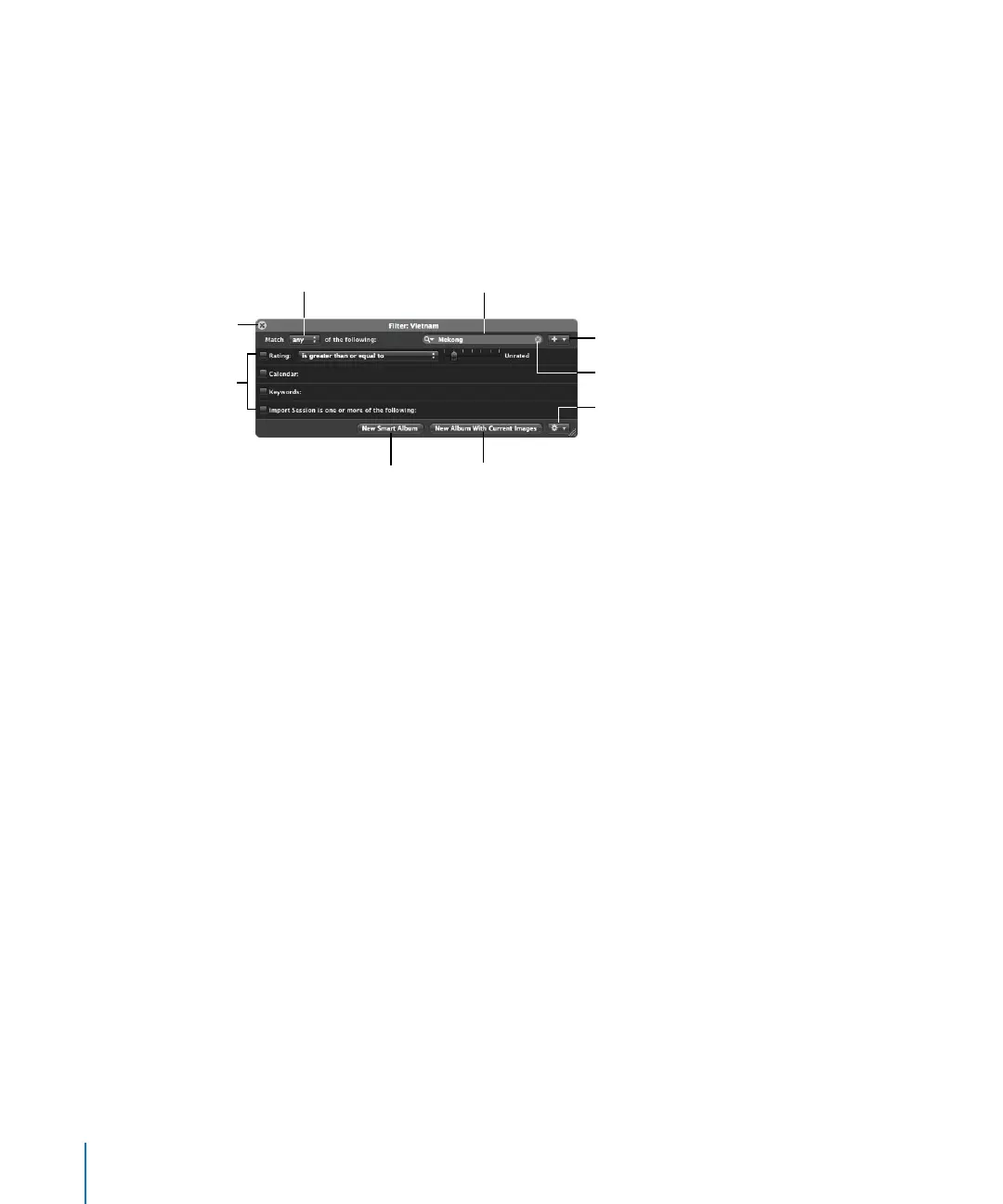
Controls in the Query HUD
The Query HUD has the following controls:
 Close button: Click this button to close the Query HUD.
 Match pop-up menu: Choose whether the image should match any of the search
criteria or all the criteria that are marked by selected checkboxes.
 Search field: Enter the text you want to search for. Click the search field’s Reset
button (with an X) to clear the search field.
 Add Filter pop-up menu: Choose additional search criteria, such as date, EXIF and IPTC
information, text, rating, and other metadata.
 Search criteria: Select checkboxes for categories and specify what you want to search
for, such as ratings, keywords, and dates.
 New Smart Album: Click this button to create a new Smart Album based on the
search criteria. For more information, see Chapter 13, “Grouping Images
with Smart Albums,” on page 267.
 New Album With Current Images: Click this button to create a new album containing
images that match the current search criteria.
 Query HUD Action pop-up menu: Create a new Light Table, book, web gallery,
Smart Web Gallery, or web journal album containing images that match the
current search criteria.
Close button
Match pop-up menu
Add Filter pop-up menu
Search field
Search criteria
New Smart Album
button
New Album With
Current Images button
Query HUD Action
pop-up menu
Reset button





 To Next Page