332 Part III Distribution and Backup
Printing a Light Table Arrangement
After arranging your images, you can print the image arrangement for further review.
To print a Light Table arrangement:
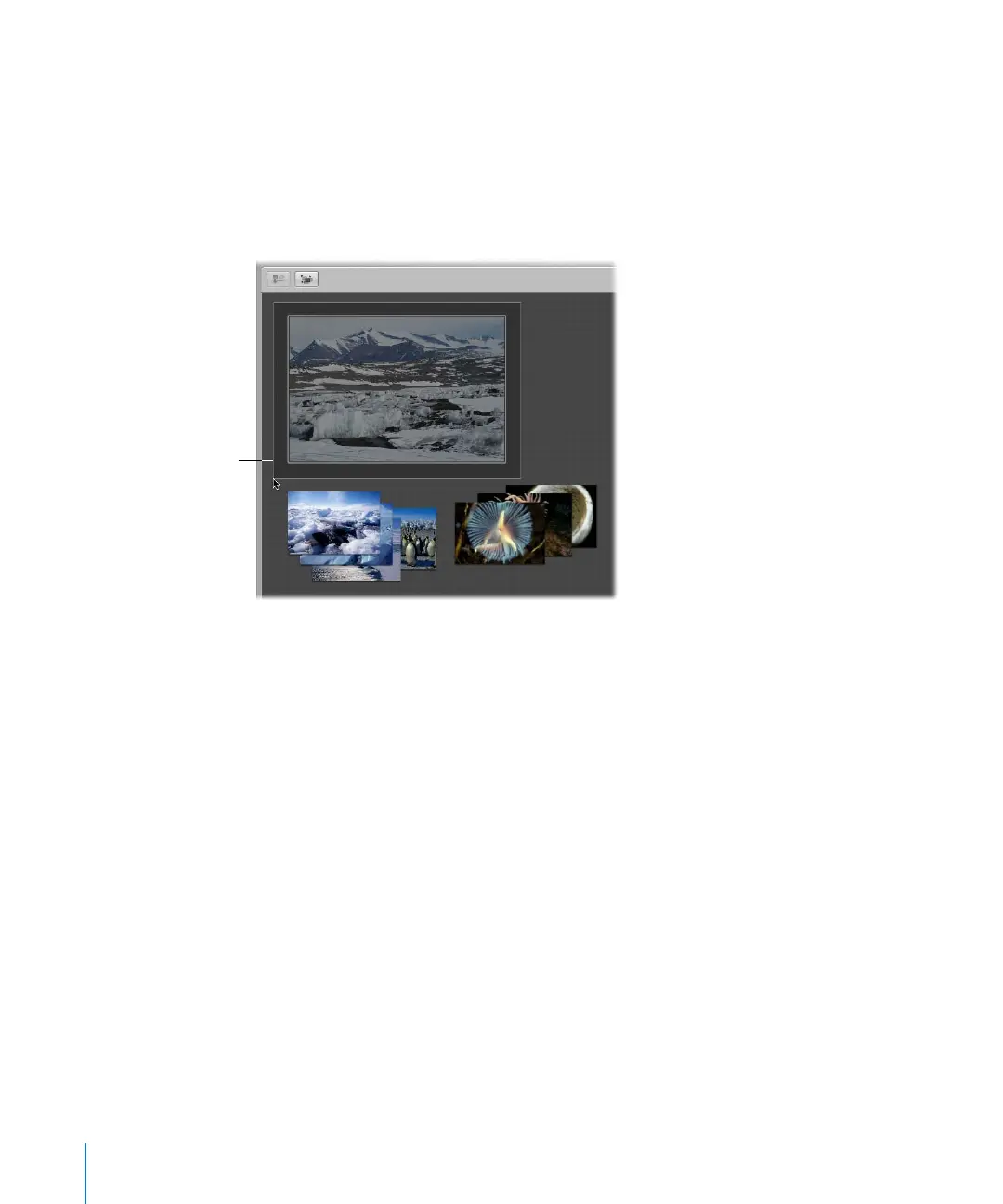
1 Select the images in the Light Table that you want to print by dragging a selection
rectangle around them.
If no images are selected, the entire Light Table is printed.
2 Choose File > Print Light Table (or press Command-Option-P).
3 In the Print dialog, specify your print options, then click Print.
For more information, see Chapter 14, “Printing Your Images,” on page 277.
Deleting a Light Table Album
You can quickly delete an entire Light Table album. If you’ve transferred images from
the Light Table album to other projects or albums, the images in the other projects and
albums remain unchanged, even though the Light Table versions are gone.
To delete a Light Table album:
1 Select the Light Table album in the Projects panel.
2 Choose File > Delete Light Table (or press Command-Delete).
Drag a selection
rectangle around the
images you want
to print.




 To Next Page