Chapter 15 Exporting Your Images 297
III
6 Choose a name format for your files from the Name Format pop-up menu.
7 When you’re ready to export files, click Export Versions.
The dialog shows the progress of the export. The images you selected are exported to
the location you specified.
Setting Image Resolution When Exporting
You can set the image resolution you want for exported images in the Export Presets
dialog in two ways: by specifying a dpi setting or by specifying image dimensions (in
inches). First you select an export preset in the Export Presets dialog, and then you
specify the resolution you want used with that preset. When exporting images, you
choose the export preset that has the resolution setting you want.
To specify the dpi setting for exported images in an export preset:
1 Select the image or images you want to export.
2 Choose File > Export > Export Version (or press Command-Shift-E).
3 Navigate to the location where you want the exported images placed.
4 Choose Edit from the Export Preset pop-up menu.
The Export Presets dialog appears.
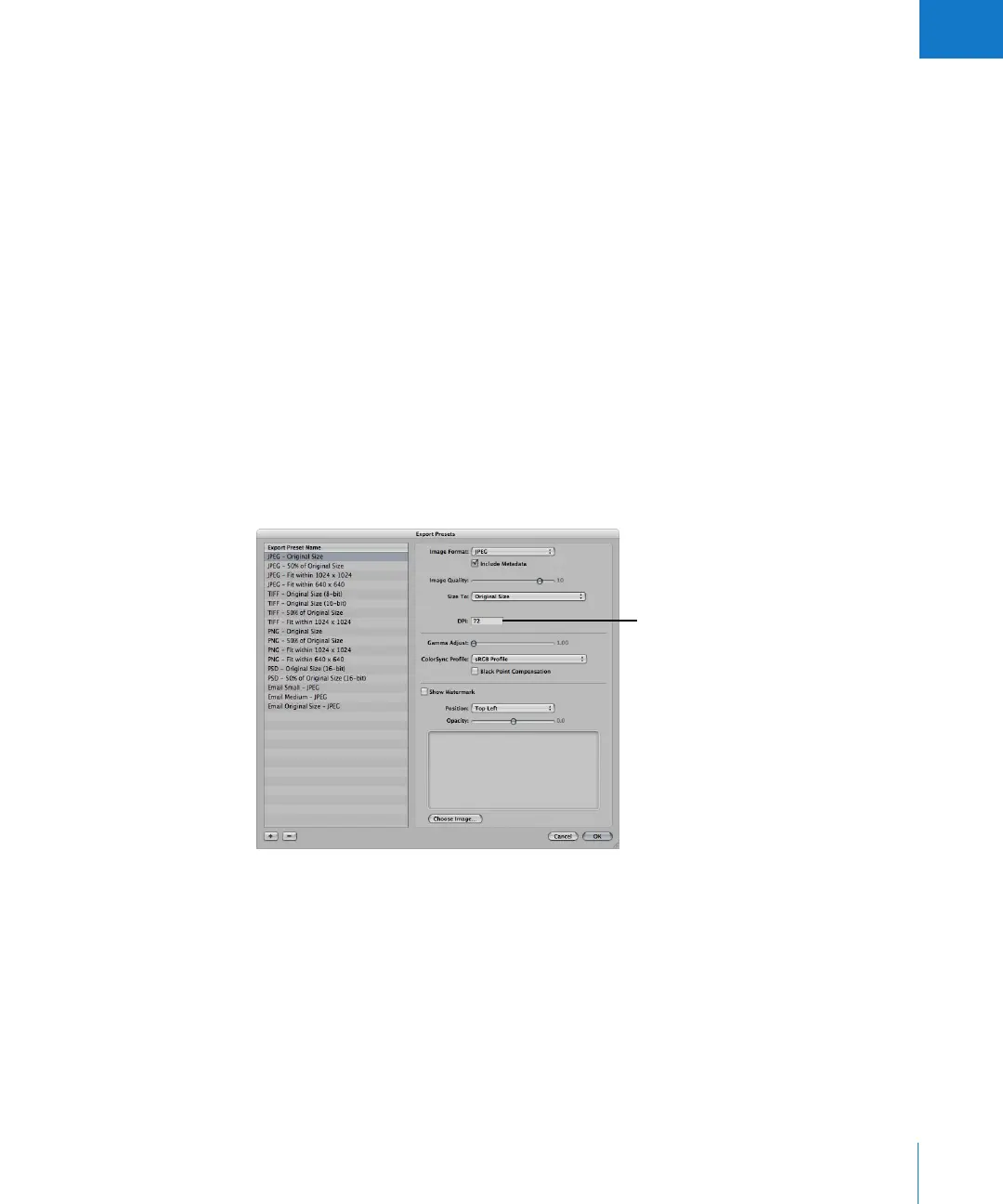
5 Select an export preset, then enter the dpi setting you want.
6 Specify additional settings as necessary, then click OK.
7 Choose a name format from the Export Name Format pop-up menu, then click Export.
Enter a dpi setting for
exported images here.





 To Next Page