Chapter 2 The Aperture Interface 43
I
To learn more about using the Browser and Viewer, see Chapter 5, “Working with
Images in the Browser,” on page 119 and Chapter 6, “Displaying Images in the Viewer,”
on page 145.
Control Bar
The control bar contains buttons and controls you can use to rotate, rate, and navigate
through images, as well as apply keywords to them. It runs across the bottom of the
Aperture main window. If you don’t need the control bar, you can hide it by choosing
Window > Hide Control Bar (or press D).
Display Controls
G
Shuttle control Use the Shuttle control to quickly move through your
image thumbnails.
H
Scroll bar Use the scroll bar to scroll through your image thumbnails.
I
Thumbnail Resize slider Use the Thumbnail Resize slider to quickly change the size of your
image thumbnails.
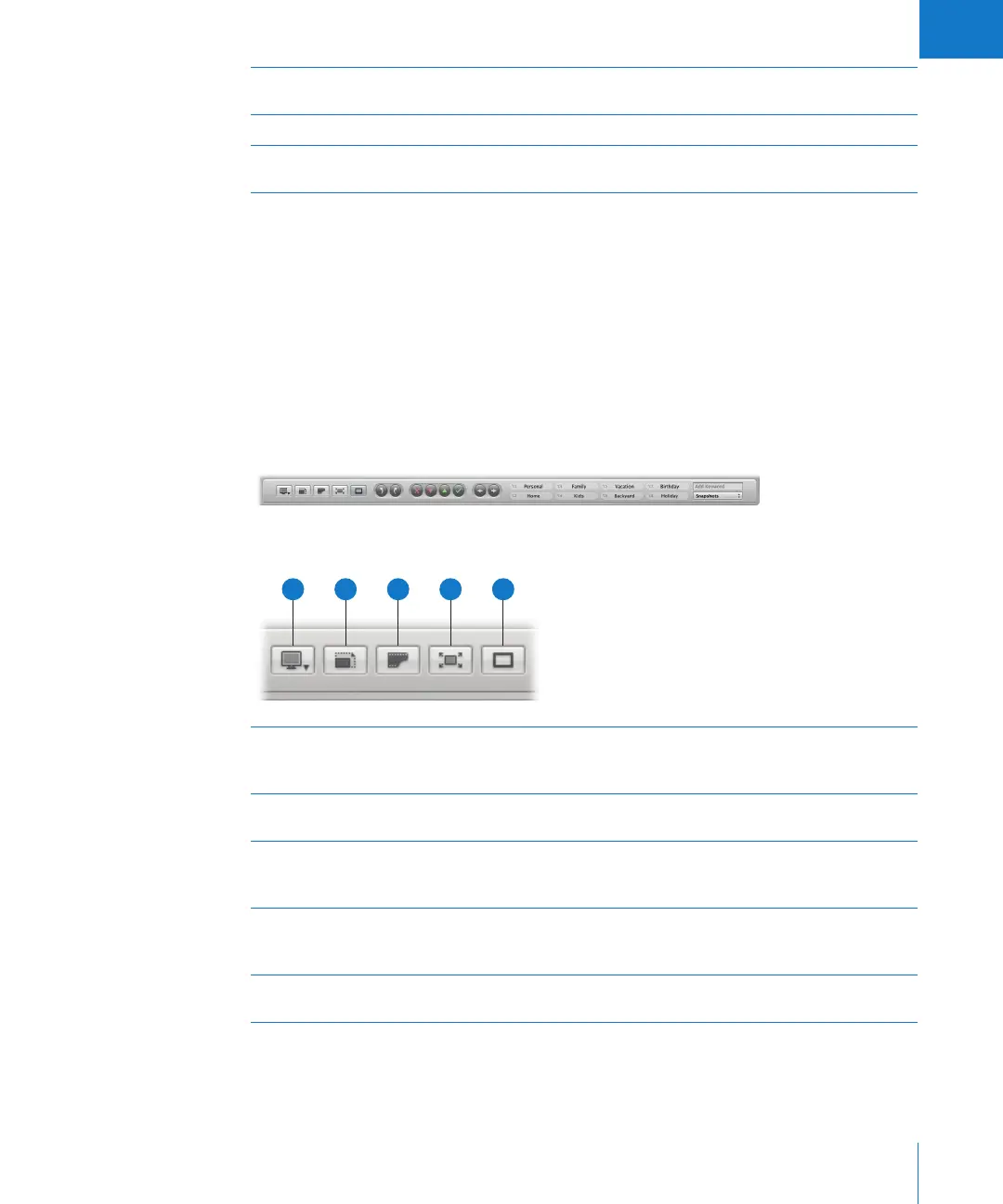
A
Viewer Mode
pop-up menu
Choose how to view your images and arrange your displays from
this pop-up menu. For more information, see Chapter 6, “Displaying
Images in the Viewer,” on page 145.
B
Zoom Viewer button Click this button to move between viewing an image at actual size
and fitting the image to the Viewer’s screen size.
C
Show Master Image
button
Click this button to view the original digital master file without any
applied adjustments. Click again to switch the view back to the
current version.
D
Full Screen button Click this button to switch to Full Screen mode. For more
information, see Chapter 7, “Viewing Images in Full Screen Mode,”
on page 163.
E
Primary Only button Click this button to temporarily change between making metadata
changes to all selected images or the primary selection only.
A
B
C
D
E





 To Next Page