262 Part II Photo Editing
4 Choose “any” from the Match pop-up menu, if it’s not already chosen.
The images that match the search criteria are displayed in the Browser. To save your
search results, see “Saving Your Search Results” on page 265.
Searching by File Status
You can also search for images using their file status. For example, you can search for
images that are referenced images, managed images, and online or offline images.
To search for images by file status, you use the File Status search options.
To search for images by file status:
1 In the Projects panel, select a project or an album you want to search.
2 Show the Query HUD by doing one of the following:
 Choose Edit > Find (or press Command-F).
 Click the Query HUD button beside the search field in the Browser.
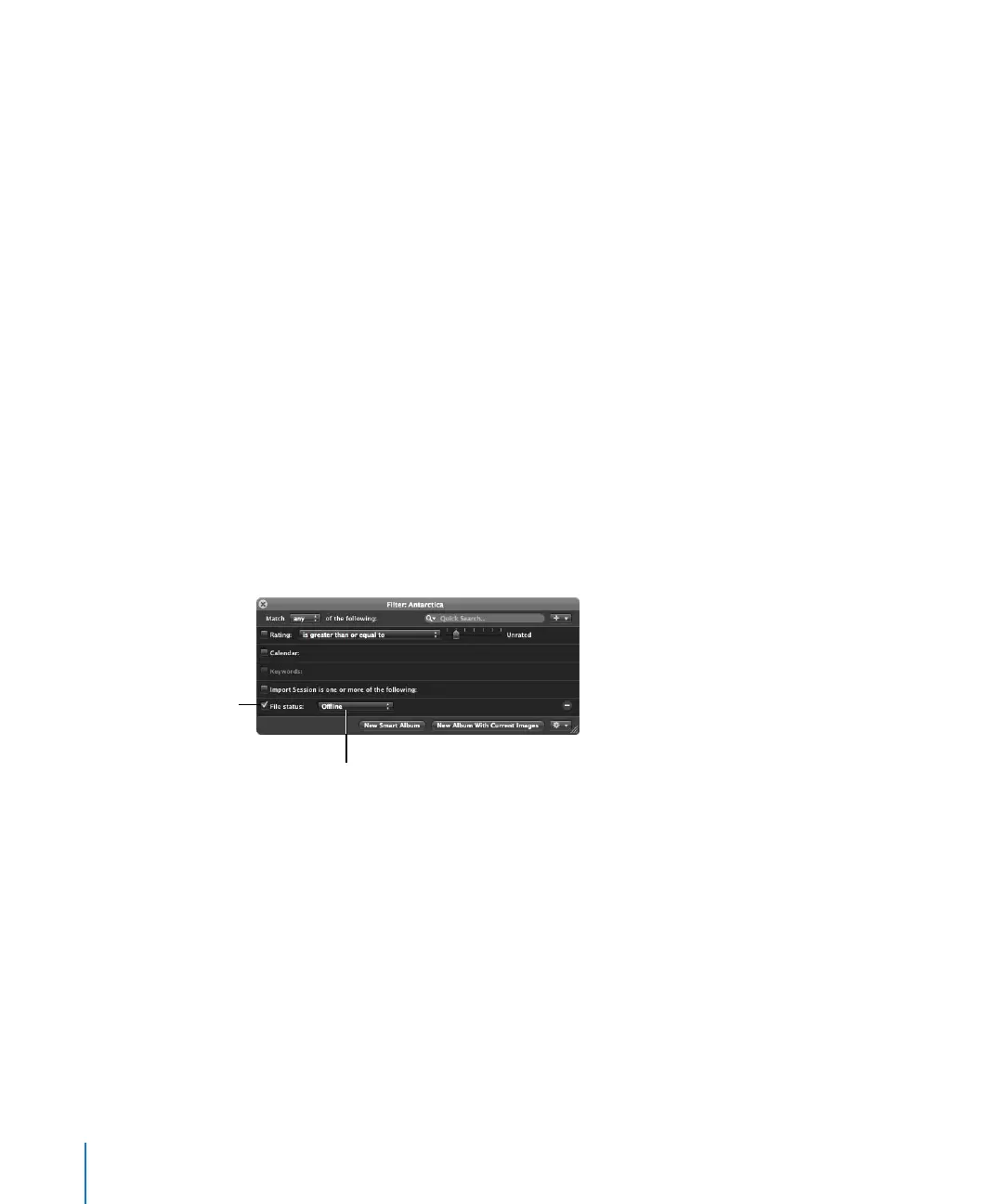
3 In the Query HUD, choose File Status from the Add Filter pop-up menu, and select the
“File status” checkbox.
4 Deselect any checkboxes that aren’t part of your query, and choose the search criteria
from the File Status pop-up menu.
5 Choose “any” from the Match pop-up menu, if it’s not already chosen.
The images that match the search criteria are displayed in the Browser. To save your
search results, see “Saving Your Search Results” on page 265.
Select the “File status”
checkbox.
Choose the file status you
want to search for.





 To Next Page