Chapter 7 Viewing Images in Full Screen Mode 169
II
Working with the Toolbar in Full Screen Mode
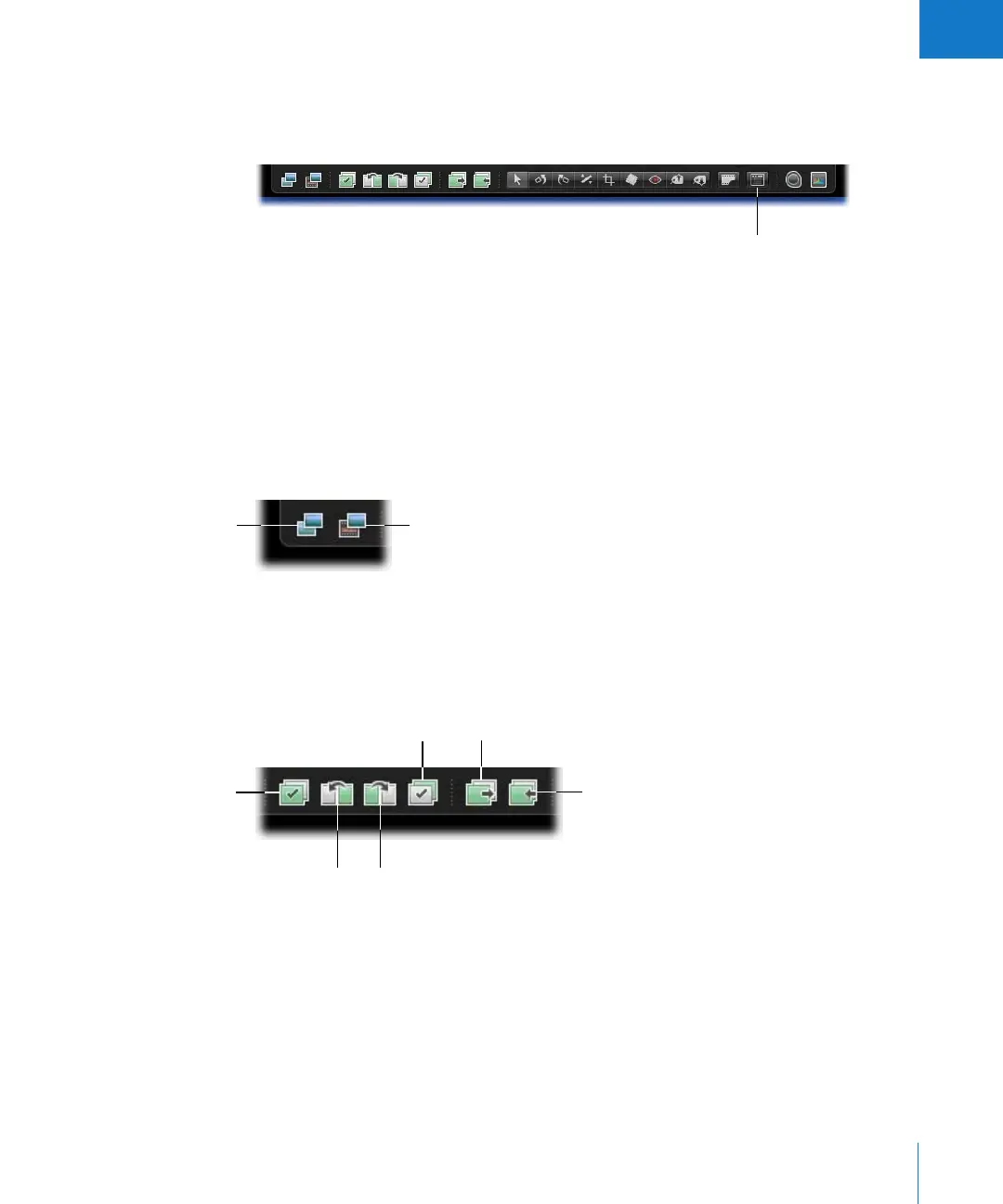
The toolbar displayed in Full Screen mode is similar to the toolbar in the Aperture
main window.
To view the Full Screen mode toolbar:
m In Full Screen mode, move the pointer to the top of your primary screen.
You can also have the toolbar always appear on the screen by clicking the Always Show
Toolbar button.
You can use the toolbar’s buttons and tools to create image versions, work with stacks,
and make a variety of adjustments to your images.
Version Buttons
 Duplicate Version: Click this button to create a new version of the selected image.
 New Version From Master: Click this button to create a version from the original
master file. A duplicate of the master file is created.
Stacking Buttons
 Stack Pick: Select a stack item, then click this button to mark the image as its stack’s pick.
 Promote: Select a stack item, then click this button to move the selected stack item
closer to the stack’s pick.
 Demote: Select a stack item, then click this button to move the selected stack item
farther from the stack’s pick.
Always Show Toolbar
Duplicate Version
New Version From Master
Close All Stacks
Stack Pick
Demote
Album Pick Open All Stacks
Promote





 To Next Page