170 Part II Photo Editing
 Album Pick: Select an image version to represent a stack, then click this button to
select the image as the pick within that particular album (the stack can have a
different pick image in another album).
 Open All Stacks: Click this button to open all the image stacks in the album or project
you’re viewing.
 Close All Stacks: Click this button to close all the image stacks in the album or project
you’re viewing.
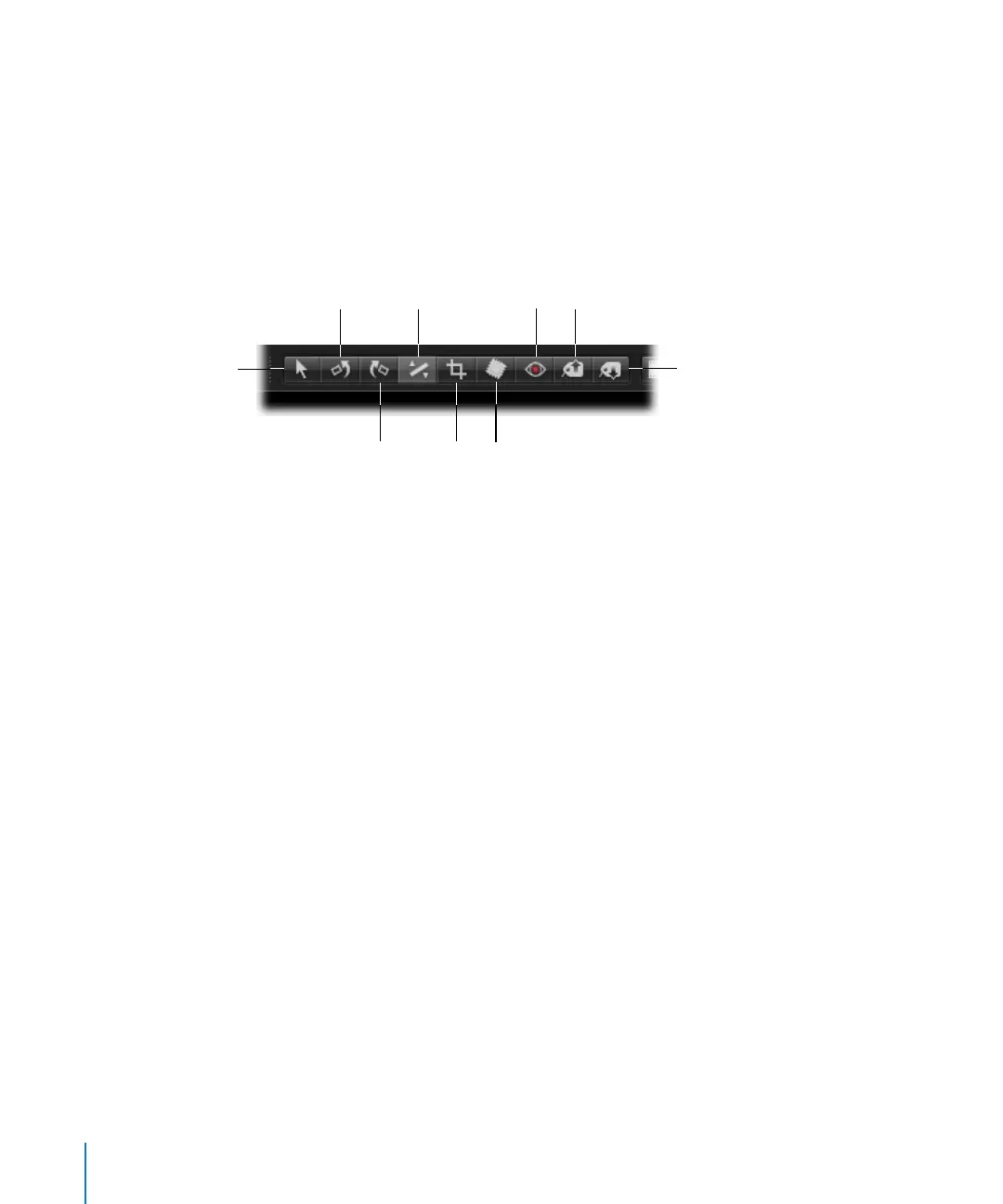
Adjustment Tools
 Selection: Use this tool to select images.
 Rotate Left: Use this tool to rotate an image counterclockwise.
 Rotate Right: Use this tool to rotate an image clockwise.
 Straighten: Use this tool to manually rotate an image so that it’s straight in relation to
a virtual horizon.
 Crop: Use this tool to crop an image to a constrained aspect ratio or custom dimension.
 Spot & Patch: Removes imperfections in the image, such as sensor dust, by either
copying the pixels around the blemish (“spotting”) or copying pixels from another
area of the image (“patching”).
 Red Eye: Use this tool to correct red-eye, occurring when the subject’s retinas reflect
light from your camera’s flash.
 Lift: Use this tool to copy a set of metadata and adjustments from a selected image.
 Stamp: Use this tool to stamp, or apply, a copied set of adjustments to one or
several images.
Selection
Stamp
Rotate Left
Crop
Lift
Rotate Right
Spot & Patch
Straighten
Red Eye





 To Next Page