56 Part I Interface and Acquisition
Page Display Controls
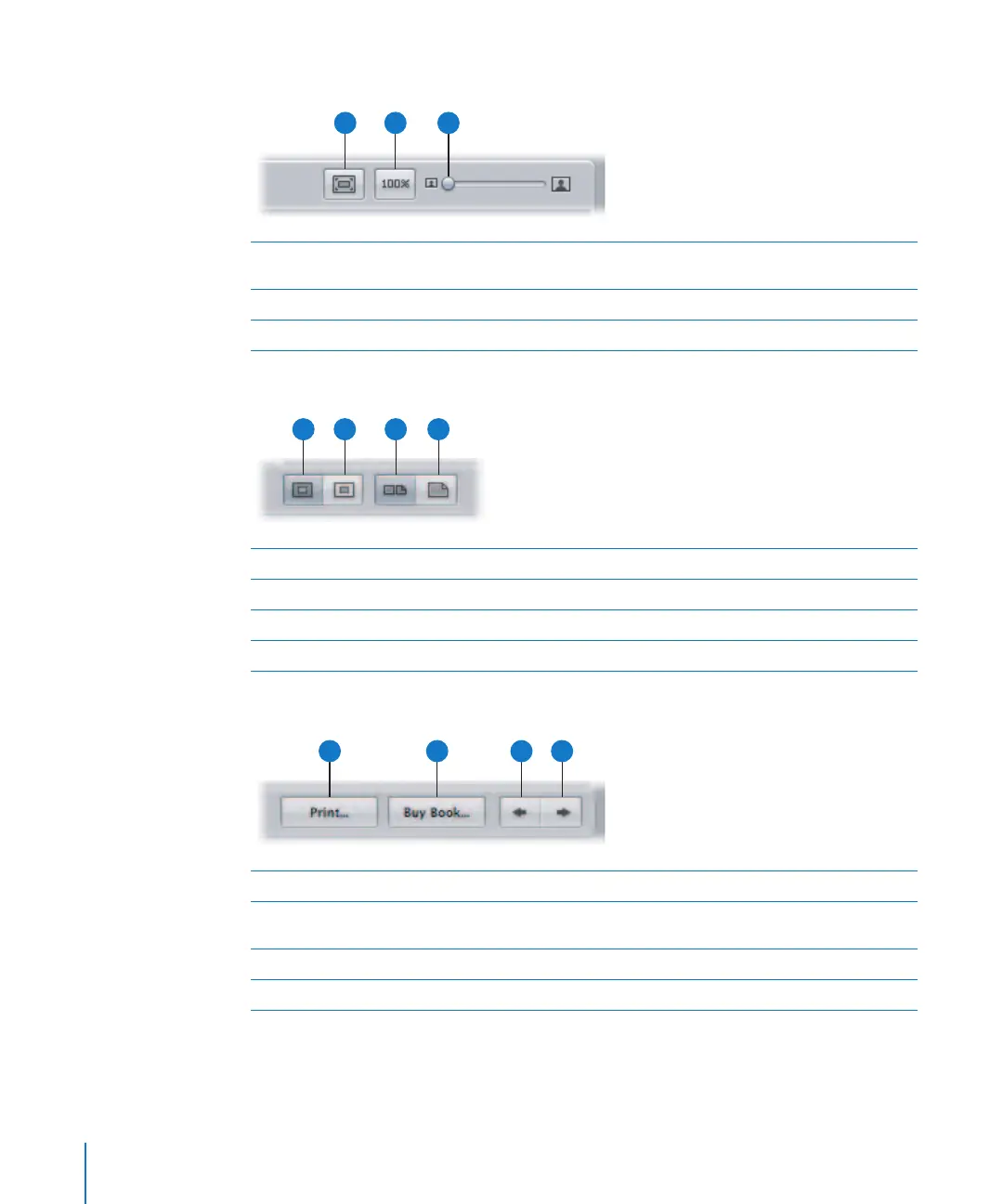
Cover and Page Display Buttons
Printing and Page Navigation Buttons
To learn more about creating books, see Chapter 19, “Creating Books,” on page 357.
A
Scale To Fit button Click this button to scale the display of your pages to fit the Book
Layout Editor screen size.
B
Actual Size button Click this button to view the selected page at its actual size.
C
Display Size slider Drag this slider to increase or decrease the size of the page.
A
B
C
A
Large Hardcover Click this button to choose a large hardcover book format.
B
Large Softcover Click this button to choose a large softcover book format.
C
Show Full Spreads Click this button to display two facing pages.
D
Show Single Pages Click this button to display single pages.
A
B
C
D
A
Print Click this button to print your book’s pages.
B
Buy Book Click this button to purchase a printed copy of your book from
Apple’s print vendor.
C
Previous Page Click this button to go to the previous page of your book.
D
Next Page Click this button to go to the next page of your book.
A
B
C
D





 To Next Page