Chapter 2 The Aperture Interface 55
I
Book Layout Controls
Text, Metadata, and Photo Box Buttons
C
Theme button Click this button to choose a theme and layout for your book’s pages.
D
Edit Content button Click this button to change images or edit text on your pages.
E
Edit Layout button Click this button to change the page layout, moving and resizing
text, metadata, and photo boxes on pages.
F
Book Action
pop-up menu
Choose options to reflow the images in a book, add an index and
page numbers, or add and change the look of text, metadata, and
photo boxes from this pop-up menu.
G
Set Master Page
pop-up menu
Choose the master page you want to apply to a selected page from
this pop-up menu.
H
Delete Pages button Click this button to delete one or several selected pages from
your book.
A
Text Style
pop-up menu
Choose the style of text you want for a selected text box using this
pop-up menu.
B
Metadata Format
pop-up menu
Choose the type of metadata you want to display with your images
from this pop-up menu.
C
Photo Filter
pop-up menu
Choose a filter to change the look of images. For example, you might
apply filters that change an image to black and white or sepia.
A
B
C
A
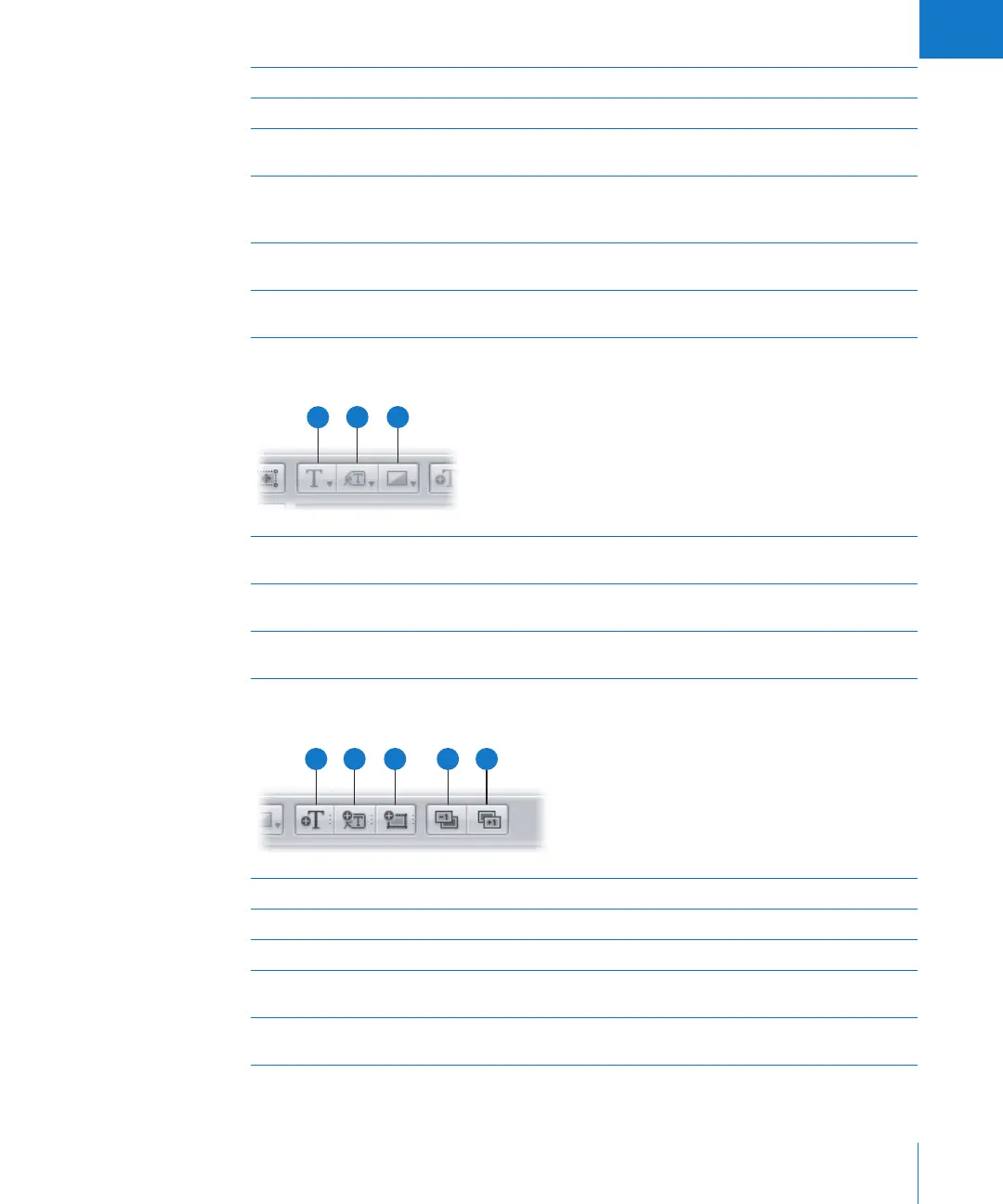
Add Text Box Click this button to add a text box to the page.
B
Add Metadata Box Click this button to add a metadata box to the page.
C
Add Photo Box Click this button to add a photo box to the page.
D
Send Backward Click this button to move a selected box backward in the stacking
order of overlapping text or image boxes.
E
Bring Forward Click this button to move a selected box forward in the stacking
order of overlapping text or image boxes.
A
B
C
D
E





 To Next Page